178
5
Editing and Printing Images
4
Press the 4 button.
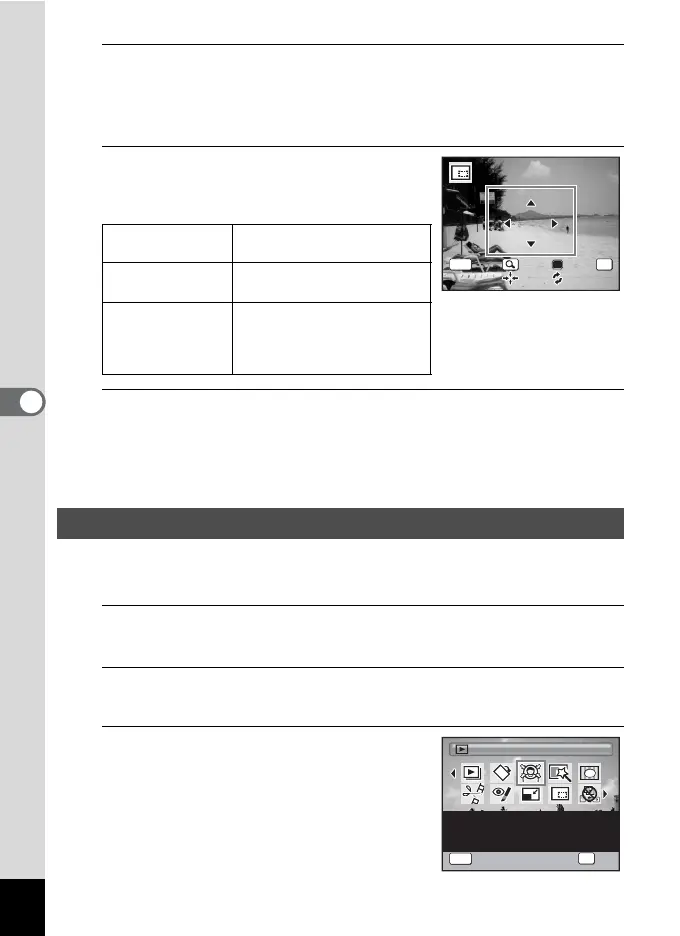
The cropping screen appears.
The largest size of the cropped image is shown with a green frame on the
screen. The cropped image cannot be larger than this cropping frame size.
5
Choose the cropping area.
The following operations move the green frame
and set the area for cropping on the screen.
6
Press the 4 button.
The cropped image is saved with a new file name.
The number of recorded pixels is selected automatically according to
the size of the cropped image.
Images are processed to reduce the size of people’s faces detected with the
Face Detection function (p.70) when taking pictures so that they look smaller.
1
In Q mode, use the four-way controller (45) to
choose the image you want to edit.
2
Press the four-way controller (3).
The Playback Mode Palette appears.
3
Use the four-way controller
(2345) to select N (Small Face
Filter).
e-dial Changes the size of the
cropping frame.
Four-way controller
(
2345
)
Moves the cropping frame
up, down, left and right
9 button Rotates the cropping frame
•
The button is only displayed
when the cropping frame
can be rotated.
Processing Images So That Faces Look Smaller
OKMENU
Cancel OK
OK
Small Face Filter
OK
OK
MENU
Cancel
Reduces the size of faces
in the image, for well-
proportioned portraits
1/2


 To Next Page