3-11
3 • Running Mail
SV62261 Rev. C
Processing Flats, Packages, or Non-Letter Mail
If your mail piece is too thick to pass through the feeder (non-Letter
size), you can use a tape strip to print the indicia on, then apply it to
your mail piece.
Printing a Single Tape Strip
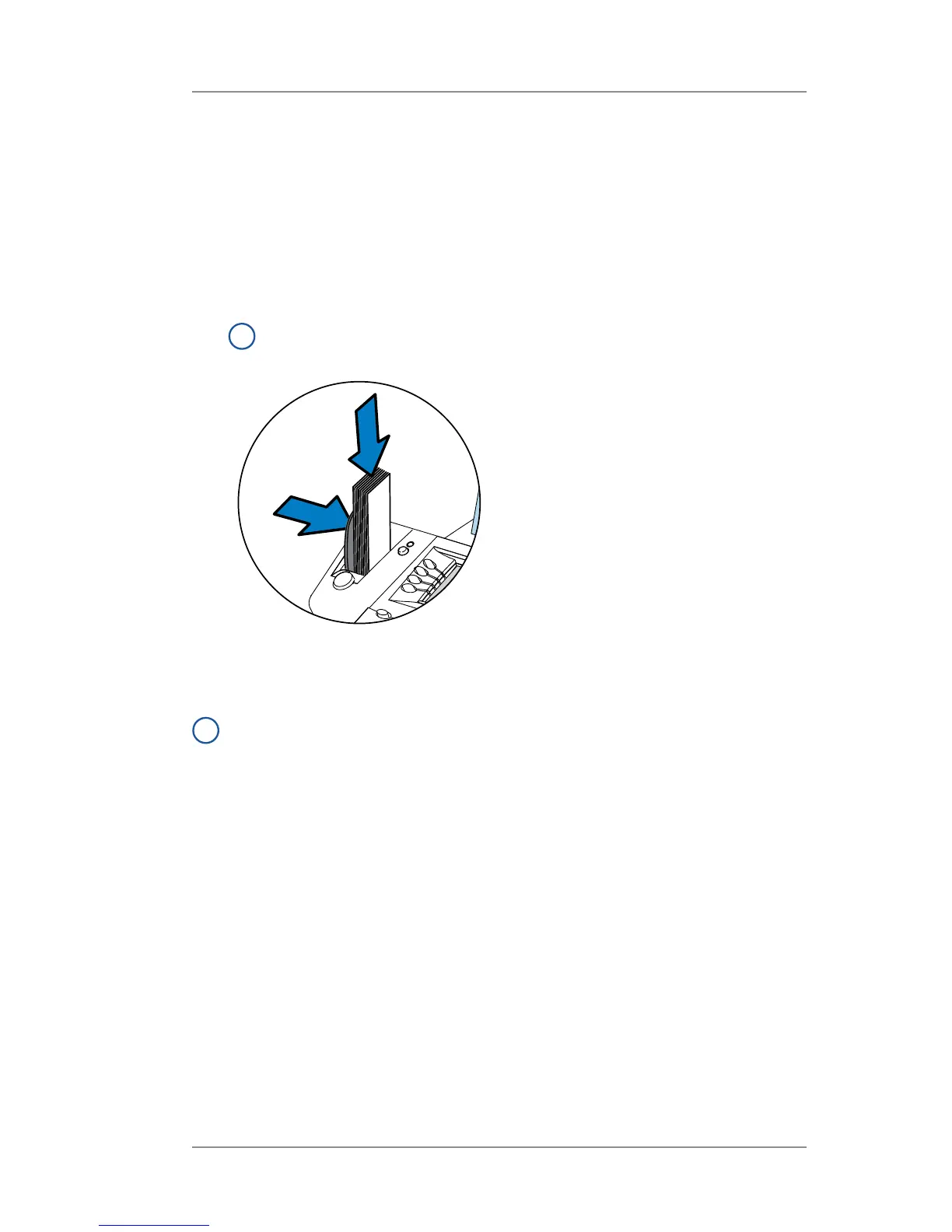
1. Push the tape lever to the right and drop tapes down into the slot.
i
NOTE: The printable side of the tape should be facing
towards the control panel display (to the right).
Printing Multiple Tape Strips
i
NOTE: Ensure the system is confi gured to print multiple tapes.
Refer to Chapter 7, System Options, "Confi guring the Tape
Button" for more information.
• If the system is ready to print postage and the Home screen is
displaying, simply type in number of tapes you wish to print and
press Tape OR
• Press Tape. You will be prompted to enter the tape quantity.
Press Start to begin printing tapes.
2. Press Tape when ready to print. By default, a single tape is printed.
Processing Flats in Portrait Orientation Mode (DM475)
If you have the "Auto Rate Large Envelope" feature turned on (see
Chapter 11- Scale Options) and you are sure the mail pieces fall
within the "flats" category as determined by USPS specifications (see
Appendix B- USPS® First Class Mail® Sizes), you can feed the flats
in portrait orientation through the machine. If you tried to run flats in
portrait orientation without enabling this setting, the system displays
an error (e.g., "Mailpiece Too Wide") without printing postage.













 To Next Page