7
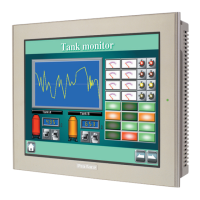
About the ST's Display Panel
• The ST's currently displayed data, its voltage
*1
and brightness setting each affect the intensity of Contouring. (i.e,
when some parts of the screen are brighter than others, creating a wavelike pattern)
• There are minute grid-points (dark and light) on the Display Panel's surface. This is part of the ST's design and not a
defect.
• Extended shadows, or "Crosstalk" may appear on the sides of screen images. This is normal for an LCD display.
• Sometimes the display area may look as if the display colors have changed. This is a common attribute of LCD's and
is not a defect.
• Displaying a single image for long periods can cause an afterimage to remain when the display is changed to another
screen.
To prevent this effect:
• Use the ST's "Stand-by Mode", which automatically turns the screen OFF when there is no input for a
specified period of time.
• Write "FFFh" to the System Data Area's “Screen Display Off” address
*2
to turn the screen display OFF when the
following actions are not performed for the user's designated period of time.
• Change Screen
• Touch Screen
• Alarm Display
• Do not display any single screen for a long period of time. Try to periodically change the screen display.
*1 If the ST's voltage is at the very low end of its allowable range, it may effect the intensity of contouring.
SEE
6.3.1 System Setup (Page 6-4)
*2 The following addresses assume all System Data Area settings are entered. If they are not all entered, the
correct word address may be different from those given here.
With the Direct Access Method use System Data Area word address +9
With the Memory Link Method use System Data Area word address +12
GP-PRO/PB III for Windows Device/PLC Connection Manual
SEE



 To Next Page