ST Series User’s Manual
4-4
After Completing Data Transfer using ST setup
*1
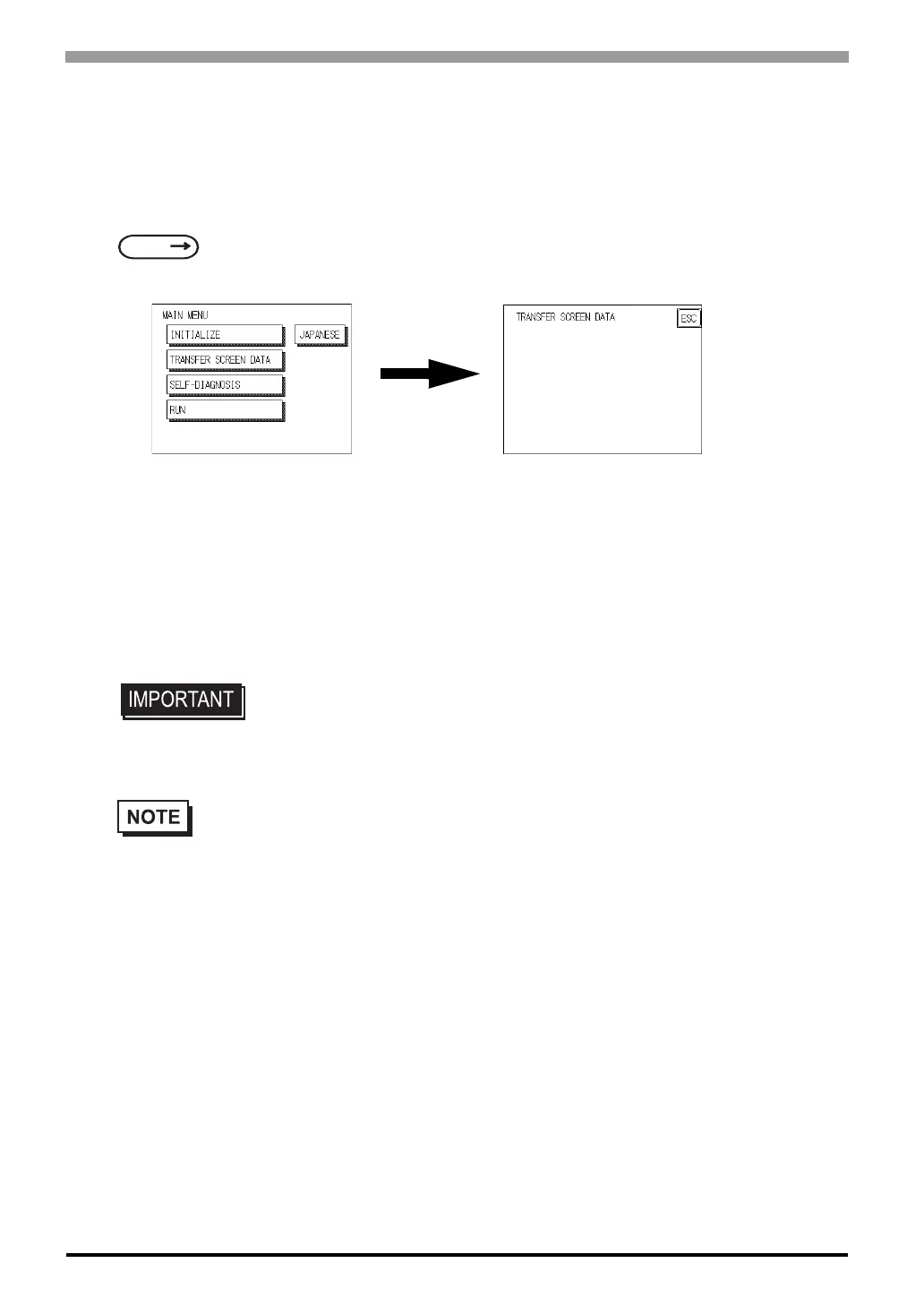
Transfer screen data from the screen editor software, and select the “Transfer” mode.
Please switch from an off-line mode to "Transmission of the screen data" mode by hand power when not
changing. For more information about OFFLINE MODE,
During data transfer, the “SETUP Transfer” and “Now Transferring - Please Wait” messages will appear.
When these messages disappear, screen data transfer is completed.
If you wish to stop data transfer, simply cancel it from your PC’s screen editor software.
If you try to set up the ST after data transfer, the OFFLINE mode’s “Main Menu” will appear. If you do NOT
set up the ST, the screen designated in “INITIAL SETTINGS/SCREEN SETUP/INITIAL SCREEN FILE
NO.” will appear and the screen will change to operation (RUN) mode.
*1 Here, the term “Set up” refers to the process of sending system program and protocol program informa-
tion to the ST via the screen editor software, so that the ST can be used as an operator interface.
SEE
5 OFFLINE Mode (Page 5-1)
• Do NOT disconnect the ST’s power supply, turn OFF the PC, or disconnect the
ST’s transfer cable during the data transfer. If you do, an error may occur when
the ST is started.
• If the screen editor software’s “GP SYSTEM SETTINGS” data is transferred to the ST, the
OFFLINE mode “INITIAL SETTINGS” data will be overwritten.



 To Next Page