HandKey II Installation and Operation Manual
Page 108 Revision 2.0
Set Reader Mode
In Hand Reader networks, one Hand Reader must be set as a Master Hand Reader and
all remaining Hand Readers must be set as Remote Hand Readers. The default Reader
Mode is Remote mode. Reader Mode does not apply to stand-alone Hand Readers or
Hand Readers in a PC network (the Hand Reader should be left in its default value).
All remote Hand Readers on a Hand Reader network must have a unique address.
Refer to the Set Reader Address section on page 91.
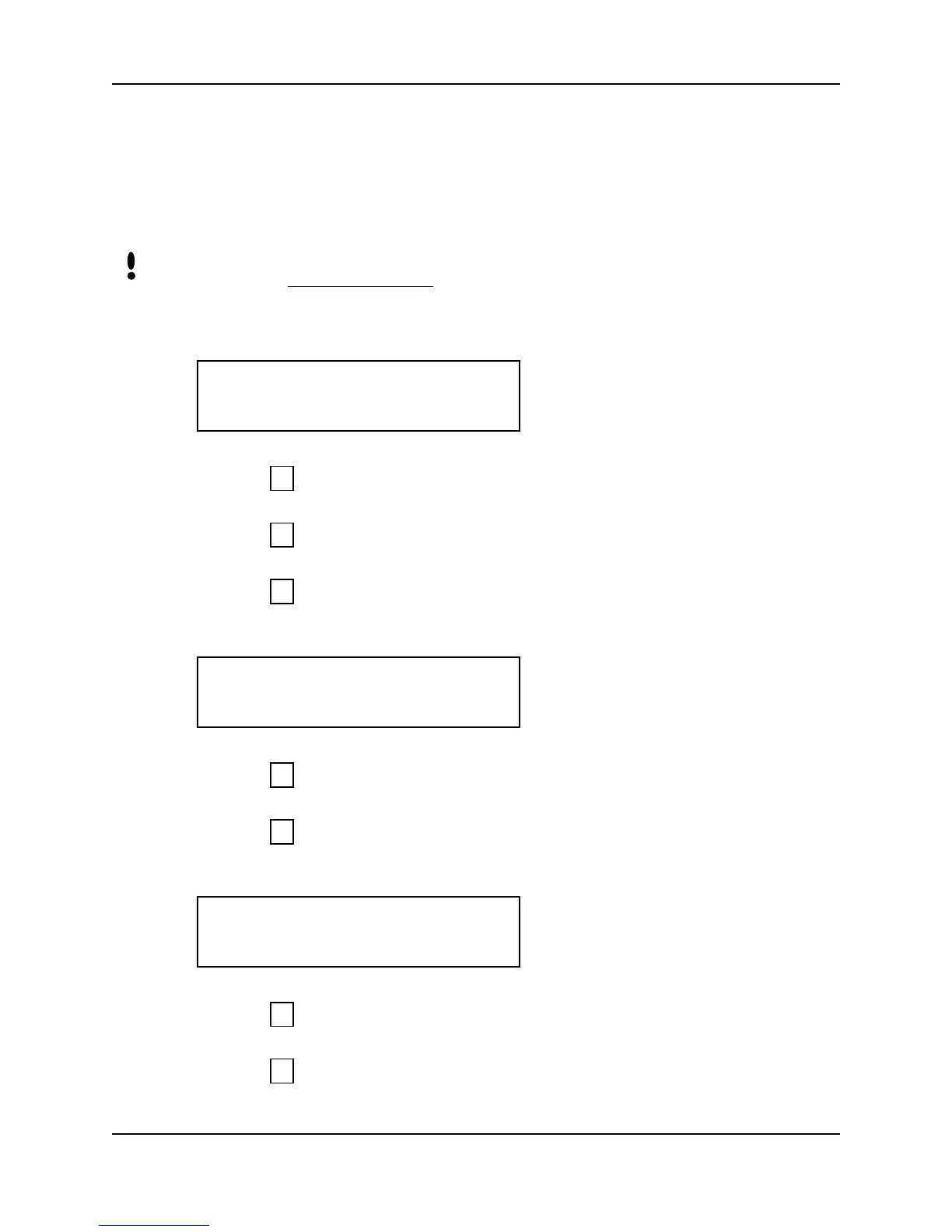
1. When you enter the Set Reader Mode command the display appears as follows.
2. Press to exit the command menu.
– or –
3. Press to keep the current Reader Mode and skip to the Set Serial command.
– or –
4. Press to Set the Reader Mode.
5. The “To Master” option appears on the display.
6. Press to set the Hand Reader to a Master Hand Reader. Skip to Step 10.
– or –
7. Press to set the Hand Reader to a Remote Hand Reader. The “To Remote”
option appears on the display.
8. Press to set the Hand Reader to a Remote Hand Reader. Skip to Step 10.
– or –
9. Press to set the Hand Reader to a Master Hand Reader. Return to Step 5.
NOTE
SET READER MODE
*NO YES#
5
*
#
TO MASTER
*NO YES#
#
*
TO REMOTE
*NO YES#
#
*


 To Next Page