RDL-3000 User Manual
70-00158-01-DRAFT Proprietary Redline Communications © 2010 Page 90 of 142 November 25, 2010
4.7.3 Product Options
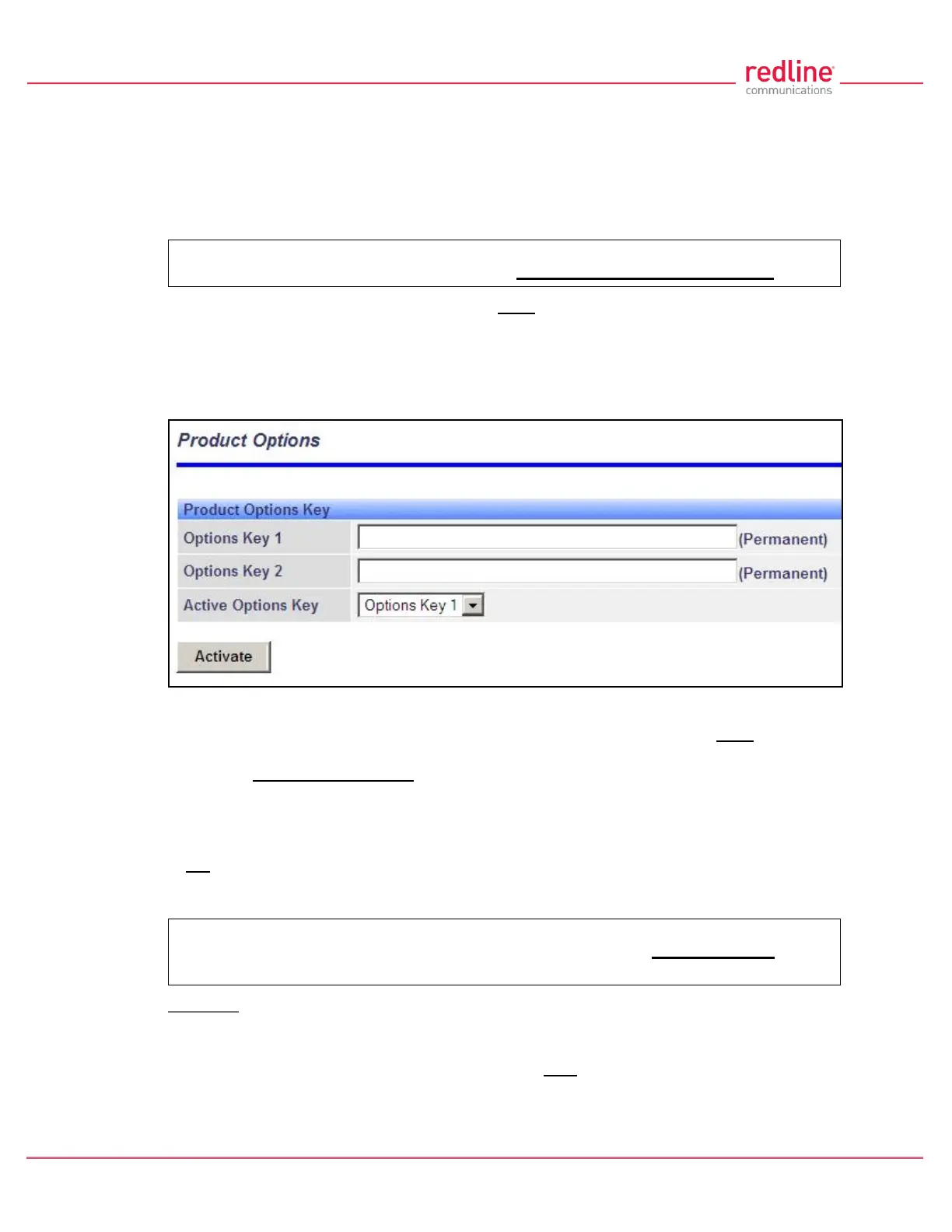
Click Utilities -> Product Options in the left hand menu to display the Product Options
screen. The options keys (a string of numbers, letters, and dashes) enable RDL-3000
features including the maximum uncoded burst rate and frequency ranges (See 8.3:
Regional Codes on page 138). Options key are unique to a specific RDL-3000 (keyed to
MAC address).
Important: If the RDL-3000 is placed in-Service without entering a purchased
permanent Options Key, the wireless link will experience Service outages.
At least one valid permanent options key must be purchased and installed before the
RDL-3000 is placed in-Service. A second options key (permanent or temporary key) may
be added to trial new options without deleting the current key. Advance notice is
provided when a temporary options key is about to expire. If the temporary options key is
selected as the active key, a message is logged and an SNMP trap is generated every 6
hours during the last five days of operation.
Fig. 58: Web - Product Options Screen
Options Key 1: Enter a valid permanent key. A permanent Options Key must be entered
for in-Service operation. The temporary options key shipped with the RDL-3000 will
expire and Service is interrupted.
Options Key 2: Enter a second valid permanent or temporary options key (optional).
Active Options Key: The Active Options Key field selects the preferred key. If valid, the
selected key is activated immediately when the Activate button is clicked. This selection
is not affected by switching firmware versions. If the (temporary) active key expires, the
RDL-3000 will attempt to remain operational by automatically switching to the other key
(e.g., permanent key).
Important: Always enter and activate a purchased permanent options key before
testing temporary keys -- otherwise you will experience a Service outage on the
wireless link when the temporary key expires.
Controls
Activate: Click to validate and activate options key(s). Invalid keys are discarded and an
error message is recorded in the event log. If two keys are entered in the same session
(before clicking Activate), keys are saved only if both keys are valid. When each key is
validated, the key 'type' is displayed adjacent to the key indicating either 'Permanent' or
'Temporary'.



 To Next Page