RDL-3000 User Manual
70-00158-01-DRAFT Proprietary Redline Communications © 2010 Page 93 of 142 November 25, 2010
4.7.5 Firmware Management Screen
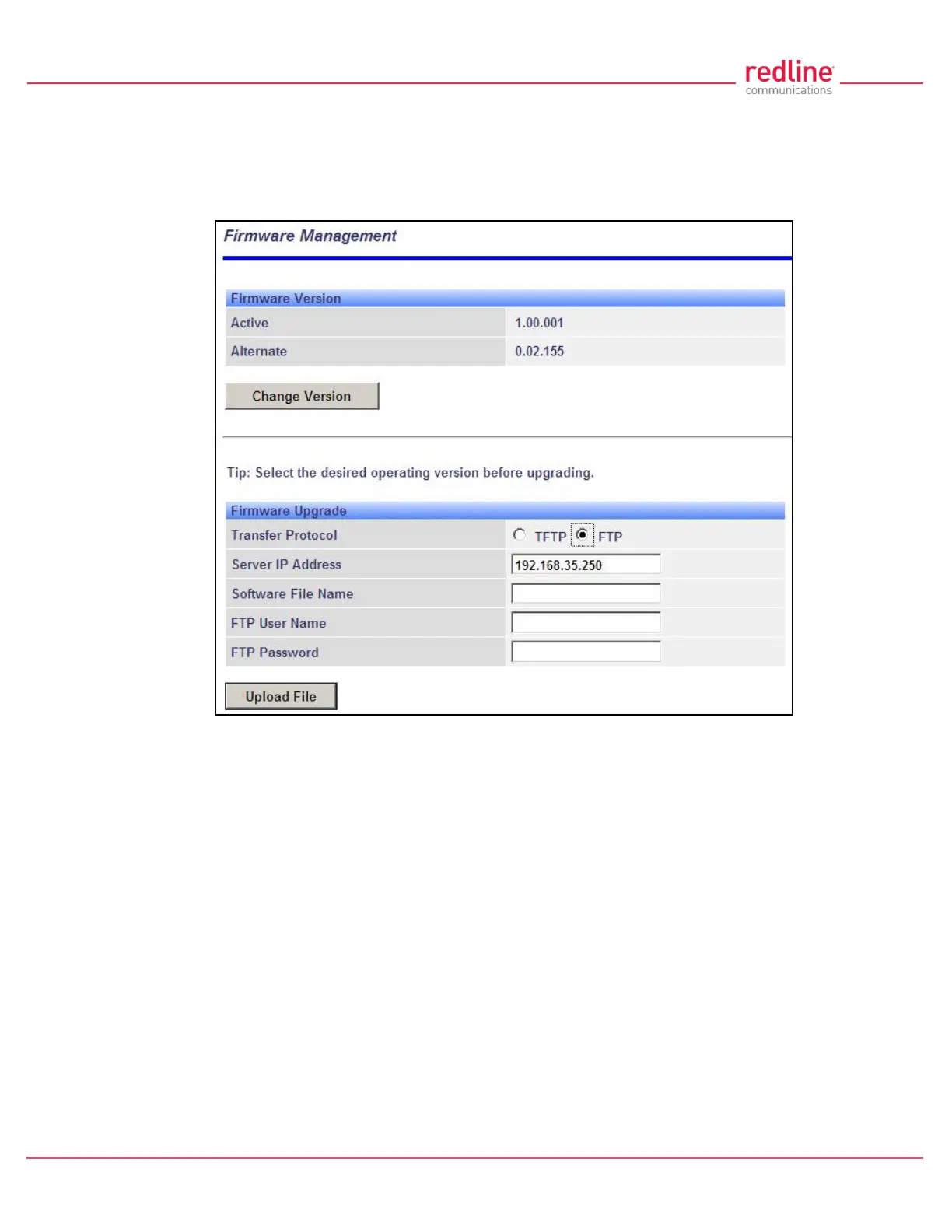
Click Utilities -> Firmware in the main menu to display the Firmware Management
screen. This screen is used to upgrade the RDL-3000 with new firmware. The RDL-3000
contains non-volatile storage for two versions of the firmware. The upload overwrites the
Alternative (inactive) version.
Fig. 60: Web - Firmware Management Screen
Firmware Version
Active: This is the firmware currently in use by the RDL-3000.
Alternative: This is the inactive firmware. Firmware downloaded to the RDL-3000 will
overwrite this version.
Change Version: Click to switch the Active and Alternative firmware versions and
reboot the RDL-3000.
Firmware Upgrade
Transfer Protocol: Select the type of file server:
TFTP: Use Trivial File Transfer Protocol for file upload.
FTP: Use File Transfer Protocol for file upload.
Server IP Address: Enter the IP address of the computer with the firmware upgrade file.
The designated computer must be running a TFTP/FTP server.
Firmware File Name: Name of the firmware binary file (including file extension).
FTP User Name: Enter the user account name on the FTP server (FTP only).
FTP Password: Enter the password for the user account name on the FTP server (FTP
only).


 To Next Page