3-2 Monitoring and Diagnostics VisualMotion 9 Troubleshooting Guide
DOK-VISMOT-VM*-09VRS**-WA02-EN-P
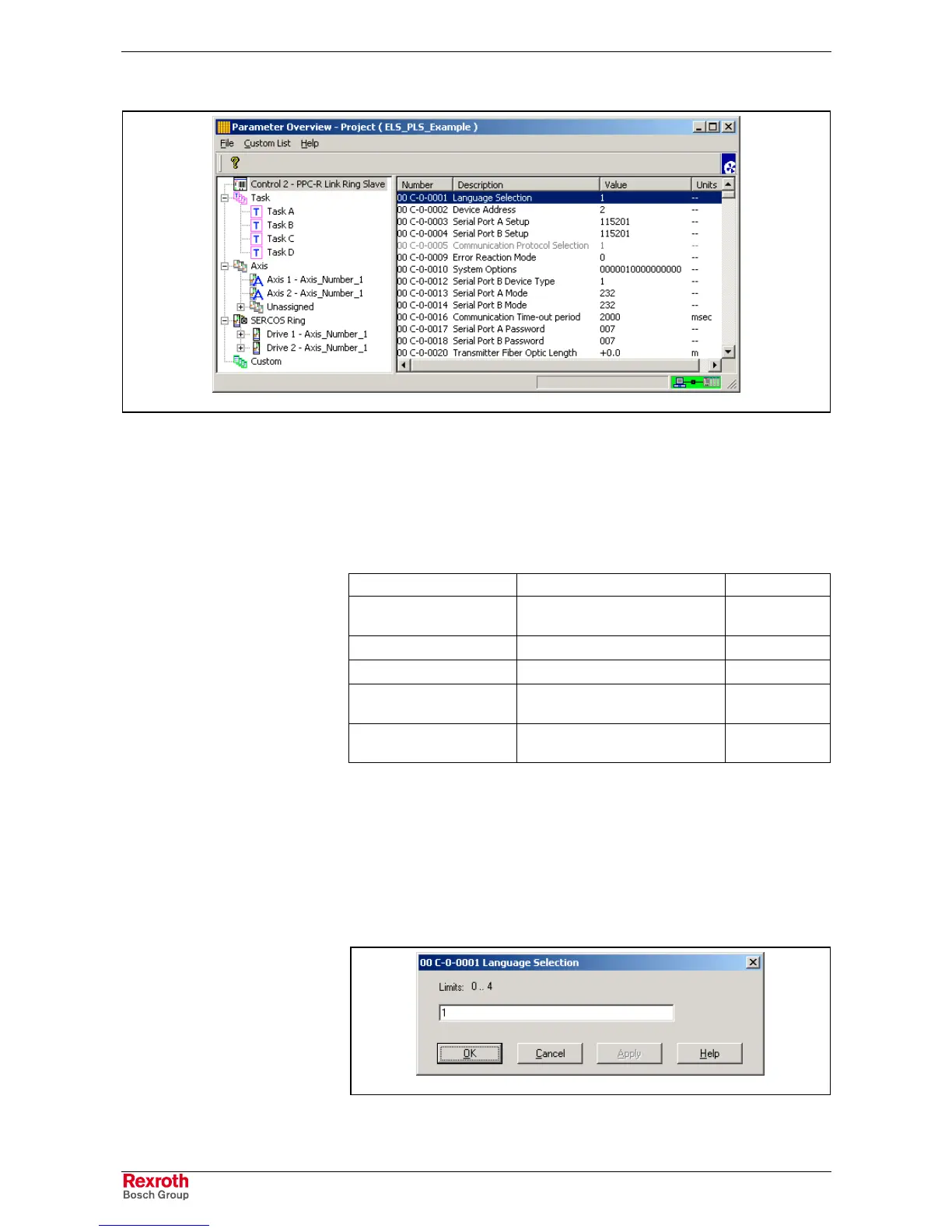
Param_Overview.tif
Fig. 3-1: Parameter Overview Window
Access to Parameters
The Parameter Overview tool controls access to parameters whether in
Phase 2 or Phase 4. Parameters are displayed in different colors to
provide a visual representation of their access level. The following table
explains the color code / access combination.
Color code Description Access Level
grayed out text read-only parameter or not
editable in current phase
read-only
black text parameter that can be edited read/write
red text used to indicate an error read/write
blue text parameter list parameter list that can be edited
(list value displayed as 6 Xs)
read/write
grayed out parameter list read-only parameter list or not
editable in current phase
read-only
Fig. 3-2: Access to Parameters
Editing a Parameter
A parameter can be edited by double clicking the desired parameter from
the Parameter Overview window or by selecting the parameter and right
clicking and selecting Edit Selection. The parameter's data range is
displayed above the input field. Parameters that can not be edit in the
current Phase display the current value in a gray field. Pressing the Help
button or pressing the F1 key can access context sensitive help.
Param_Editor.tif
Fig. 3-3: Parameters Editor Window


 To Next Page