Item Detail
Device Certificate Displays the public key certificate
of the organization validating the
signature of the HTTPS-supported
client certificate. The public key
certificate is installed on the
server.
Click [Install Certificate], import
the certificate.
Check that the authentication method and length of the public key of the installed certificate are
sufficiently strong.
Device Firmware Update
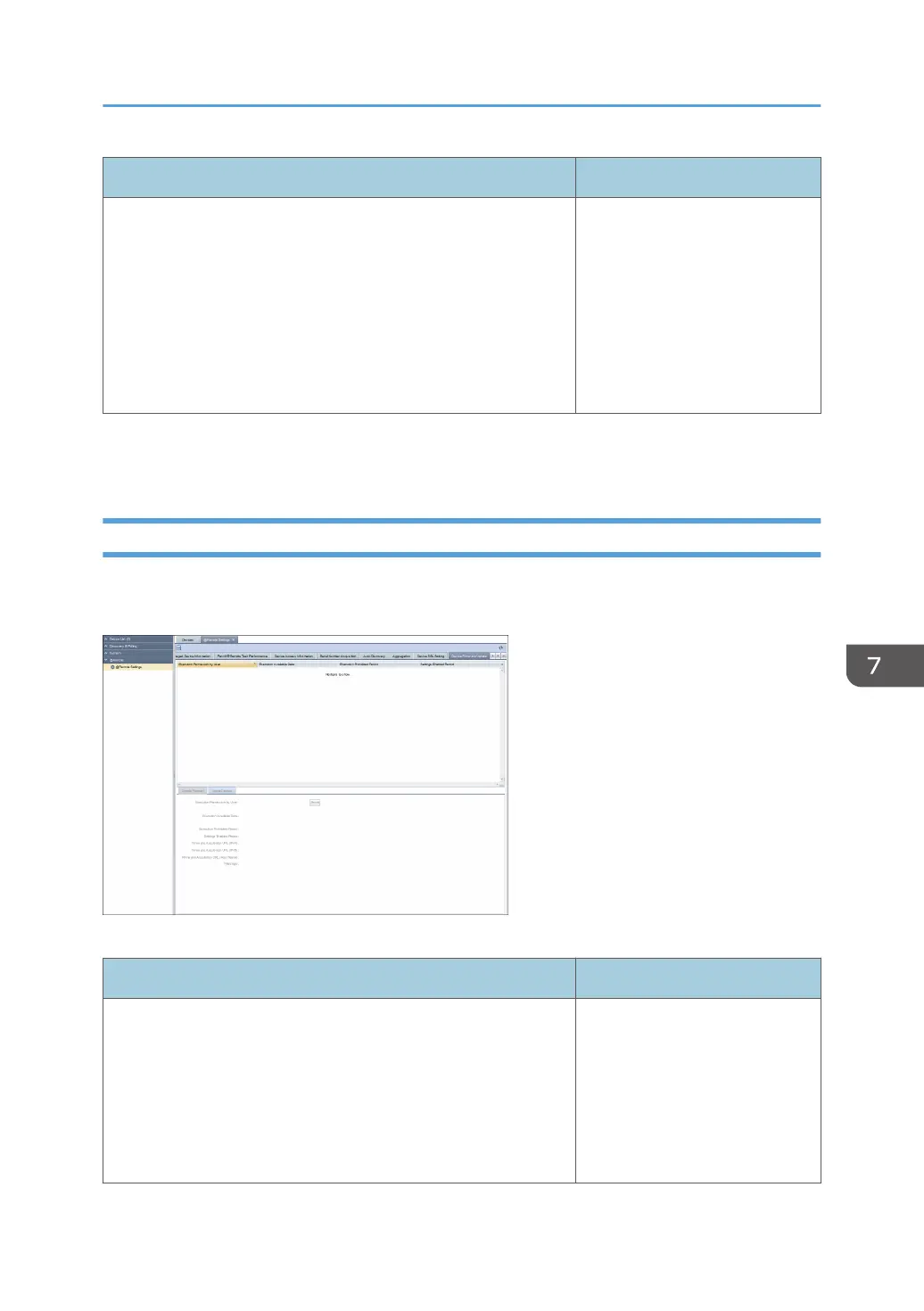
You can check the firmware update status and update schedule. To display the settings screen, click
[@Remote] - [@Remote Settings] and [Device Firmware Update] tab.
[Update Request] tab
Item Detail
Execution Permission by User Checks whether [Execution
Permission by User] is set to
[Required] or [Not Required]. If
[Execution Permission by User] is
set to [Required], click [Permit] to
perform device firmware
updates.
@Remote Settings
99



 To Next Page