• After changing the password, be sure to remember it. If you forget it, you need to contact the
service representative to configure the machine's settings again.
1. In the header area, click [admin] and [Change Password].
2. In the [Password], enter a password.
3. In the [New Password], enter a new password.
4. In [New Password (Confirm)], enter the new password again to prevent mistyping.
5. Click [OK].
Shutdown the RC Gate
• If the power plug is disconnected before shutting down the RC Gate Monitor, the storage will be
damaged. In such a case, the latest logs will be lost. Before disconnecting the power plug, be sure
to shut down the machine to switch to the standby mode.
1. In the header area, Click [Shutdown].
2. When the confirmation message appears, click [Yes].
• You can also switch to the standby mode by pressing the Power button.
Display Icons
All of the operation icons and device icons displayed by the RC Gate Monitor are described below.
There are some operation icons that are not displayed depending on the function.
Operation icons
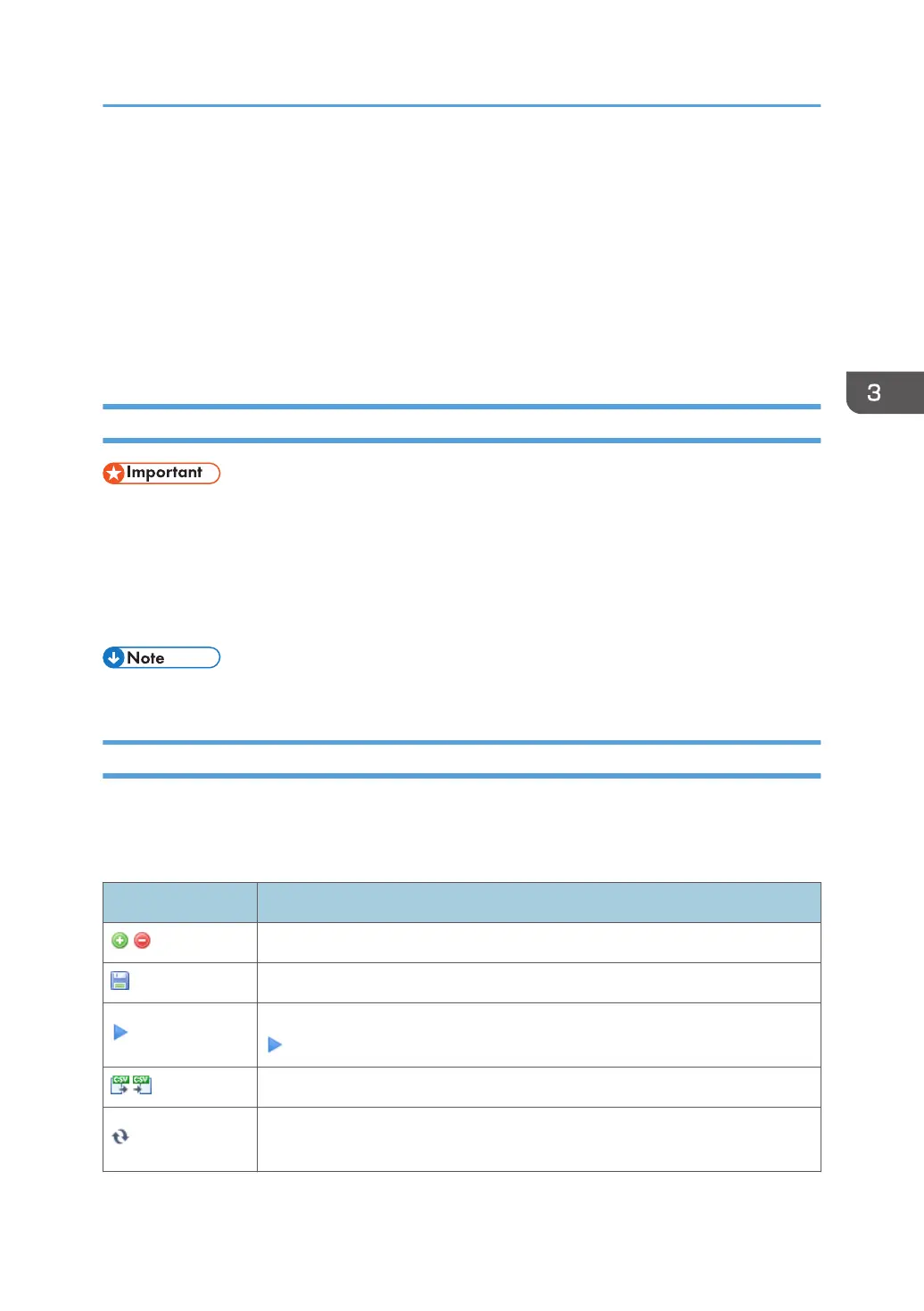
Icon Description
Add or delete devices and tasks to/from the list.
Save the edited device information, configured task and templates.
To immediately execute the detected result by the discovery function, click the
(Immediately perform) icon.
Export or import the list information in a CSV file.
Update the list information. The information temporarily retrieved by the RC
Gate is retrieved again.
Screen Configuration
29



 To Next Page