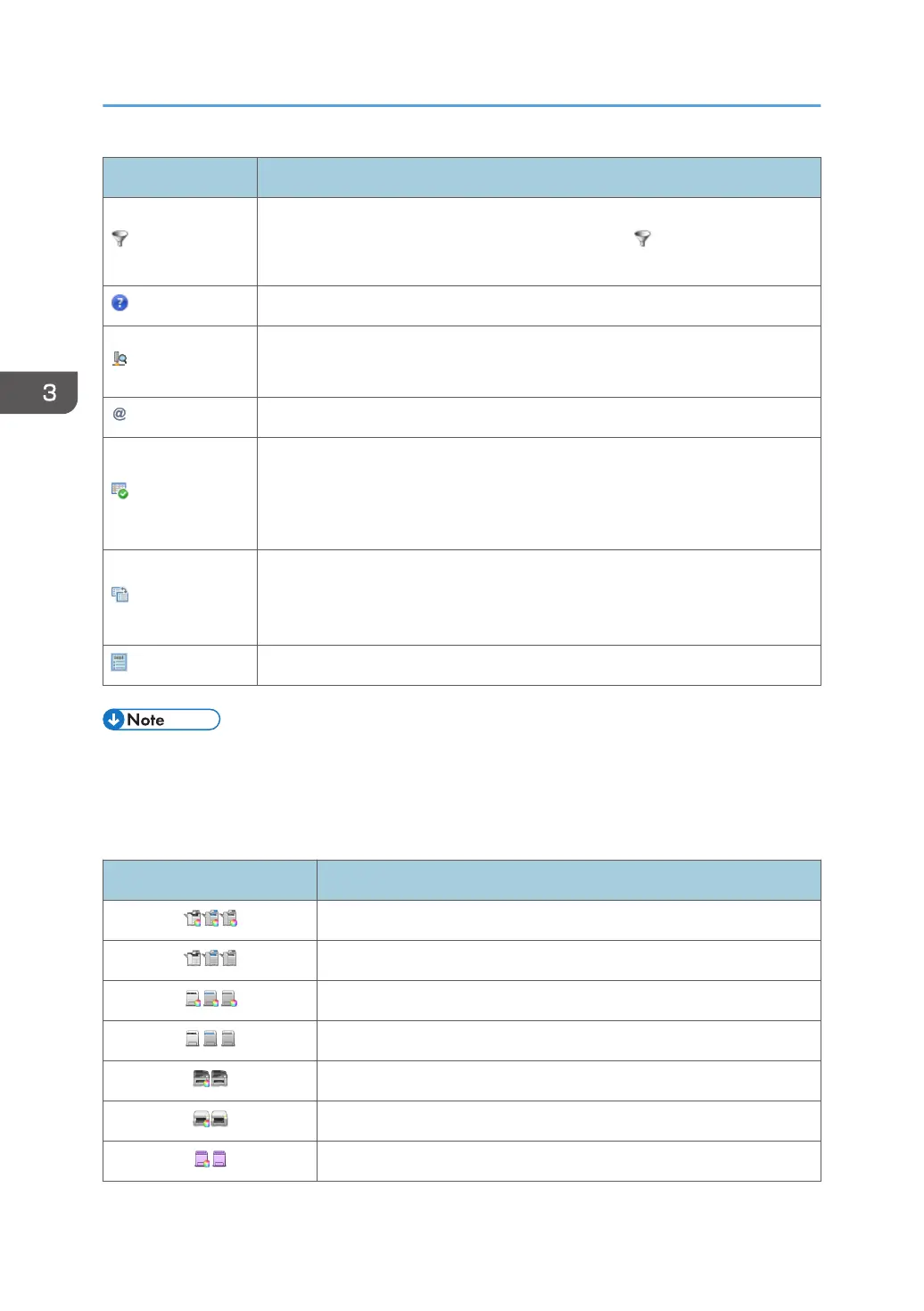
Icon Description
Filter the list information. Click to display an input/selection area over the item
name in the list. Enter or select a search key and click (Filters) located to the
right of the input area or press the Enter key. The relevant entry is displayed.
Connect to the Ricoh website.
Retrieve device data from the router.
For details, see page 62 "Search the Device".
Display the debug log, register devices, and change the encryption key length.
Check whether the counter information can be acquired and processed on a
per-user basis for devices specified by the RS Center System. This can be
executed by clicking icon. The dialog box reporting the result (success or
failure) appears.
Change the access profile of the device selected from the device list.
For details about specifying the access profile, see page 61 "Specifying
Access Profiles".
You can execute polling manually.
• For details about the information that can be exported by the CSV file and the CSV file name, see
page 33 "Importing/Exporting the System Settings".
• For the format of CSV files, see page 35 "Format of CSV Files".
Device icons
Icon Description
RICOH digital full color multifunctional machine
*
RICOH digital monochrome multifunctional machine
*
RICOH color laser printer
*
RICOH monochrome laser printer
*
RICOH hybrid multifunctional machine
RICOH gel jet printer
RICOH OEM color/monochrome multifunctional machine or printer
3. How to Configure and Check the Device
30


 To Next Page