The administrator has all administrative (device administrator, user administrator, file administrator,
and network administrator) privileges of the subject device.
To Start the RC Gate Monitor
• Use a browser that can display disguised characters (such as asterisks) during password entry.
• Change the password. Be sure to change the password for actual operation of the RC Gate
Monitor.
• For security purpose, if you fail to log in to the RC Gate monitor at least 3 times in 5 minutes, you
will have to wait an additional 1 minute before you can try to log in again.
• After changing the password, be sure to remember it. If you forget it, you need to contact the
service representative to configure the machine's settings again.
• To use the machine in a CC-certified environment, check the version of the CC-certified firmware
matches that of the machine. For details about checking the version, see page 22 "Checking
Versions for CC Conformance".
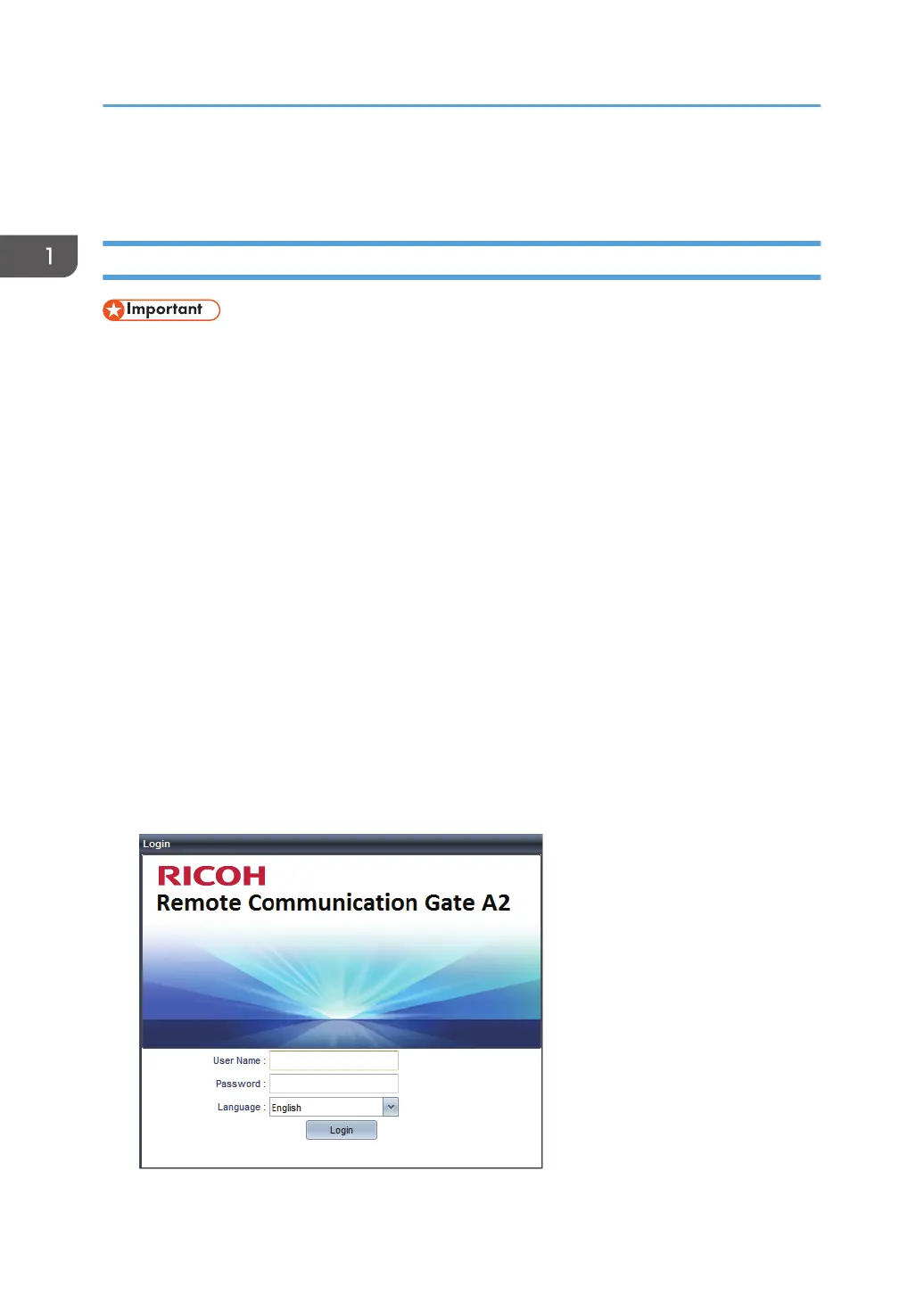
1. Start the web browser of the computer.
2. Enter "http://{LAN port IP address}:8080/index.html" in "Address".
3. Enter the user name "admin".
You cannot change the user name.
4. Enter the user password.
The default password is "administrator". Be sure to change the password for actual operation of the
RC Gate Monitor. For details, see page 28 "Setting a Password".
1. About the RC Gate
18



 To Next Page