Check & Error Display
128
Troubleshooting
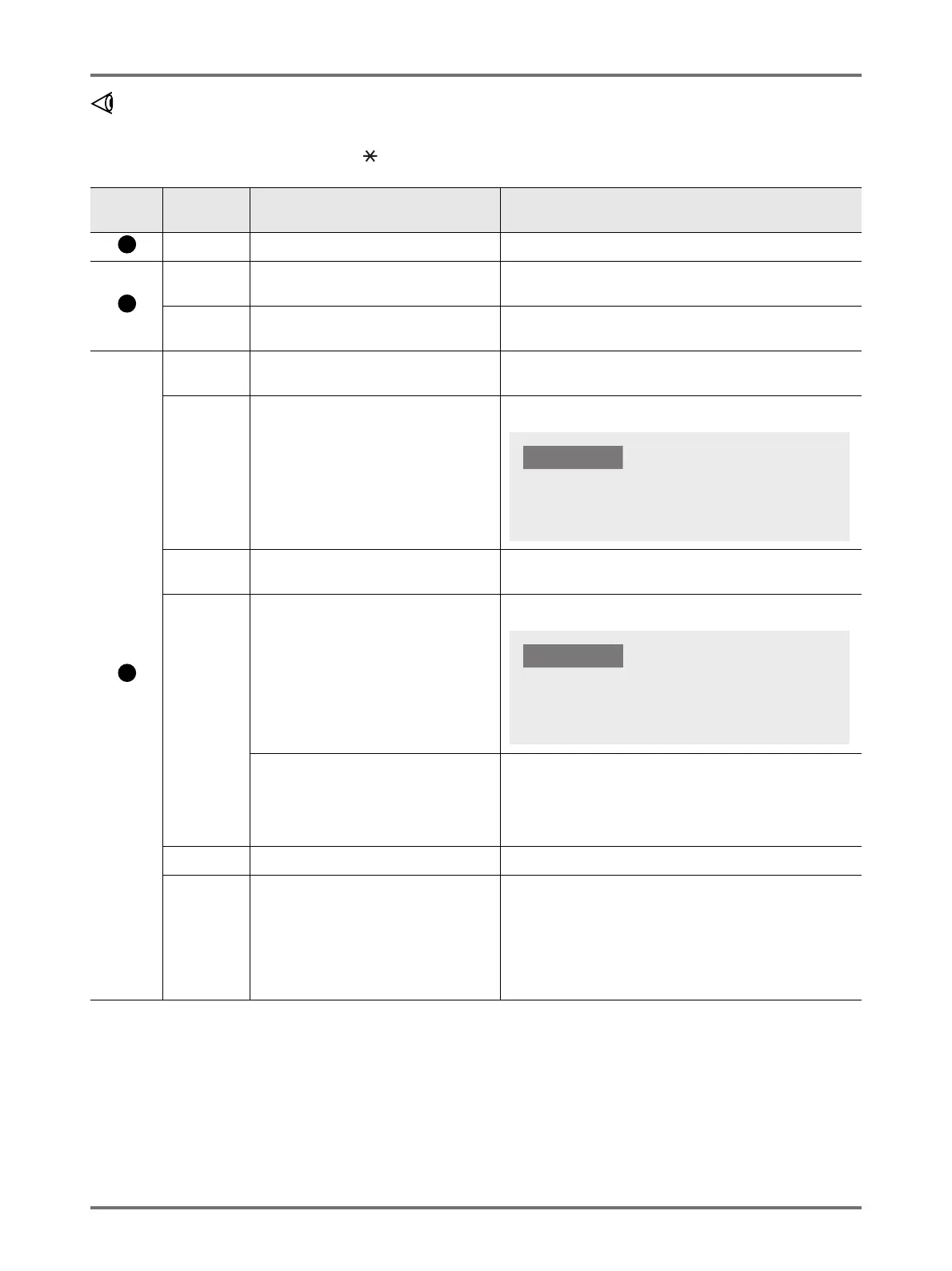
When the (Check Setting) indicator blinks
Check error locations and error numbers (Error Number Display) and take the following procedures:
If an error number is not shown, press the < > key.
Location
No.
Error
Number
Cause Action
c-04 The tray has run out of paper. Place paper on the Paper Feed Tray.
d-11
The Front Cover is open or has not been
completely closed.
Close the Front Cover completely.
d-18
The Print Drum is not set correctly and can
be pulled out.
Set the Print Drum correctly and close the Front Cover
completely.
d-01
The Print Drum has not been set or has not
been correctly set.
Set the Print Drum correctly.
p.114
d-02
An inappropriate Print Drum has been set. Set an appropriate Print Drum.
d-03
The ink cartridge has not been set or has
not been correctly set.
Set the ink cartridge correctly.
p.106
d-04
An inappropriate ink cartridge has been set. Set a cartridge specific to the machine.
The label on the ink cartridge outlet surface
has come off or is dirty.
The label on the ink cartridge outlet surface contains information
needed for printing. If the machine cannot read the information,
it does not operate.
Set an ink cartridge that is specific to the machine and that is
with label attachment and free from dirt.
d-22 Set the Print Drum. Pull out the Print Drum and set it correctly.
F-01
A master has not been wrapped around the
Print Drum.
Send the original data and start with the master-making
process.
If you leave the machine without a master wrapped around the
Print Drum, malfunction may occur.
Press the <Reset> key, and then press the <Confidential> key.
Or perform the master-making operation to wrap a master
around the drum.
Use a Print Drum specific to the machine. Using
another Drum can result in malfunction or other
trouble.
Use a cartridge specific to the machine.
Using other ink cartridges can result in malfunction
or other trouble.
IMPORTANT!



 To Next Page