Printing Data
52
Basic Operation
12
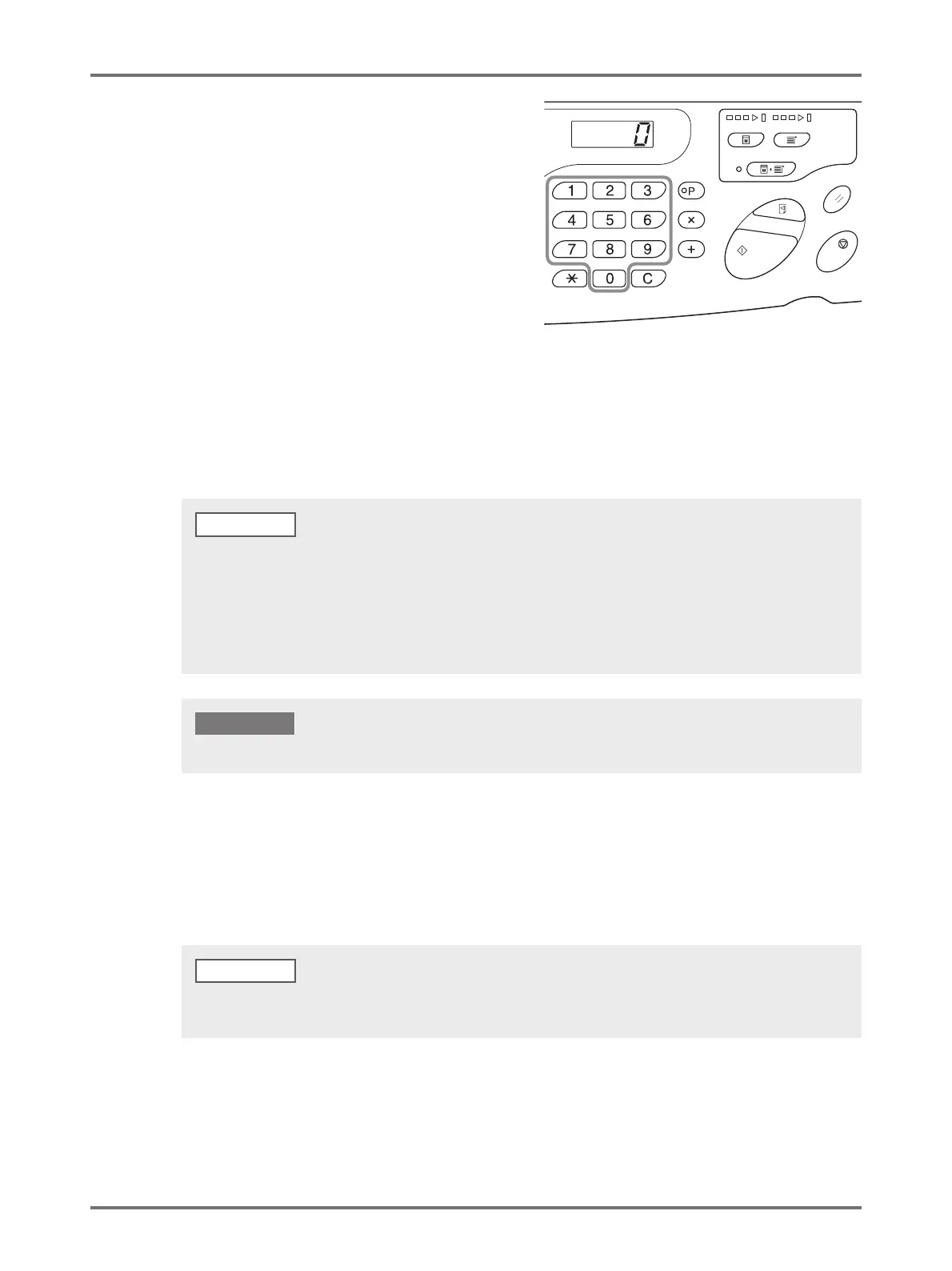
Enter the number of copies to be
printed.
If you wish to change the number of copies to be
printed, press the <C> key and enter the number of
copies to be printed using Print Quantity keys.
13
Press the <Start> key.
The specified number of copies are printed.
If you want to stop printing in the middle, press the <Stop> key.
When data consisting of several pages is received
Repeat Steps 9 to 13.
• When you want to set functions, press corresponding keys on the control panel for setting.
• If you want to batch output the data consisting of several pages (to continue printing without
stopping after master-making), press the <Auto-process> key and set [Auto-process] to [ON].
When you want to print additionally after printing is finished
(1) Press the <C> key in the [Print] mode and cancel the number of copies displayed on the display.
(2) Enter the number of copies you want to print using the Print Quantity keys and press the <Start> key.
• You can change the print speed.p.76 "Changing the Print Speed [Print Speed Adjustment]"
• When the machine is in stop state, you can do the following:
p.80 "Automatic Sorting into Groups [Program]"
p.90 "Clearing Received Jobs [Clear Job]"
• You can discard the master wrapped around the drum.
p.91 "Protecting Confidential Documents [Confidential Mode]"
NOTE
When you turn off the Power Switch, all the accumulated data is deleted.
IMPORTANT!
When you want to start making a master of the next page or next job after printing is finished automatically, set [Auto
switch to master-making] to [ON] in the custom setting mode.
NOTE



 To Next Page