Setting the Printing Preferences
57
Functions to be Set Up with the Printer Driver (Computer Side/Driver Side)
(1) Original size
Setting the original size and paper direction.
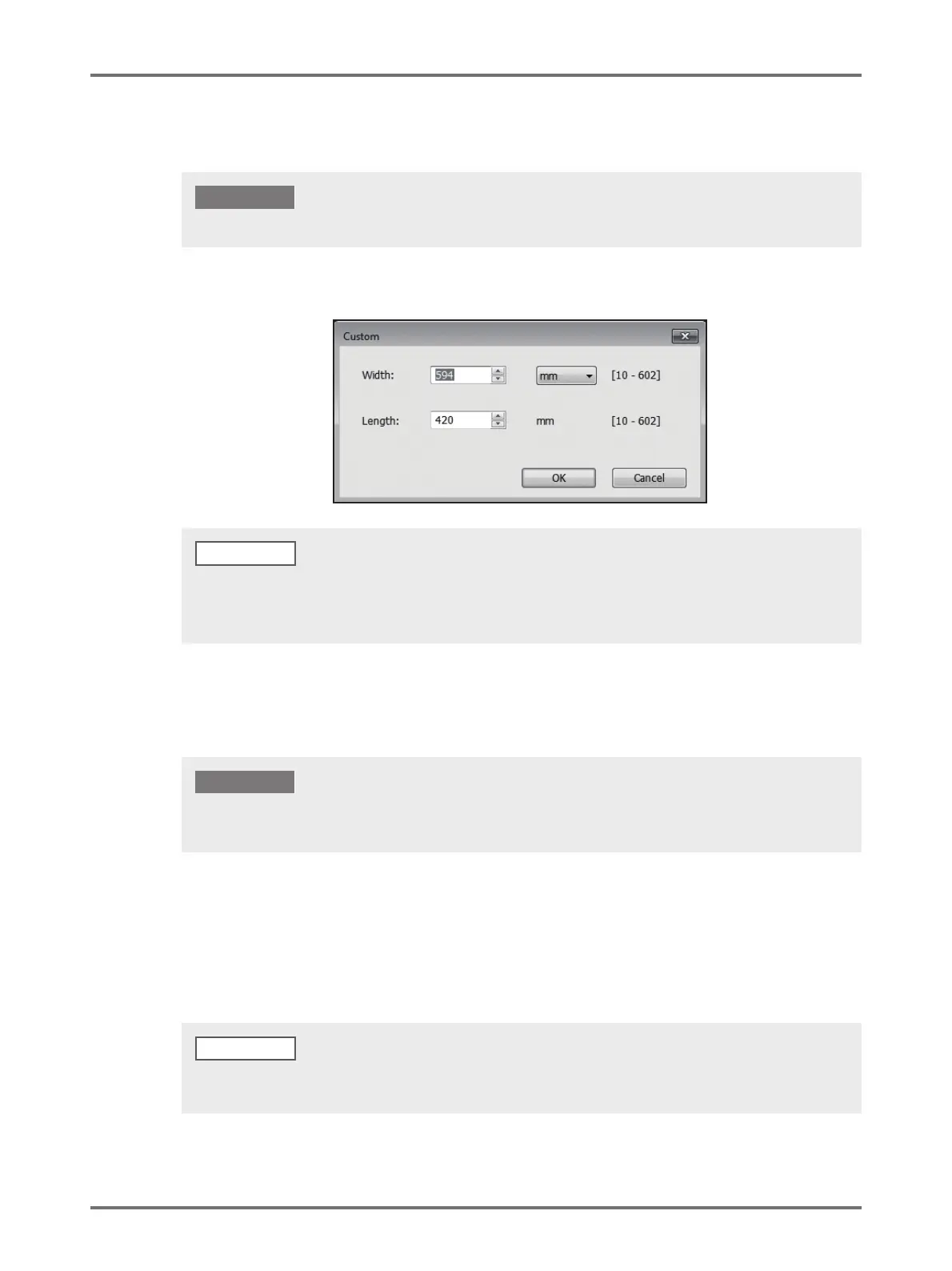
Selecting [Custom] opens the [Custom] dialog box. Enter the paper width and length in the boxes.
[Portrait] / [Landscape]
This option is used for matching the page direction with the feed direction.
Specify the page direction.
(2) Output size
Select the paper size for printing.
If you do not use scaling, select [Same as original].
If you select a different output size from the original text, the image will be scaled to fit the selected output size.
• Be sure to specify the same paper size which was set in the application software used when creating the original data.
IMPORTANT!
• You can select custom-size paper from the drop-down list by registering it beforehand.
• You can select the unit of size from [mm] or [inch].
• The range of paper sizes that can be entered is minimum 10 x 10 mm up to maximum 602 x 602 mm.
NOTE
Be sure to specify the same page direction which was set in the application software used when creating the document
data. When a different page direction is specified, it will not be printed properly.
IMPORTANT!
If you select [Imposition], the image will be scaled to fit the selected output size according to pages/sheet of the original
data.



 To Next Page