Testing the Installation
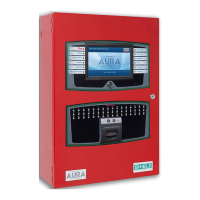
Once all field wiring connections are complete, test the power supply, field circuits, and panel GUIto ensure
proper operation of the Aura Fire Alarm ControlPanel.
Panel Start-up
1. Connect the batteries and apply AC power to the Aura Fire Alarm ControlPanel.
2. Allow the panel to go through its start-up process.
l Black screen with Bootloader version displayed. (<1 min.)
l Blank screen. (< 1 min.)
l Animated loading circle with brief Lamp Test. (< 1 min.)
l Splash-screen with Loading Graphics. (< 1 min.)
3. After Loading Graphics clears, press Controls & Other Events> Other Events to display details of
ongoing start-up processes. Other Events will always include initialization of the SLC loops, but may
include additional items as well, such as User Logged In and Bootloader Update events.
At this stage, it is common for many trouble events to be reported. The most common is "Unexpected Device".
This is a normal part of panel commissioning.
The start-up process is complete when all of the panel's Other Events clear.
4. If Bootloader Update events were present during the start-up process in step 2, power down the panel
and repeat Panel Start-up.
Do not power-down the panel during a Bootloader Update.
• User Logged In indicates that a key switch is turned to the Enable position or a user access code has been
entered.
• Bootloader Update indicates software on panel modules is being updated by the main panel. Thistypically
occurs
only when a panel module is changed or the main panel firmware is updated.
• If the panel is part of a network, some status events may reflect the status of other network nodes.
SHIELD Fire, Safety & Security Ltd
Aura Fire Alarm Control Panel Installation Manual
Version 1.00 |June 2019 |MAN-1431VS
Page 46
Installation


 To Next Page