Viewing images recorded on a tape on your computer
(Windows users only)
Before connecting your camcorder to your computer, install the USB driver on the
computer. The USB driver is packaged together with application software for viewing
images on the CD-ROM supplied with your camcorder.
Start the following operation without connecting the USB cable to your ]
I
computer.
JConnect the USB cabte in step 8.
If the USB driver has been registered incorrectly because your computer was
connected to your carncorder before installation of the USB driver was complete,
reinstall the US8 driver following the procedure on page 97.
For Windows 98SE, Windows Me, Windows 2000 Professional, Windows XP users
If you are using Windows 2000 Professional or Windows XP. log in with permission of
administrator.
(1) Turn on your computer and allow Windows to load.
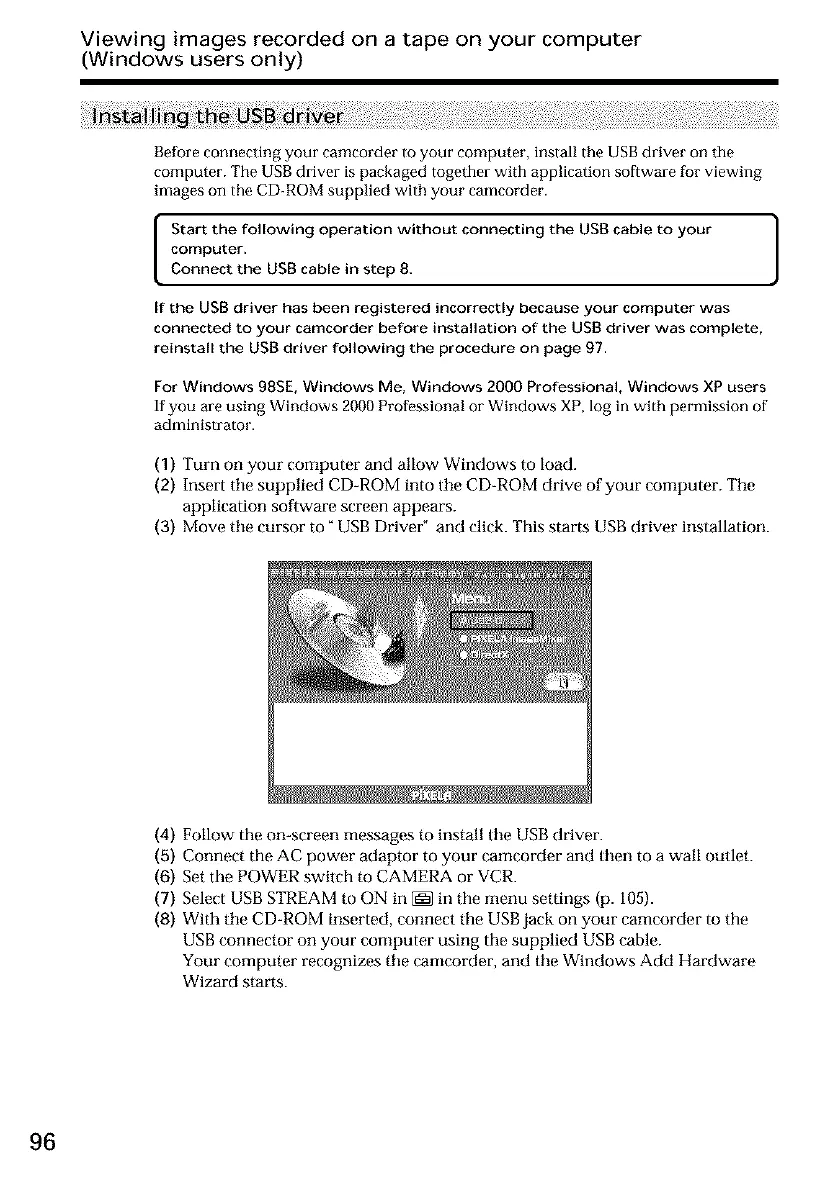
(2) Insert tilesupplied CD-ROM into the CD-ROM drive of your computer. The
application software screen appears.
(3) Move tile cursor to _USB Driveff and click.This starts USBdriver installation.
(4) Follow the on-screen messages to install tile USB driver.
(5) Connect the AC power adaptor to your camcorder and then to a wall outlet.
(6) Set the POWER switch to CAMERA or VCR.
(7) Select USB STREAM to ON in [_ in the menu settings (p. 105).
(8) With tile CD-ROM inserted, connect the USB jack on your camcorder to the
USB connector on your computer using the supplied USB cable.
Your computer recognizes tile camcorder, and the Windows Add Hardware
Wizard starts.
96





 To Next Page