7 - Track editing
Clearing tracks
The selected track will be cleared.
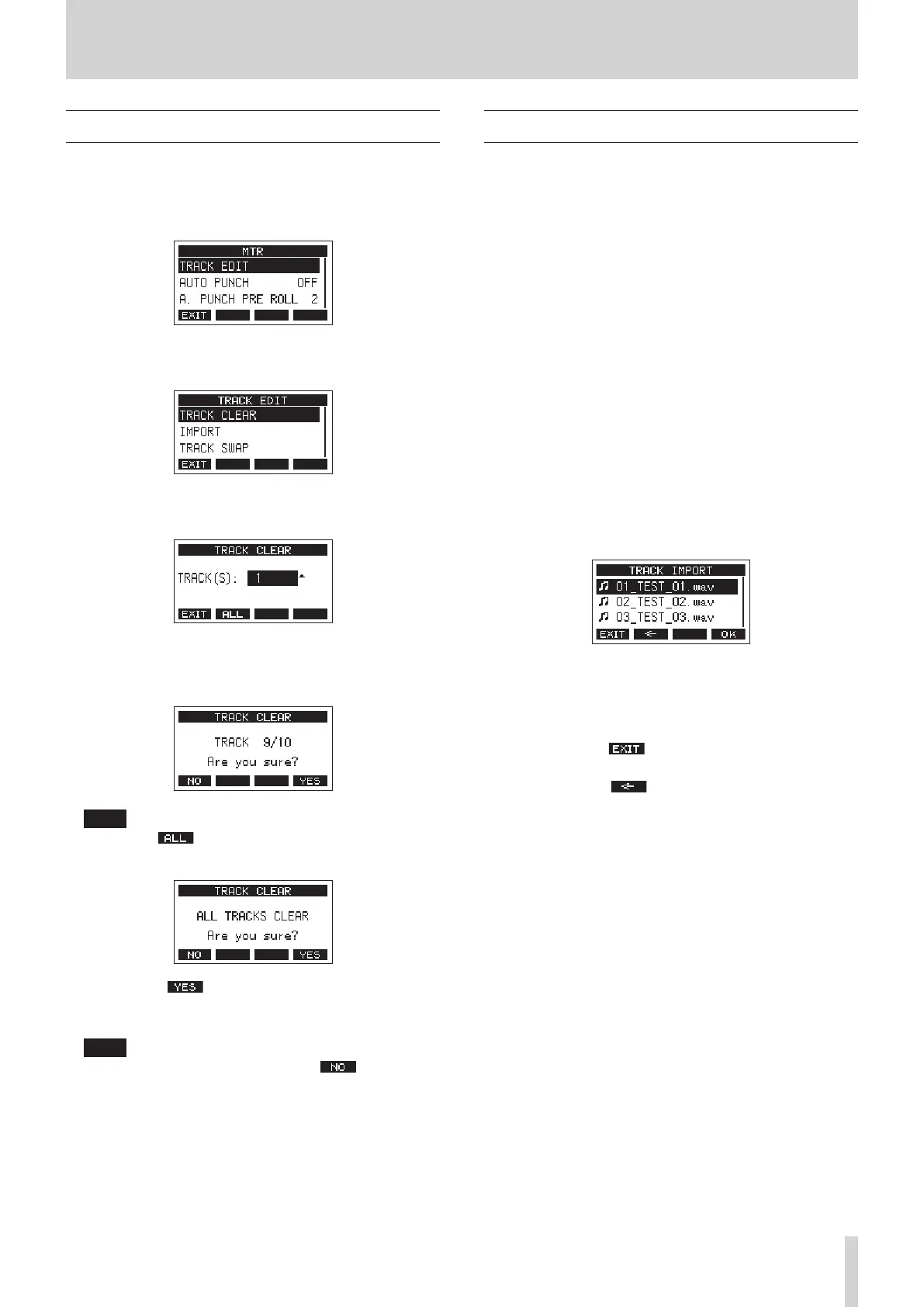
1. When the recorder is stopped, select MTR on the MENU
Screen, and open the MTR Screen. (see "Menu operation
procedures" on page 18.)
2. Select TRACK EDIT on the MTR Screen, and open the TRACK
EDIT Screen.
3. Select TRACK CLEAR on the TRACK EDIT Screen, and open
the TRACK CLEAR Screen.
4. Turn the MULTI JOG dial to select the track to clear, and
press the MULTI JOG dial.
A conrmation message will appear.
NOTE
Press the F2 button to open a message asking to
conrm that you want to clear all tracks.
5. Press the F4 button to clear the track(s).
After clearing tracks completes, the TRACK CLEAR Screen
will reopen.
NOTE
i To cancel clearing tracks, press the F1 button.
i Undoing is possible only for the last cleared track.
Importing tracks
You can import audio les that you have to tracks in the current
song.
Files that can be imported to tracks must be WAV (BWF) format
(“.WAV” extension).
To import an audio le with a dierent format (.mp3, etc.) to this
unit, it must be converted to a WAV le that matches the format
of the song it will be imported into beforehand.
1. Connect this unit with a computer. (see "Connecting with a
Computer" on page 54.)
2. Use the computer to copy WAV les on it to this unit’s
“MUSIC” folder.
3. Follow the proper disconnection procedures on the
computer before disconnecting the USB cable. (see
"Disconnecting" on page 54.)
4. When the recorder is stopped, select MTR on the MENU
Screen, and open the MTR Screen. (see "Menu operation
procedures" on page 18.)
5. Select TRACK EDIT on the MTR Screen, and open the TRACK
EDIT Screen.
6. Select IMPORT on the TRACK EDIT Screen, and open the
TRACK IMPORT Screen.
WAV les in the “MUSIC” folder will be shown.
7. Select a WAV le to import.
i Turn the MULTI JOG dial to select a WAV le.
i Press the MULTI JOG dial when a folder is selected to
show its contents.
i Press the F1 button to return to the MENU
Screen.
i Press the F2 button to move up one level.
TASCAM Model 2400 37


 To Next Page