12 - USB audio interface functions
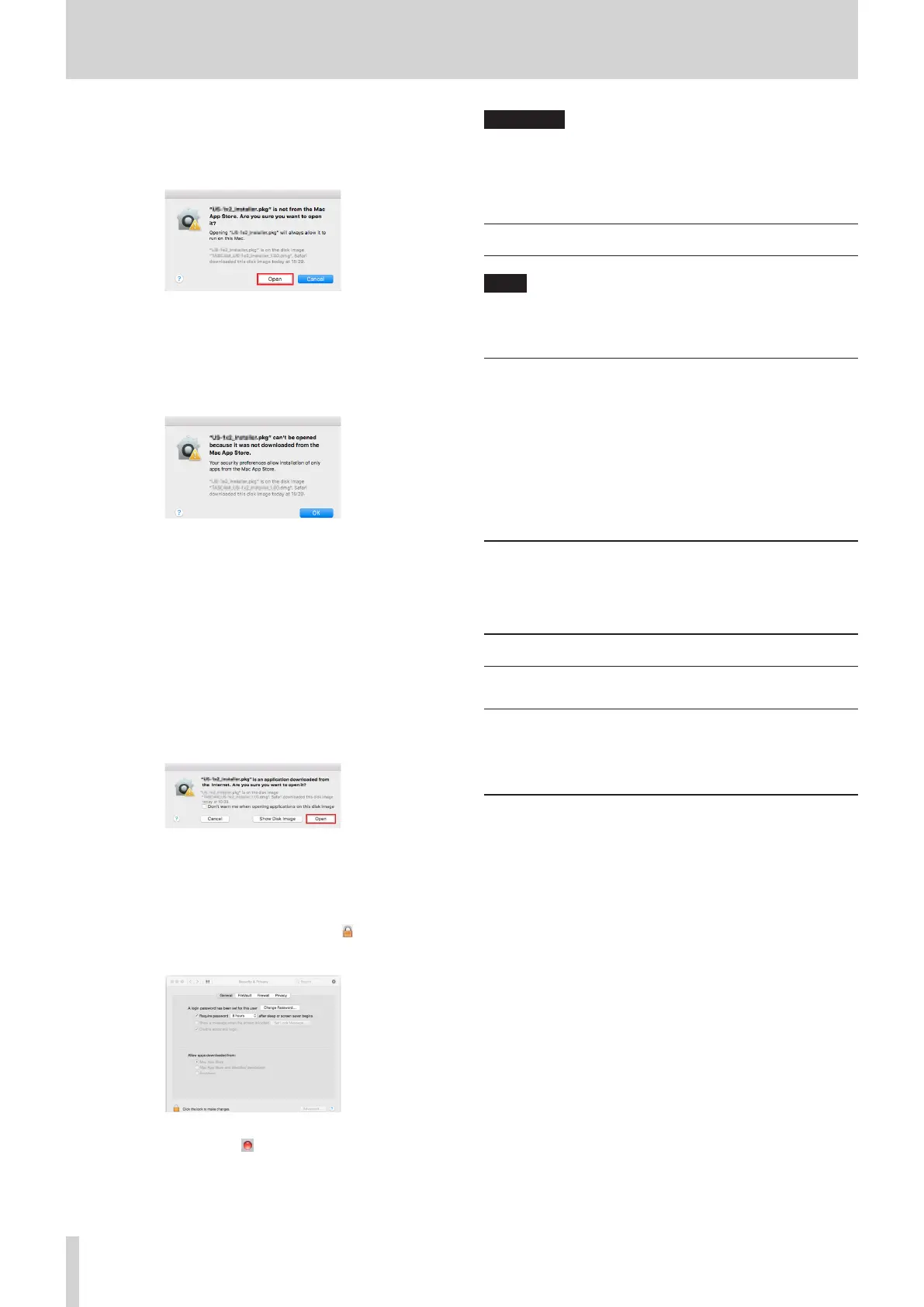
When the “‘ModelMixer_Installer.pkg’ can’t be opened
because it was not downloaded from the Mac App Store. Are
you sure you want to open it?” security warning message
appears, click the “Open” button.
This warning message might also appear when the
Gatekeeper setting is something other than “Allow
applications downloaded from: the Mac App Store.”
The le still might not open and “‘ModelMixer_Installer.pkg’
can’t be opened because it was not downloaded from the
Mac App Store.” might appear again.
In this case, copy the le from the folder where it is to the
desktop or another folder, and then open it. Alternatively,
change the Gatekeeper settings to “Allow apps downloaded
from: App Store and identied developers” and try opening
it again.
When the Gatekeeper setting is “Allow
applications downloaded from: the Mac App
Store”
“‘TASCAM_MODEL MIXER_Installer_x.xx.dmg’ is an
application downloaded from the Internet. Are you sure
you want to open it?” might appear as a security warning
message. In this case, click the “Open” button.
Changing the Gatekeeper setting
The Gatekeeper setting can be changed using the “Allow
applications downloaded from:” item on the “General” page
of the “Security & Privacy” pane of the System Preferences.
To change this, you must click the lock icon ( ) at the
bottom left and enter a password to unlock the settings.
This setting will lock again when you close the System
Preferences by clicking the button or typing command-Q,
for example, or when you click “Show All” to close the open
pane.
ATTENTION
Changing the Gatekeeper settings could result in security risks.
If you changed the Gatekeeper setting to decrease security (use
one of the lower settings), set it back to the original setting after
updating the driver and/or rmware.
Uninstalling the dedicated software
NOTE
Normally, there is no need to uninstall the dedicated software.
Follow these procedures if a problem occurs or you no longer
intend to use the unit with the computer.
Uninstalling the Windows dedicated
software
1. Open the “Uninstall or change a program” screen using the
procedures for the operating system being used (Windows
11/Windows 10).
2. Select “TASCAM Model_Mixer x.xx” from the list, and
double-click it.
3. Then, follow the instructions that appear on the screen.
Uninstalling the Mac dedicated software
Delete “TASCAM Model_Mixer” from the Application folder to
complete uninstallation.
Opening the Settings Panel
Open the Settings Panel in the following manner.
Windows
o From the “Start” menu select “TASCAM Model Mixer” under
“TASCAM”
Mac
o On the Launchpad, click “TASCAM Model Mixer”.
o Using the Finder, open the Applications folder and click
“TASCAM Model Mixer” to open the Settings Panel.
58 TASCAM Model 2400


 To Next Page