13 - USB OUTPUT DELAY function
During live Internet streaming, when capturing audio with a
dierent device from the camera video, lags could occur between
the streamed video and audio.
If the video is behind the audio, an oset delay can be added
intentionally to audio from the Model 2400 USB output to correct
the lag between the video and audio.
Even though delay could be applied using the streaming
application, this function is useful because applying oset delay
using the Model 2400 can reduce the load on that application.
1. When the recorder is stopped, select OUTPUT DELAY on the
SYSTEM Screen, and open the OUTPUT DELAY Screen. (see
"Menu operation procedures" on page 18.)
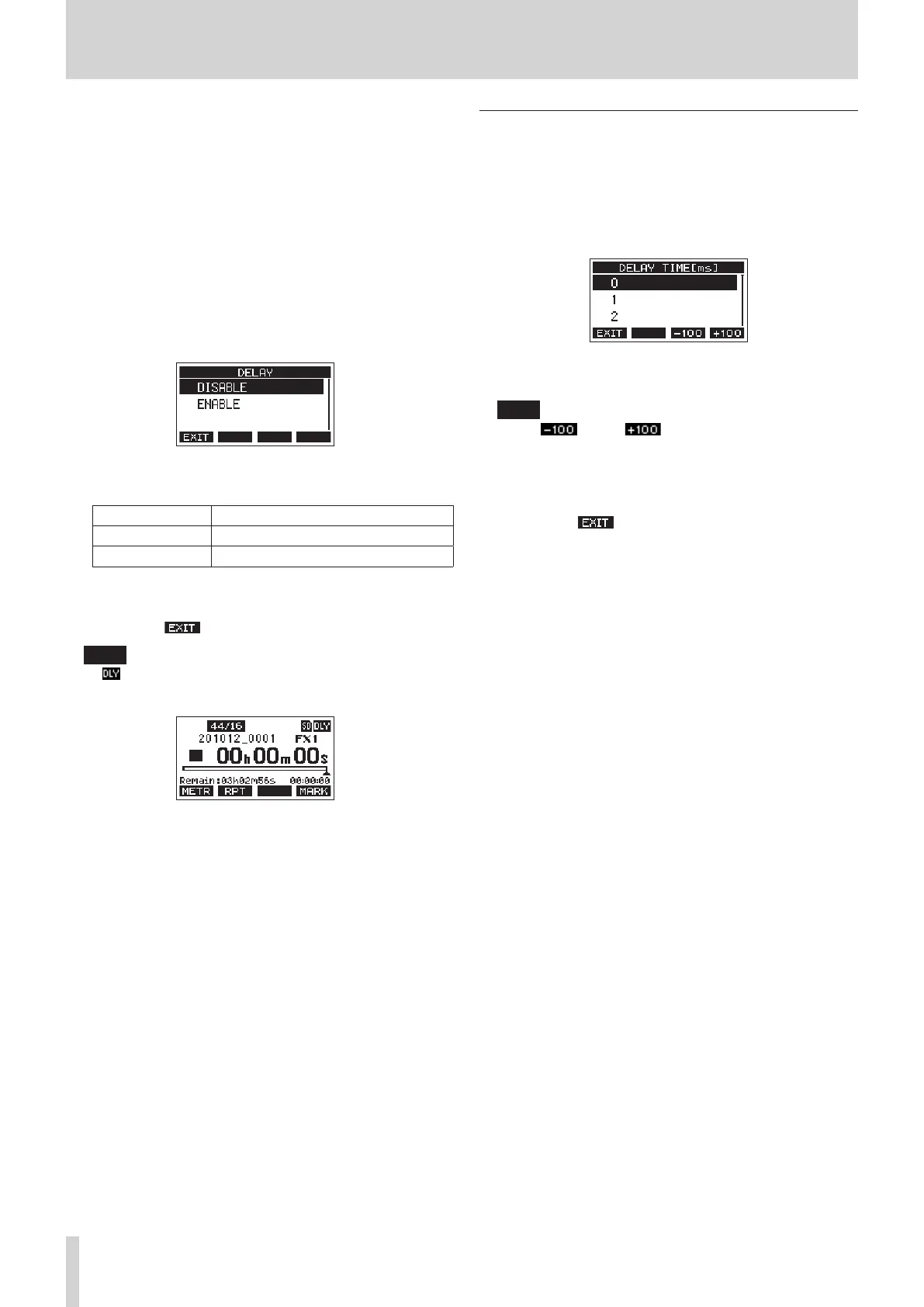
2. Select DELAY on the OUTPUT DELAY Screen, and open the
DELAY Screen.
3. Turn the MULTI JOG dial to enable/disable the OUTPUT
DELAY function that applies delay to USB audio.
Option Meaning
DISABLE (default) Do not use the OUTPUT DELAY function
ENABLE Use the OUTPUT DELAY function
4. Press the MULTI JOG dial to conrm the setting.
The OUTPUT DELAY Screen reopens.
5. Press the F1 button to return to the SYSTEM Screen.
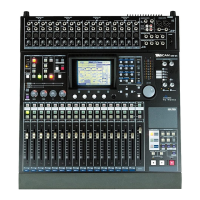
NOTE
An icon appears on the Home Screen when the OUTPUT
DELAY function is on (set to ENABLE).
Setting the delay time of the OUTPUT
DELAY function
1. When the recorder is stopped, select OUTPUT DELAY on the
SYSTEM Screen, and open the OUTPUT DELAY Screen.
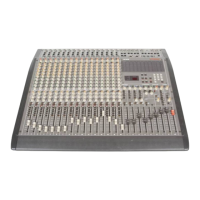
2. Select DELAY TIME on the OUTPUT DELAY Screen, and open
the DELAY TIME Screen.
3. Turn the MULTI JOG dial to set the delay time.
Setting range: 0 (default) – 2000 (in 1 ms steps)
NOTE
The F3 and F4 buttons change the delay time in
100ms steps rather than in 1ms steps. They do not decrease/
increase the delay time −100/+100 ms.
4. Press the MULTI JOG dial to conrm the setting.
The OUTPUT DELAY Screen will reopen.
5. Press the F1 button to return to the SYSTEM Screen.
64 TASCAM Model 2400


 To Next Page