12 - USB audio interface functions
8 METER SELECT buttons
Tap these buttons to select the signals shown by the level
meters.
Button Explanation
MTR SOURCE
The levels of signals being input to the
MTR (entering channel strips) will be
shown.
MIC/LINE
The levels of signals being input to the
MIC/LINE jacks will be shown.
USB RETURN
The levels of signals being input from
USB will be shown.
MTR RETURN
The levels of signals being output from
the MTR (playback audio) will be shown.
9 MAIN level meters
These show the MAIN MIX L/R bus signal levels (pre-fader).
Level values are shown at the bottom of the level meters. The
unit is dBFS.
Notication function
If the computer you are using is connected to the Internet,
the latest information about unit rmware and software, for
example, can be shown when the Settings Panel is launched.
NOTE
Put a check in the “Do not show the same message again”
checkbox to prevent the same message from being shown the
next time it is launched.
Setting Sound Properties
1. Open the OS Control Panel.
NOTE
Follow these procedures to open the Control Panel.
Windows 11
Click the Windows Start button, and from “All apps” click
“Windows Tools” and then double-click “Control Panel”.
Windows 10
Left-click the Windows Start button, and from
“WindowsSystem” select “Control Panel”.
2. Double-click “Sound” in the Control Panel.
NOTE
If the Control Panel is set to be viewed as icons, a “Sound”
icon will appear.
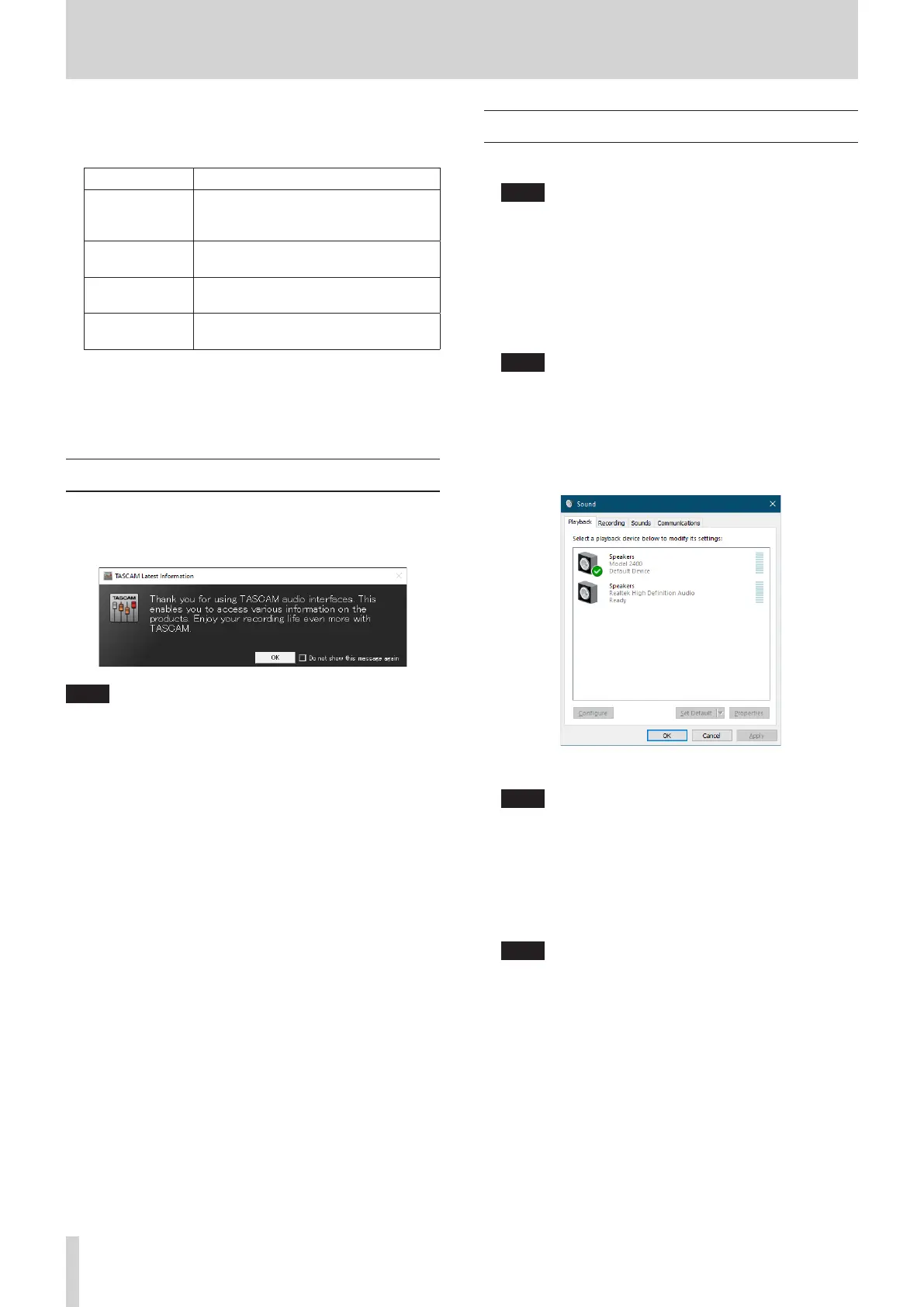
3. On the “Playback” page, right-click “Model 2400”, and click
“Set as Default Device” in the pop-up menu that appears.
When you do this, the green check mark appears next to
the selected device.
Windows 10 screen
NOTE
Set the default device according to the ASIO device being
used on the Recording tab in the same manner as on the
Playback tab.
4. After completing the setting, click the “OK” button.
5. Launch Windows Media Player and start playback to input
the playback sound from the computer to channels 1 and 2
on the Model 2400. (INPUT SEL switches: USB)
NOTE
i If you change the setting while Windows Media Player is
running, the software will not recognize that the device
has been changed. In this case, restart Windows Media
Player.
i If you still cannot hear sound after making the settings
and completing the procedures above, restart the
computer.
i If you make this setting, sound will be output through this
unit, but no sound will be output from the computer’s
speakers or headphone jack.
60 TASCAM Model 2400


 To Next Page