12 - USB audio interface functions
Settings Panel overview
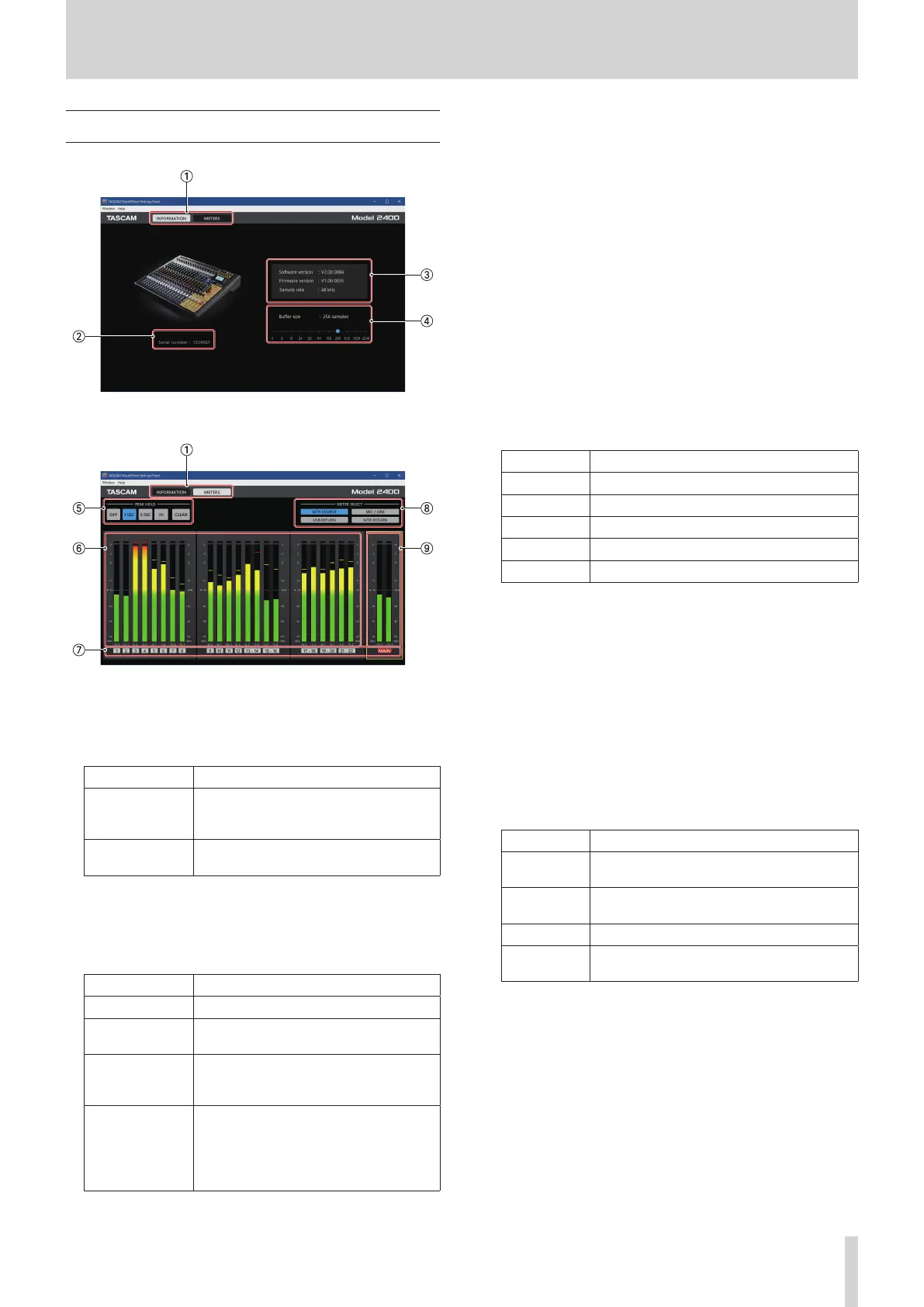
Settings Panel INFORMATION Screen
Settings Panel METERS Screen
1 Screen selection buttons
Tap these buttons to switch the Settings Panel screen shown.
Button Use
INFORMATION
This opens the INFORMATION Screen,
which shows information and other
details about the unit.
METERS
This opens the Meter Screen, which
shows the meters.
2 Serial number
This shows the serial number of the unit.
3 Status display area
This shows the current status of the software.
Item displayed Meaning
Software Ver This is the software version.
Firmware Ver
This is the rmware version used by the
connected unit.
Device
This is the name of the connected unit.
(“No Device” is shown when no device is
connected.)
Sample Rate
This shows the sampling frequency of
the current song.
If an SD card is not loaded, this shows
the sampling frequency set by the
computer.
4 Buer Size (Windows only)
You can adjust the size of the buer used to handle the
audio input and output signals transferred to and from the
computer.
Smaller buer sizes result in less audio signal delay (latency),
but require high-speed processing by the computer.
If the processing cannot keep up, for example, due to other
system operations, clicking and popping noises might occur
and the audio signal might even drop out.
Increasing the buer size will stabilize operation and
suppress negative eects on audio signals, but the delay in
audio signals sent to the computer will increase.
You can use the slider on the panel to adjust the buer size
for this unit according to the use conditions.
Options
4, 8, 16, 24, 32, 64, 128, 256 (default), 512,1024, 2048
i On macOS, adjust this within the DAW.
5 PEAK HOLD setting buttons
Tap these buttons to set peak hold display on the meters.
Button Explanation
OFF Peak hold will not be shown.
1 SEC The peak level will be held for 1 second.
3 SEC The peak level will be held for 3 seconds.
∞ The peak level will be held until it is cleared.
CLEAR This clears the peak hold.
6 Channel level meters
These show the signal levels (pre-fader) of all channels
selected with METER SELECT buttons.
Level values are shown at the bottom of the level meters.
The unit is dBFS. Peak holds can be individually cleared by
clicking around these numbers.
7 Channels
These show the channel numbers.
When MTR SOURCE is selected, these show the REC button
states of the unit channels.
The MAIN area always shows the REC button status.
The colors of the channel numbers indicate the following
states.
Color Explanation
Black
The state of the REC button cannot be
shown.
Gray
The REC button is not pressed for this
channel.
Blinking red The REC button is pressed for this channel.
Lit red
The REC button is pressed for this channel,
which is recording.
TASCAM Model 2400 59


 To Next Page