Configuration of sensor using service adapter / Software launch
DUT-E fuel level sensors. Operation manual. Version 8.1
© Technoton, 2020 63
3.7 Software launch
Service DUT-E software is launched with desktop shortcut created during installation.
To enable connection between the sensor and PC connect adapter to USB port of PC and tick
connection checkbox in the left from COM-port parameters field.
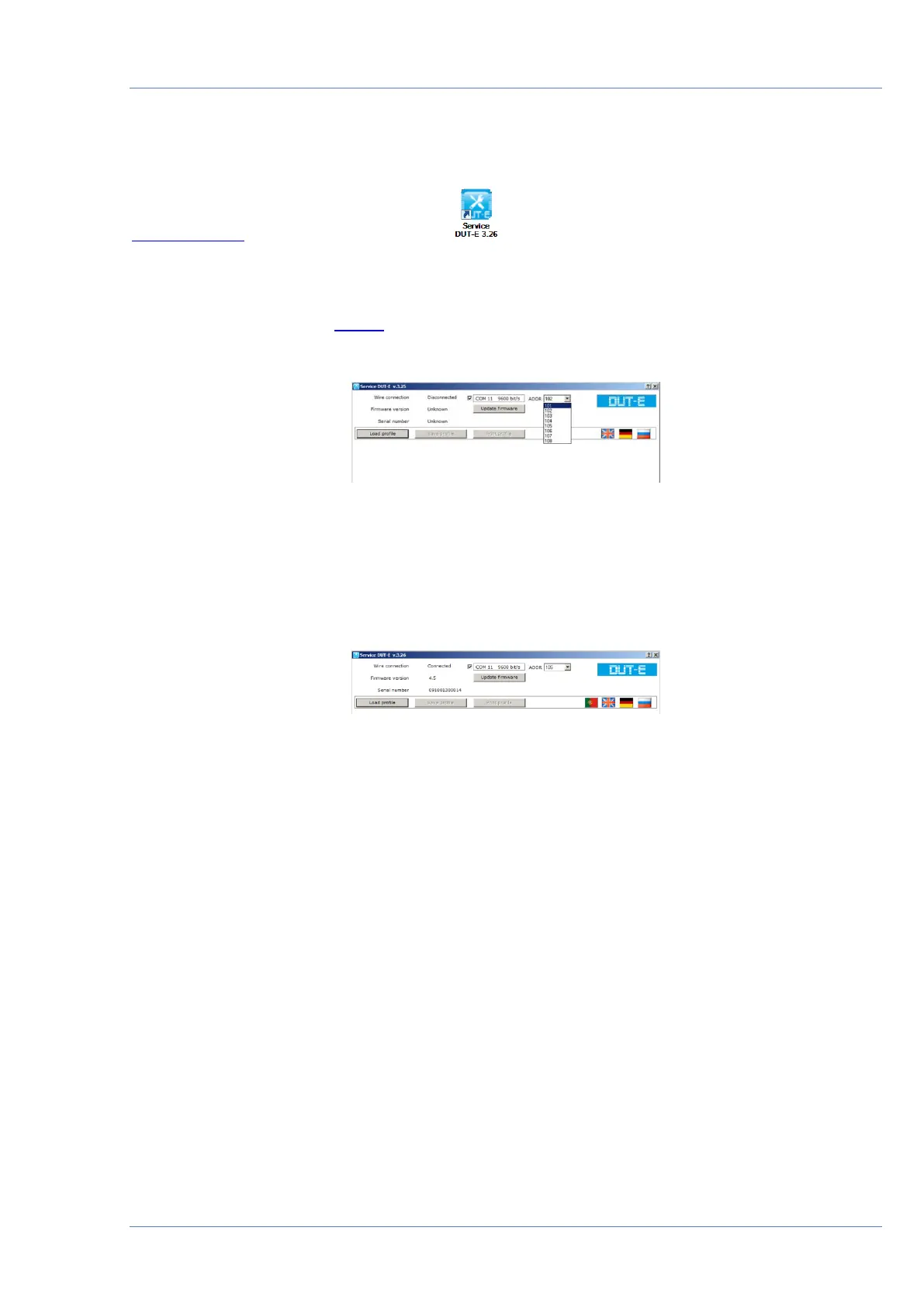
Note — when connecting DUT-E CAN/AF firstly select network address from the drop-down list
ADDR (see figure 38).
Figure 38 — Network address selection for DUT-E CAN/AF
Software will automatically change the connection status to “Connected”. Firmware version,
serial number of the DUT-E sensor, virtual COM port number will be displayed as well as baud
rate for RS-232, RS-485 or K-line connection (see figure 39). LED indicators of the adapter will
display signals according to table 14.
Figure 39 — Service DUT-E main window with sensor connection established


 To Next Page