User Manual for Oscar GNSS Receiver v2.4
76
2.5Web UI
Oscar GNSS receiver supports being a Wi-Fi hot spot and connect with a
computer or a smart terminal within five meters. You can read coordinate
information, configure the receiver and upgrade the firmware through the web
UI (user interface) on the browser of the computer or the smart terminal.
Follow below steps to enter the web user interface on a computer with
Windows 10 operating system.
a. Upgrade the receiver to the latest firmware, and then open Wi-Fi .
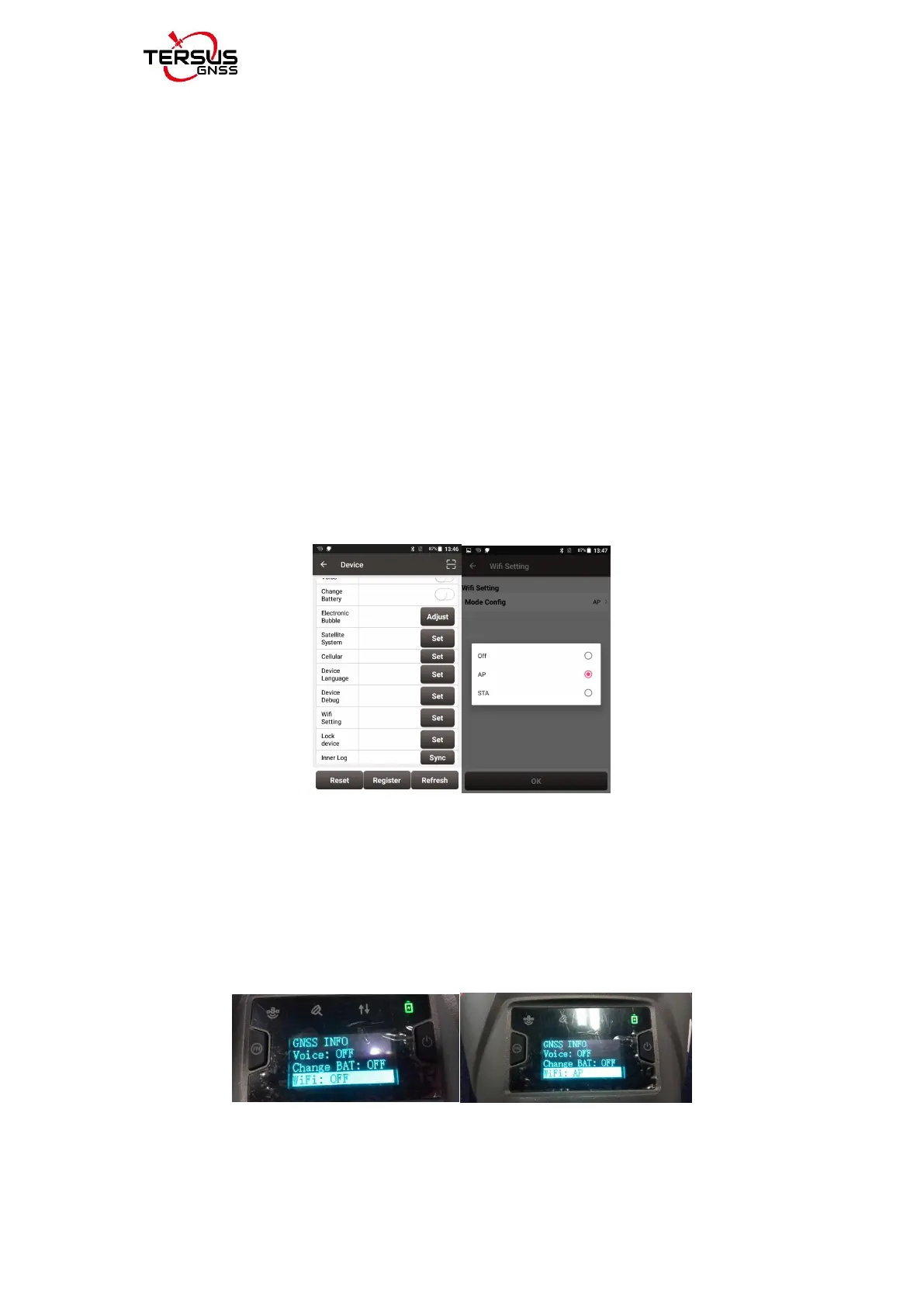
Switch to [Device] -- [WIFI Setting] -- [Set] -- [Mode Config], select [AP] --
[confirm] via NUWA, as shown below.
Note: the version of NUWA app must be upgraded to V2.2.9 or above.
Figure 2.43 WiFi interface
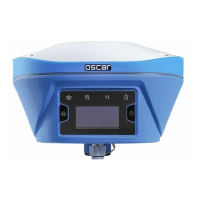
For Advanced and Ultimate versions, you can open WiFi through switching the
power button and the FN button, [Device Info]--[WiFi:OFF] --select [WiFi:
AP]--Confirm. SSID & IP & MAC will be automatically set. Please refer to 1.3.1
for detailed button function.
Figure 2.44 Open WiFi (Advanced and Ultimate versions)
b. Click the Internet connection icon on the lower right corner of the desktop.


 To Next Page