Chapter 12: Additional Graphing Topics 211
12ADDLGR.DOC TI-89/TI-92 Plus: Additional Graphing Tools (English) Susan Gullord Revised: 02/23/01 1:03 PM Printed: 02/23/01 2:15 PM Page 211 of 20
For more complete information about split screens, refer to
Chapter 14.
¦ To switch from one graph side to the other, press
2
a
(second function of
O
).
¦
To display different applications:
− Switch to the applicable graph side and display the application
as you normally would.
— or —
− Use
3
to change
Split 1 App
and/or
Split 2 App
.
¦ To exit two-graph mode:
− Use
3
to set
Number of Graphs = 1
, or exit the split screen
by setting
Split Screen = FULL
.
— or —
− Press
2
K
twice. This always exits a split screen and
returns to a full-sized Home screen.
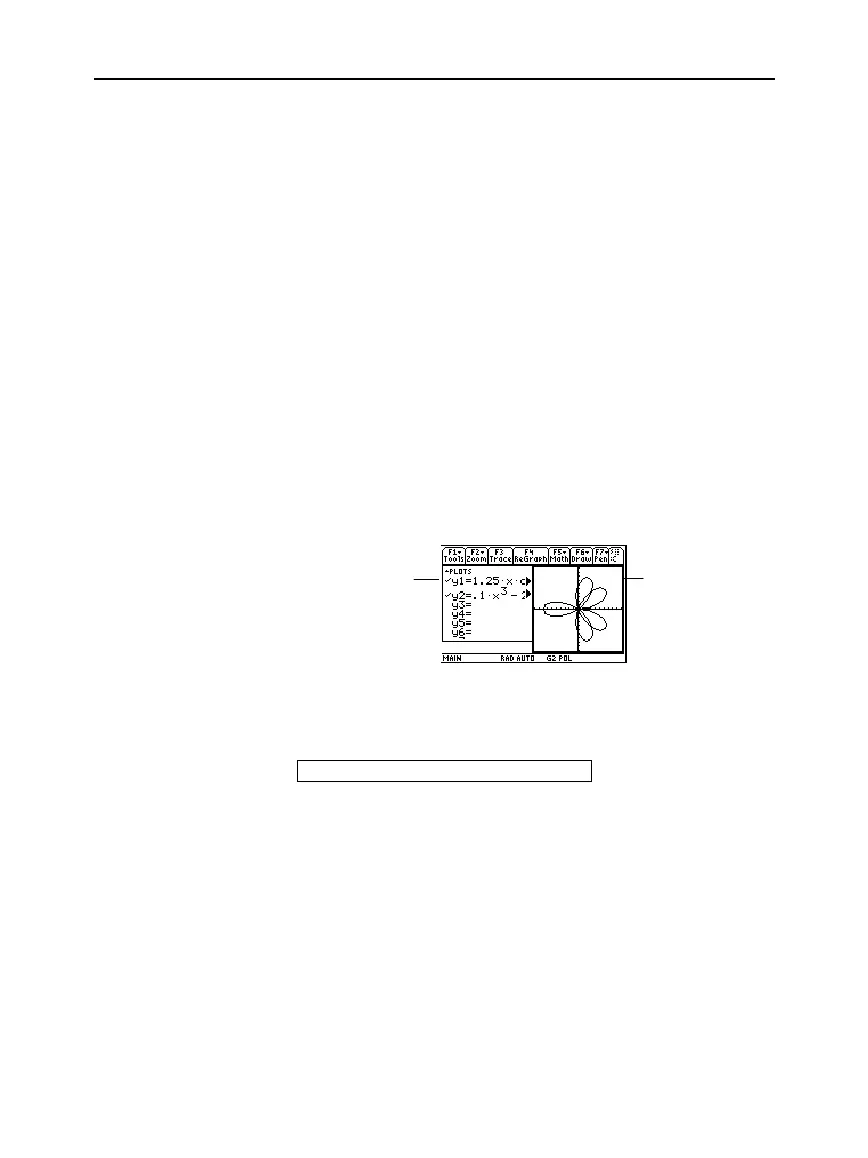
In two-graph mode, the two sides may appear to be related when, in
fact, they are not. For example:
After the two-graph mode is set up, graph-related operations refer to
the active graph side. For example:
10
!
xmax
affects either Graph 1 or Graph 2, depending on which is active when
you execute the command.
To switch the active sides, press
2
a
or use the
switch
function,
switch
(1)
or
switch
(2)
.
Using a Split Screen
Note: You can display non-
graph-related applications
(such as the Home screen)
on only one side at a time.
Remember that the
Two Sides Are
Independent
From the Home
Screen or a Program
For Graph 1,
the Y= Editor
lists y(x)
functions.
For Graph 2,
the polar
graph uses
r(
q
)
equations
that are not
shown.


 To Next Page
 Loading...














