212 Chapter 12: Additional Graphing Topics
12ADDLGR.DOC TI-89/TI-92 Plus: Additional Graphing Tools (English) Susan Gullord Revised: 02/23/01 1:03 PM Printed: 02/23/01 2:15 PM Page 212 of 20
Execute
DrawFunc
,
DrawParm
, or
DrawPol
from the Home screen or
a program. You cannot draw a function or equation interactively
from the Graph screen.
DrawFunc
expression
DrawParm
expression1
,
expression2
[,tmin] [,tmax] [,tstep]
DrawPol
expression
[,
q
min] [,
q
max] [,
q
step]
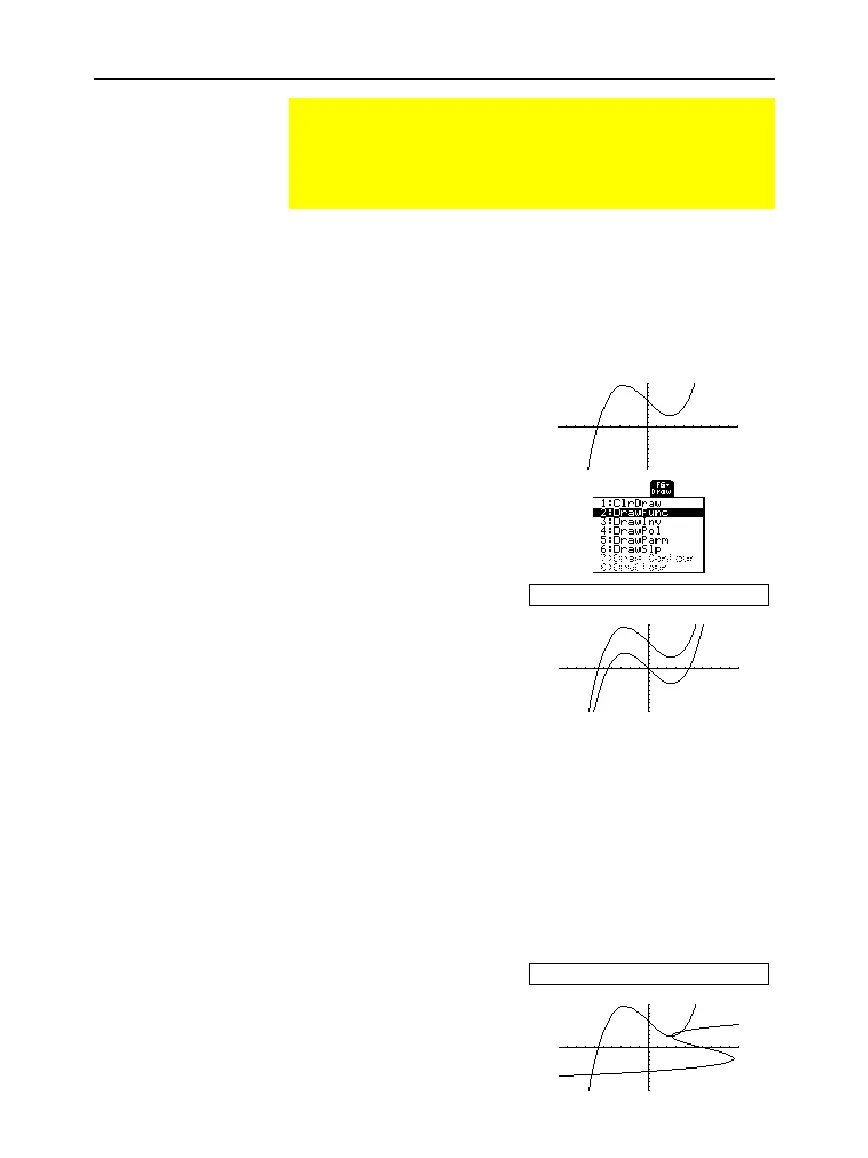
For example:
1. Define
y1(x)=.1x
òì
2x+6
on the
Y= Editor, and graph the
function.
2. On the Graph screen, press:
TI
-
89
:
2
ˆ
TI
-
92 Plus
:
ˆ
and select
2:DrawFunc
.
3. On the Home screen, specify
the function to draw.
DrawFunc y1(x)
ì
6
4. Press
¸
to draw the
function on the Graph
screen.
You cannot trace, zoom, or
perform a math operation on
a drawn function.
Execute
DrawInv
from the Home screen or a program. You cannot
draw an inverse function interactively from the Graph screen.
DrawInv
expression
For example, use the graph of
y1(x)=.1x
òì
2x+6
as shown above.
1. On the Graph screen, press:
TI
-
89:
2
ˆ
TI
-
92 Plus:
ˆ
and select
3:DrawInv
.
2. On the Home screen, specify
the inverse function.
DrawInv y1(x)
3. Press
¸
.
The inverse is plotted as
(
y,x
) instead of (
x,y
).
Drawing a Function or Inverse on a Graph
For comparison purposes, you may want to draw a function
over your current graph. Typically, the drawn function is some
variation of the graph. You can also draw the inverse of a
function. (These operations are not available for 3D graphs.)
Drawing a Function,
Parametric, or Polar
Equation
To display the Home screen
and put
DrawFunc
in the
entry line, press:
TI
-
89
:
2
ˆ
2
TI
-
92 Plus
:
ˆ
2
Tip:
To clear the drawn
function, press
†
— or —
TI
-
89:
2
ˆ
and select
1:ClrDraw
.
TI
-
92 Plus:
ˆ
and select
1:ClrDraw
.
Drawing the Inverse
of a Function
To display the Home screen
and put
DrawInv
in the
entry line, press:
TI
-
89:
2
ˆ
3
TI
-
92 Plus:
ˆ
3



 To Next Page
 Loading...













