300 Chapter 17: Programming
17PROGRM.DOC TI-89/TI-92 Plus: Programming (English) Susan Gullord Revised: 02/23/01 1:14 PM Printed: 02/23/01 2:18 PM Page 300 of 40
Command Description
getConfg
Returns a list of calculator characteristics.
getFold
Returns the name of the current folder.
getMode
Returns the current setting for a specified mode.
getUnits
Returns a list of default units.
setFold
Sets the current folder.
setGraph
Sets a specified graph format (
Coordinates
,
Graph
Order
, etc.).
setMode
Sets any mode except
Current Folder
.
setTable
Sets a specified table setup parameter
(
tblStart
,
@
tbl
, etc.)
setUnits
Sets default units for displayed results.
switch
Sets the active window in a split screen, or returns
the number of the active window.
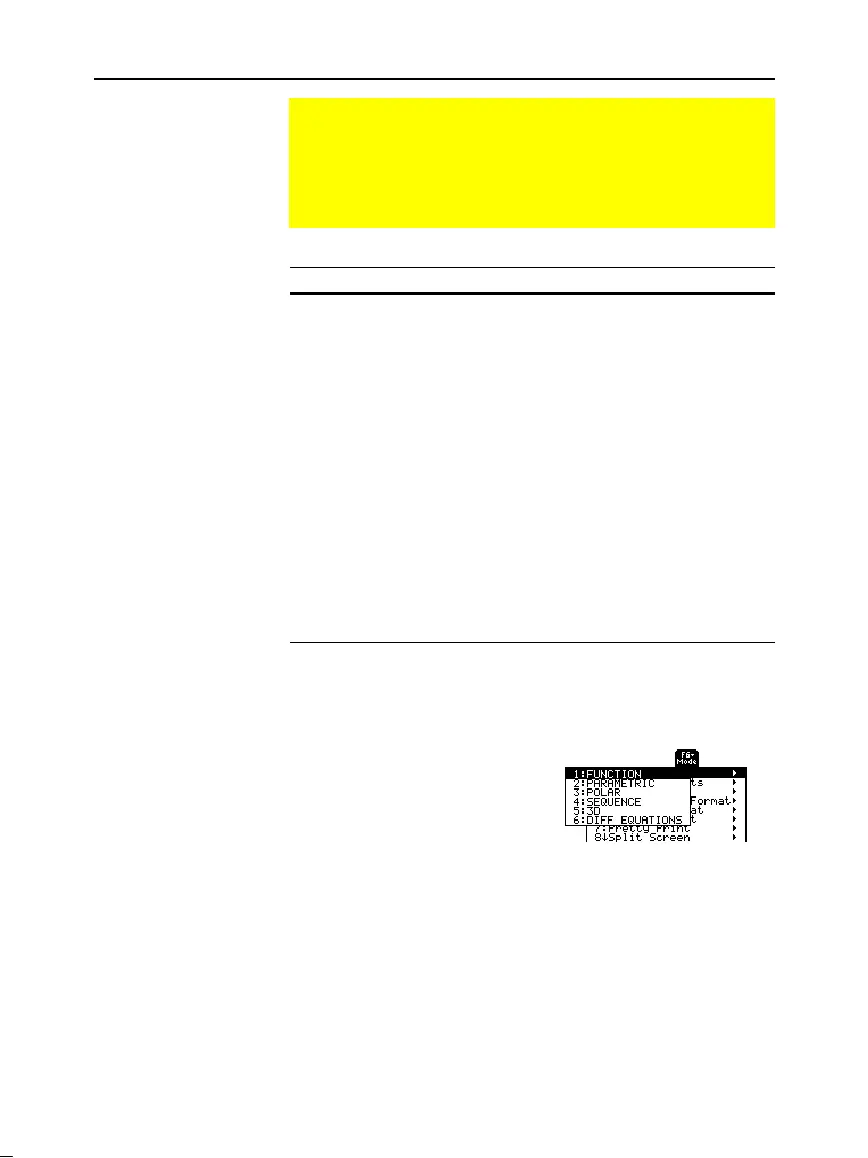
In the Program Editor:
1. Position the cursor where you want to insert the
setMode
command.
2. Press:
TI
.
89:
2ˆ
TI
.
92 Plus:
ˆ
to display a list of modes.
3. Select a mode to display a menu of its valid settings.
4. Select a setting.
The correct syntax is inserted into
your program.
:setMode("Graph","FUNCTION")
Configuring the TI-89 / TI-92 Plus
Programs can contain commands that change the
configuration of the TI
-
89 / TI
-
92 Plus. Because mode changes
are particularly useful, the Program Editor’s
Mode
toolbar
menu makes it easy to enter the correct syntax for the
setMode
command.
Configuration
Commands
Note: The parameter/mode
strings used in the
setMode( )
,
getMode( )
,
setGraph( )
,
and
setTable( )
functions do not
translate into other
languages when used in a
program. See Appendix D.
Entering the
SetMode Command
Note: The
Mode
menu does
not let you set the
Current
Folder
mode. To set this
mode, use the
setFold
command.



 To Next Page
 Loading...













