Chapter 17: Programming 303
17PROGRM.DOC TI-89/TI-92 Plus: Programming (English) Susan Gullord Revised: 02/23/01 1:14 PM Printed: 02/23/01 2:18 PM Page 303 of 40
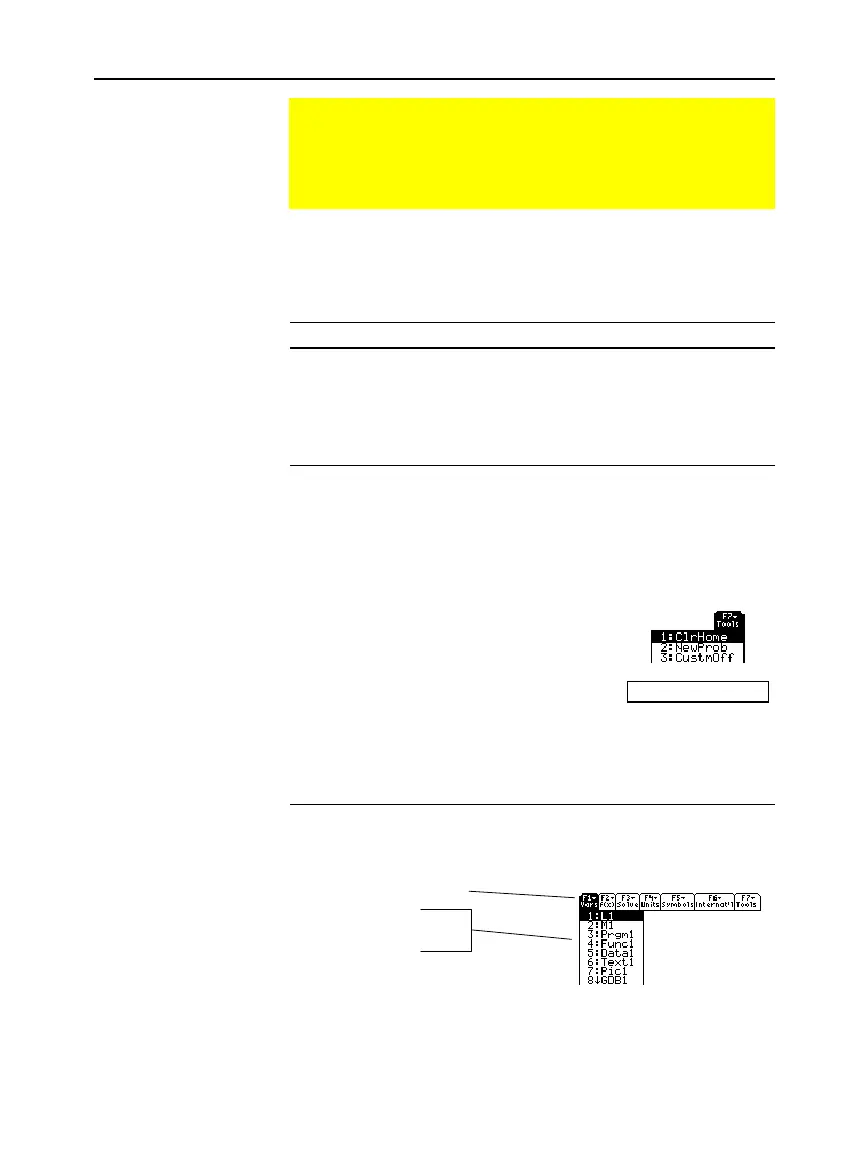
When you create a custom menu, you can let the user turn it on and
off manually, or you can let a program turn it on and off
automatically.
To: Do this:
Turn on the
custom menu
From the Home screen or any other application:
¦
Press
2
¾
.
From the Home screen or a program:
¦ Execute the
CustmOn
command.
Turn off the
custom menu
From any application:
¦ Press
2
¾
again.
— or —
¦ Go to a different application.
Using the default custom menu on the Home
screen:
1. Select the
Tools
menu:
TI
.
89:
2
‰
TI
.
92 Plus:
‰
Then select
3:CustmOff
.
This pastes
CustmOff
in
the entry line.
2. Press
¸
.
CustmOff
You can also use
CustmOff
in a program.
To create a custom menu, use the following general structure.
:
Custom
:
Title
title of F1 menu
:
Item
item 1
:
Item
item 2
:
ø ø ø
:
Title
title of F2 menu
:
ø ø ø
:
Title
title of F3 menu
:
ø ø ø
:
EndCustm
Creating a Custom Menu
The TI
-
89 / TI
-
92 Plus custom menu feature lets you create your
own toolbar menu. A custom menu can contain any available
function, instruction, or set of characters. The TI
-
89 / TI
-
92 Plus
has a default custom menu that you can modify or redefine.
Turning the Custom
Menu On and Off
Note:
When the custom
menu is turned on, it
replaces the normal toolbar
menu. Unless a different
custom menu has been
created, the default custom
menu is displayed.
Defining a Custom
Menu
Note:
When the user
selects a menu item, the
text defined by that
Item
command is pasted to the
current cursor location.



 To Next Page
 Loading...













