220 Chapter 12: Additional Graphing Topics
12ADDLGR.DOC TI-89/TI-92 Plus: Additional Graphing Tools (English) Susan Gullord Revised: 02/23/01 1:03 PM Printed: 02/23/01 2:15 PM Page 220 of 20
A graph database consists of:
¦ Mode settings (
3
) for
Graph
,
Angle
,
Complex Format
, and
Split Screen
(only if you are using the two-graph mode).
¦ All functions in the Y= Editor (
¥
#
), including display styles and
which functions are selected.
¦
Table parameters (
¥&
), Window variables (
¥$
), and
graph formats (
ƒ
9
— or —
TI
-
89
:
¥Í
TI
-
92 Plus
: ¥
F
.)
A graph database does not include drawn objects or stat plots.
From the Y= Editor, Window Editor, Table screen, or Graph screen:
1. Press
ƒ
and select
2:Save Copy As
.
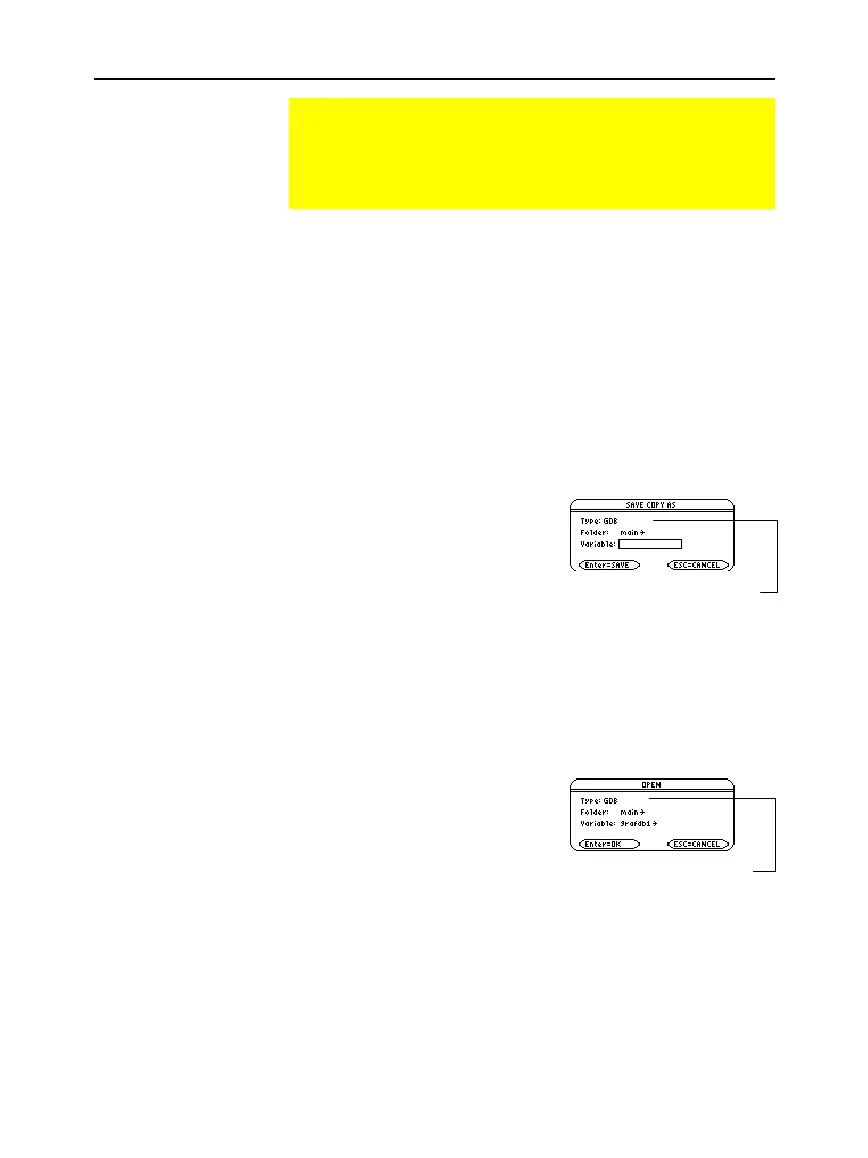
2. Specify the folder and a
unique variable name.
3. Press
¸
. After typing in an
input box such as
Variable
, you
must press
¸
twice.
Caution:
When you open a graph database, all information in the
current database is replaced. You may want to store the current
graph database before opening a stored database.
From the Y= Editor, Window Editor, Table screen, or Graph screen:
1. Press
ƒ
and select
1:Open
.
2. Select the folder and variable
that contain the graph
database you want to open.
3. Press
¸
.
Unused
GDB
variables take up calculator memory. To delete them,
use the
VAR-LINK
screen (
2
°
) described in Chapter 21.
You can save (store) and open (recall) a graph database by using the
StoGDB
and
RclGDB
commands as described in Appendix A.
Saving and Opening a Graph Database
A graph database is the set of all elements that define a
particular graph. By saving a graph database as a GDB
variable, you can recreate that graph at a later time by opening
its stored database variable.
Elements in a Graph
Database
Note:
In two-graph mode,
the elements for both
graphs are saved in a single
database.
Saving the Current
Graph Database
Opening a Graph
Database
Deleting a Graph
Database
From a Program or
the Home Screen
Note:
If you start from the Graph
screen, be sure to use
Type
=
GDB
.
Note:
If you start from the Graph
screen, be sure to use
Type=GDB
.



 To Next Page
 Loading...













