164 Chapter 10: 3D Graphing
10_3D.DOC TI-89/TI-92 Plus: 3D Graphing (English) Susan Gullord Revised: 02/23/01 11:00 AM Printed: 02/23/01 4:22 PM Page 164 of 2210_3D.DOC TI-89/TI-92 Plus: 3D Graphing (English) Susan Gullord Revised: 02/23/01 11:00 AM Printed: 02/23/01 4:22 PM Page 164 of 22
When using
A
and
B
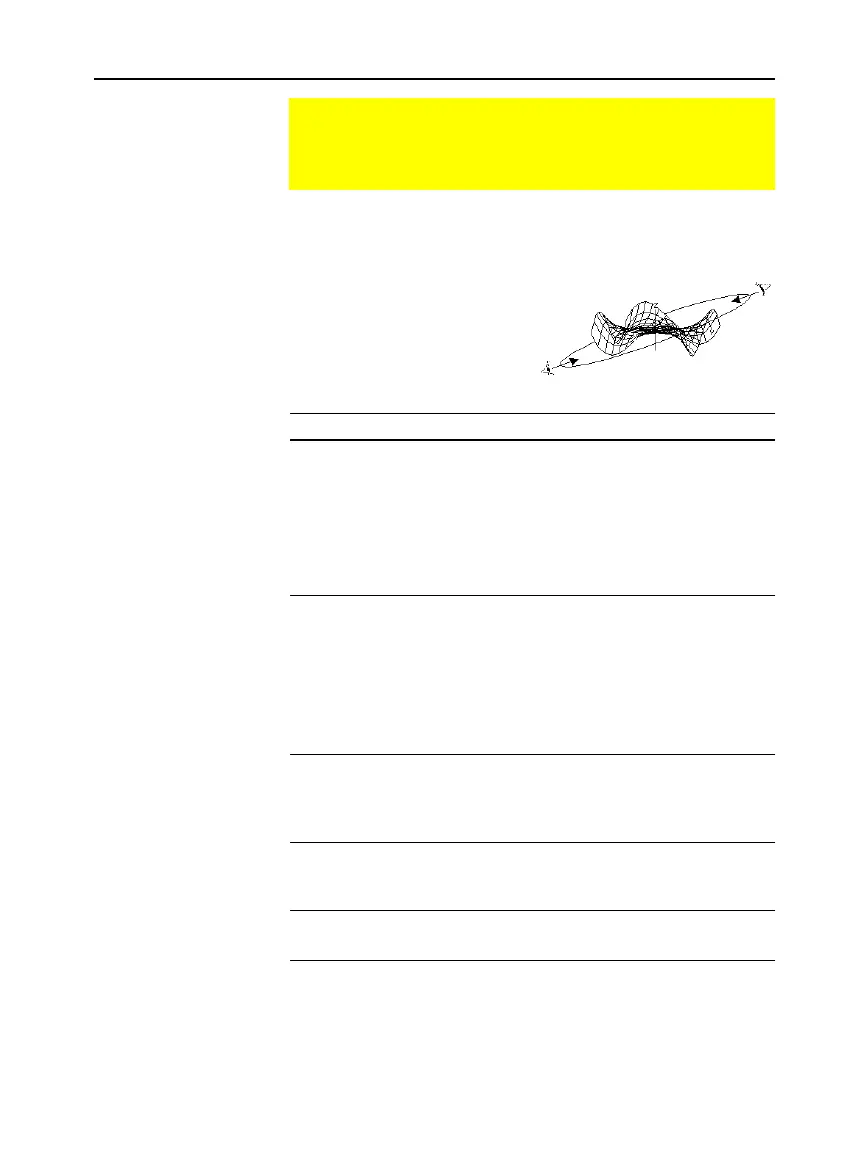
to animate a graph, think of it as moving the
viewing angle along its “viewing orbit” around the graph.
Moving along this orbit can
cause the z axis to wobble
slightly during the animation
(as you can see in the preview
example on page 154).
To: Do this:
nimate the graph incrementally Press and release the cursor
quickly.
Move along the viewing orbit:
or
B
Change the viewing orbit’s
elevation
(primarily increases
or decreases
eye
f
)
:
or
D
nimate the graph continuously Press and hold the cursor for
about 1 second, and then
release it.
TI
-
89
:
To stop, press
N
,
¸
,
´
, or
¥
(space).
TI
-
92 Plus
:
To stop, press
N
,
¸
,
´
, or the space bar.
Change between 4 animation
speeds (increase or decrease the
incremental changes in the
eye
Window variables)
Press
«
or
|
.
Change the viewing angle of a non-
animated graph to look along the x,
y, or z axis
Press
X
,
Y
or
Z
, respectively.
Return to the initial
eye
angle
alues
Press 0
(zero, not the letter O).
You can also animate a graph by saving a series of graph pictures
and then flipping (or cycling) through those pictures. Refer to
“Animating a Series of Graph Pictures” in Chapter 12: Additional
Graphing Topics. This method gives you more control over the
Window variable values, particularly
eye
ψ
(page 162), which rotates
the graph.
Animating a 3D Graph Interactively
After plotting any 3D graph, you can change the viewing angle
interactively by using the cursor. Refer to the preview example
on page 154.
The Viewing Orbit
Note: The viewing orbit
affects the
eye
Window
variables in differing
amounts.
Animating the
Graph
Note: If the graph is shown
in expanded view, it returns
to normal view automatically
when you press a cursor
key.
Tip: After animating the
graph, you can stop and
then re-start the animation
in the same direction by
pressing:
TI
-
89:
¸
or
j
TI
-
92 Plus:
¸
or space
bar
Tip: During an animation,
ou can switch to the next
graph format style by
pressing:
TI
-
89:
Í
TI
-
92 Plus:
F
Tip: To see a graphic that
shows the
eye
angles, refer
to page 162.
Animating a Series
of Graph Pictures



 To Next Page
 Loading...













