Chapter 14: Split Screens 235
14SPLIT.DOC TI-89/TI-92 Plus:Split Screens (English) Susan Gullord Revised: 02/23/01 1:09 PM Printed: 02/23/01 2:16 PM Page 235 of 6
¦
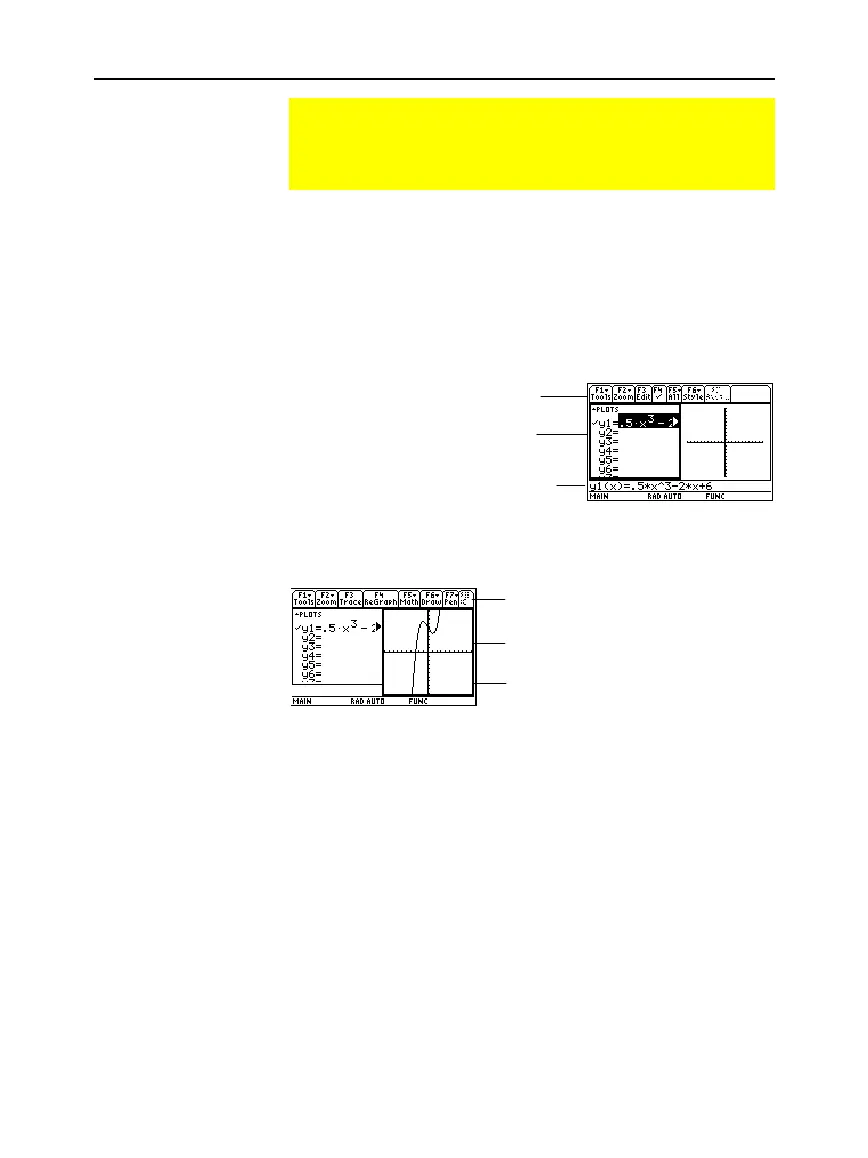
The active application is indicated by a thick border.
¦ The toolbar and status line, which are always the full width of the
display, are associated with the active application.
¦ For applications that have an entry line (such as the Home screen
and Y= Editor), the entry line is the full width of the display
only
when that application is active
.
Press
2a
(second function of
O
) to switch from one
application to the other.
Method 1: 1. Use
2a
to switch to the application you want to
replace.
2. Use
O
or
¥
(such as ¹ $) to select the
new application.
If you select an application that is already displayed, the
TI
-
89 / TI-92 Plus
switches to that application.
Method 2: 1. Press
3
and then
„
.
2. Change
Split 1 App
and/or
Split 2 App
.
If you set
Split 1 App
and
Split 2 App
to the same
application, the
TI
-
89 / TI-92 Plus
exits the split screen
mode and displays the application full screen.
Selecting the Active Application
With a split screen, only one of the two applications can be
active at a time. You can easily switch between existing
applications, or you can open a different application.
The Active
Application
Switching between
Applications
Opening a Different
Application
Note: Also refer to “Using
2
K
to Display the
Home Screen” on page 236.
Note: In two-graph mode,
described in Chapter 12, the
same application can be in
both parts of a split screen.
Toolbar is for Y= Editor.
Toolbar is for Graph
screen.
Thick border indicates
the Y= Editor is active.
Thick border indicates the
Graph screen is active.
Entry line is full width when
Y= Editor is active.
Graph screen does not
have an entry line.



 To Next Page
 Loading...













