356 Chapter 21: Memory and Variable Management
21MEMORY.DOC TI-89/TI-92 Plus:Memory & Variables Mgmt (English) Susan Gullord Revised: 02/23/01 1:20 PM Printed: 02/23/01 2:19 PM Page 356 of 16
If you have a lot of variables and/or folders, or Flash applications, it
may be difficult to locate a particular variable. By changing
VAR-
LINK
’s view, you can specify the information you want to see.
From the
VAR-LINK
screen:
1. Press
„
View
.
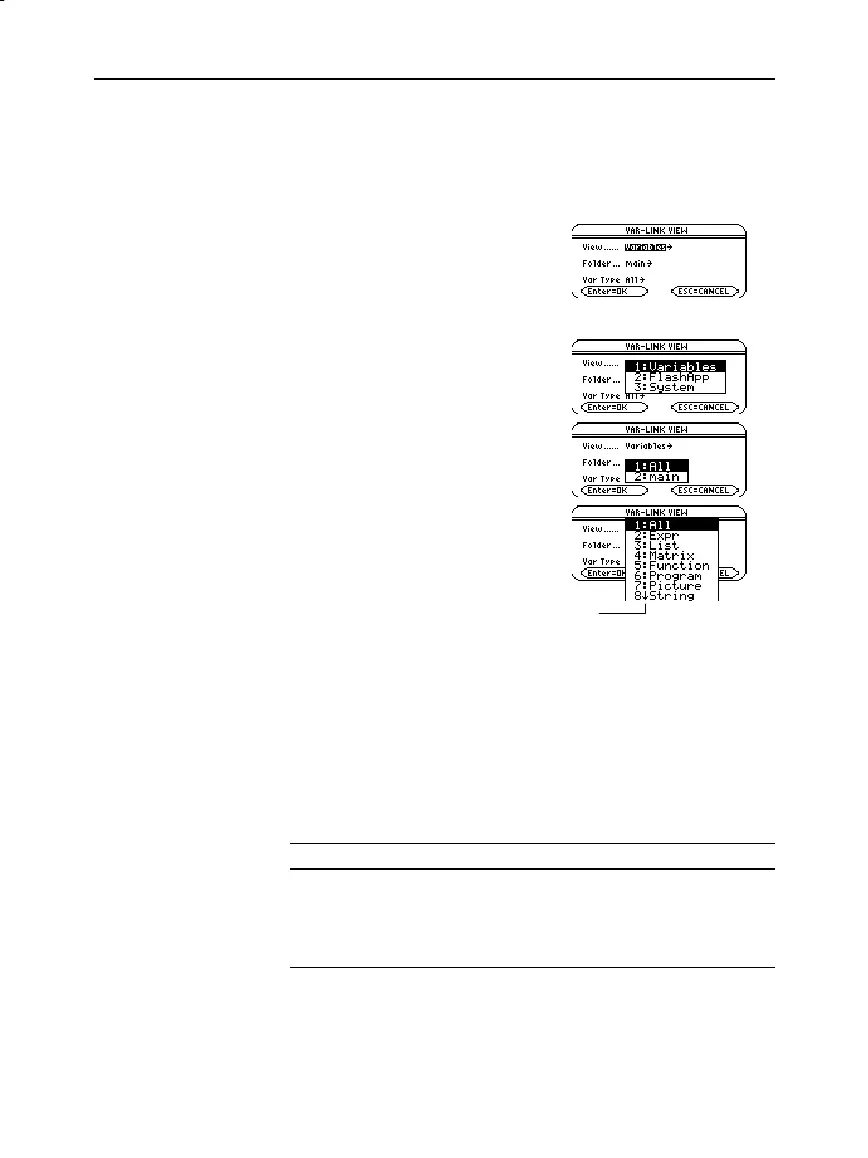
2. Highlight the setting you want to
change, and press
B
. This
displays a menu of valid
choices.
View
— Allows you to choose
variables, Flash applications, or
system variables to view.
Folder
— Always lists
1:All
and
2:main
, but lists other folders
only if you have created them.
Var Type
— Lists the valid
variable types.
3. Select the new setting.
4. When you are back on the
VAR-LINK VIEW
screen, press
¸
.
The
VAR-LINK
screen is updated to show only the specified folder,
and/or variable type, or Flash application.
To close the
VAR-LINK
screen and return to the current application,
use
¸
or
N
as described below.
Press: To:
¸
Paste the highlighted variable or folder name to the cursor
location in the current application.
N
Return to the current application without pasting the
highlighted name.
Listing Only a
Specified Folder
and/or Variable
Type, or Flash
application
Tip: To list system variables
(window variables, etc.),
select
3:System
.
Tip: To cancel a menu,
press
N
.
Closing the
VAR-LINK Screen
Tip: For more information
on using the
¸
paste
feature, refer to page 359.
ï
indicates that you can scroll
for additional variable types.



 To Next Page
 Loading...













