6
2. Setting up PC-CDU
2.1. Installing PC-CDU
There is no special installer for the current version of PC-CDU. This tool is a ready-to-run executa-
ble.
To install PC-CDU on you computer, take the following steps:
1. Visit the TPS section (http://www.topcongps.com/
) of the Topcon website page. Click on
the Software link in the top-left corner of the window. Next, select the Software
Downloads link. Finally, click on the link Click here to download pccdu_ms.zip to start
data downloading.
To download PC-CDU Lite, select the Utilities link on the Software
Center page.
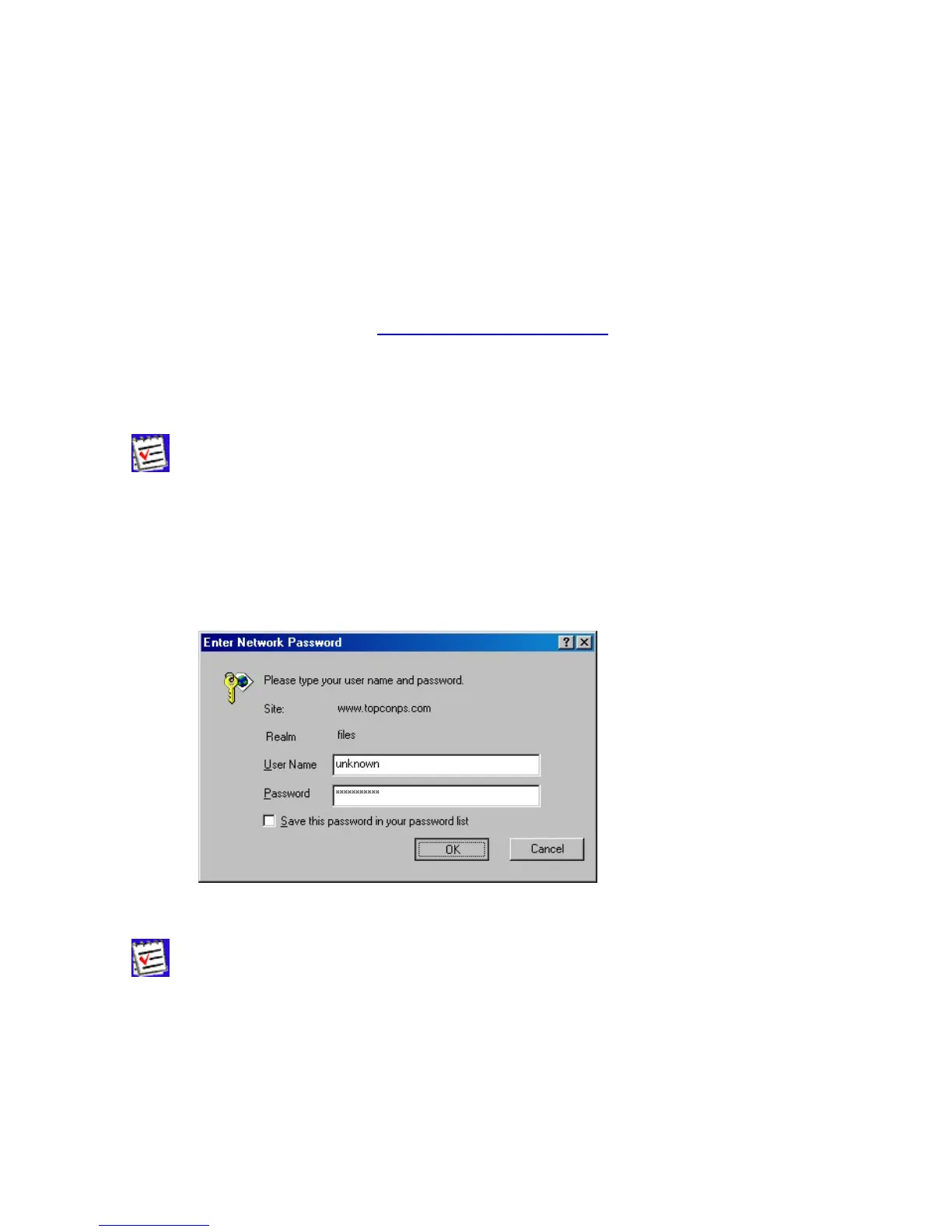
2. You will see the dialog box Enter Network Password appears on the screen. You are
prompted to enter a username and password. After you type in this information, press OK
(Figure 1).
Figure 1. Dialog box “Enter Network Password”
PC-CDU Lite is a freely available software. Thus, when you install PC-CDU Lite, the
Enter Network Password prompt will not appear on the screen.



 To Next Page