79
Appendix A. PC-CDU Scripts
Introduction to PC-CDU scripts
Script is a plain text file each line of which is either a receiver command, or a PC-CDU command, or
a comment. It can be created and edited with a text editor, (e.g., Notepad). You can also edit an
existing script in the Manual Mode window.
To create a new script or edit an existing one in Manual Mode, follow these steps:
Create script Edit script
1. Press the button Edit script 1. Press the button Edit script
2. Enter the name of a new script (the field File
name)
2. Select the desired script name in the list of available
scripts
3. Press the button Open 3.Press the button Open
4. Type your script 4. Make necessary changes in the script
5. Press the button Save script 5. Press the button Save script
6. Finally, press the button Close editor
It is recommended to save scripts using the extension .jpc.
To run a script through the command line of the Manual Mode window:
First, enter the script name with the character '@', which is followed by the script name.
Next, specify necessary script arguments, if required.
Finally, press the Send command button.
Script arguments should be delimited by either spaces or commas. If some of the
arguments in the command line contain separators (spaces and/or commas), put
such arguments into double quotes ("), (e.g.: @myscript “This is one argument”
these are 4 arguments).
Alternatively, instead of typing the script name, you may use the Load script button, which al-
lows you to select the required script from the Script file window.
For easy access to scripts, it is recommended to keep them all in one directory,
(e.g., in PC-CDU’s working directory).
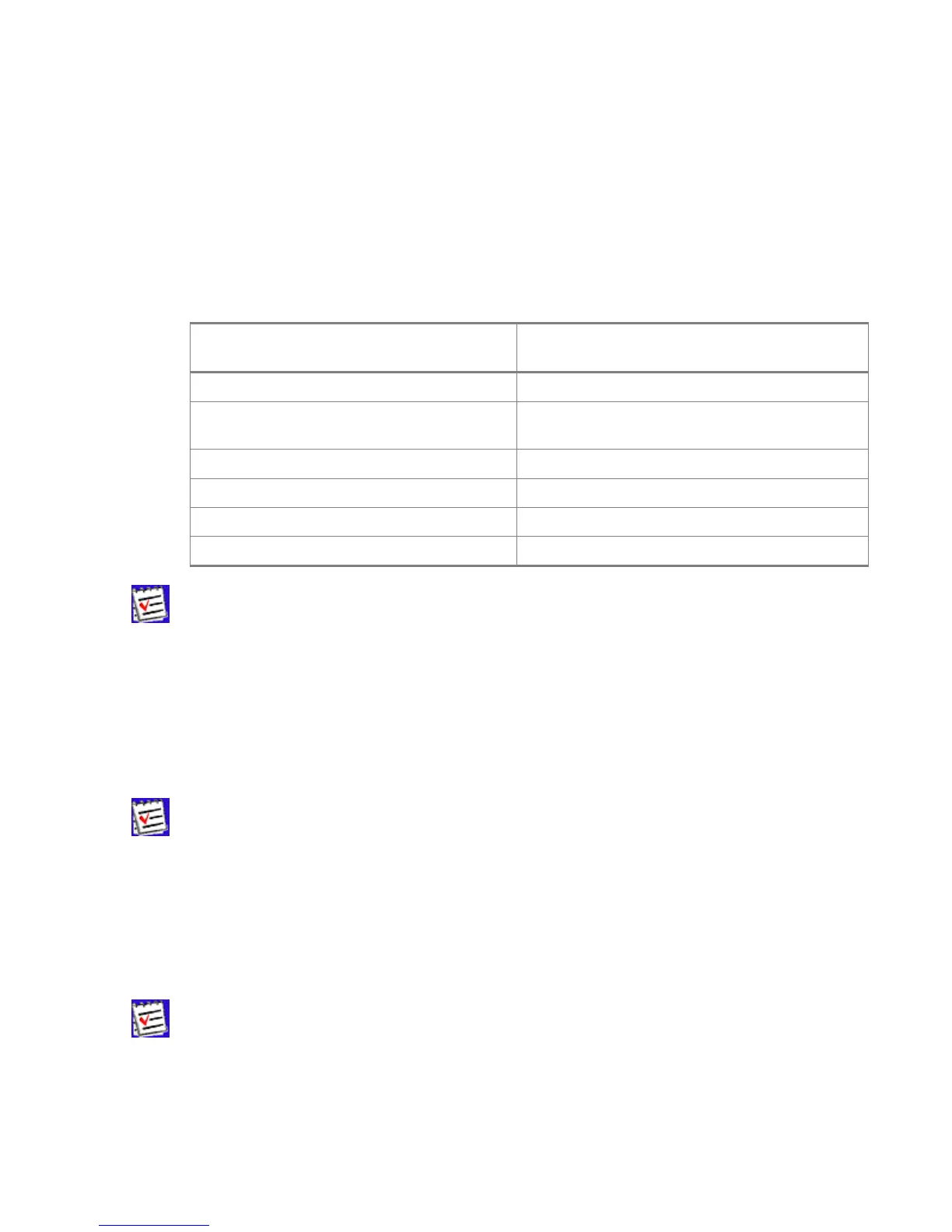
After PC-CDU starts script execution, it will read the file line by line carrying out the following op-
erations, if necessary:



 To Next Page