26
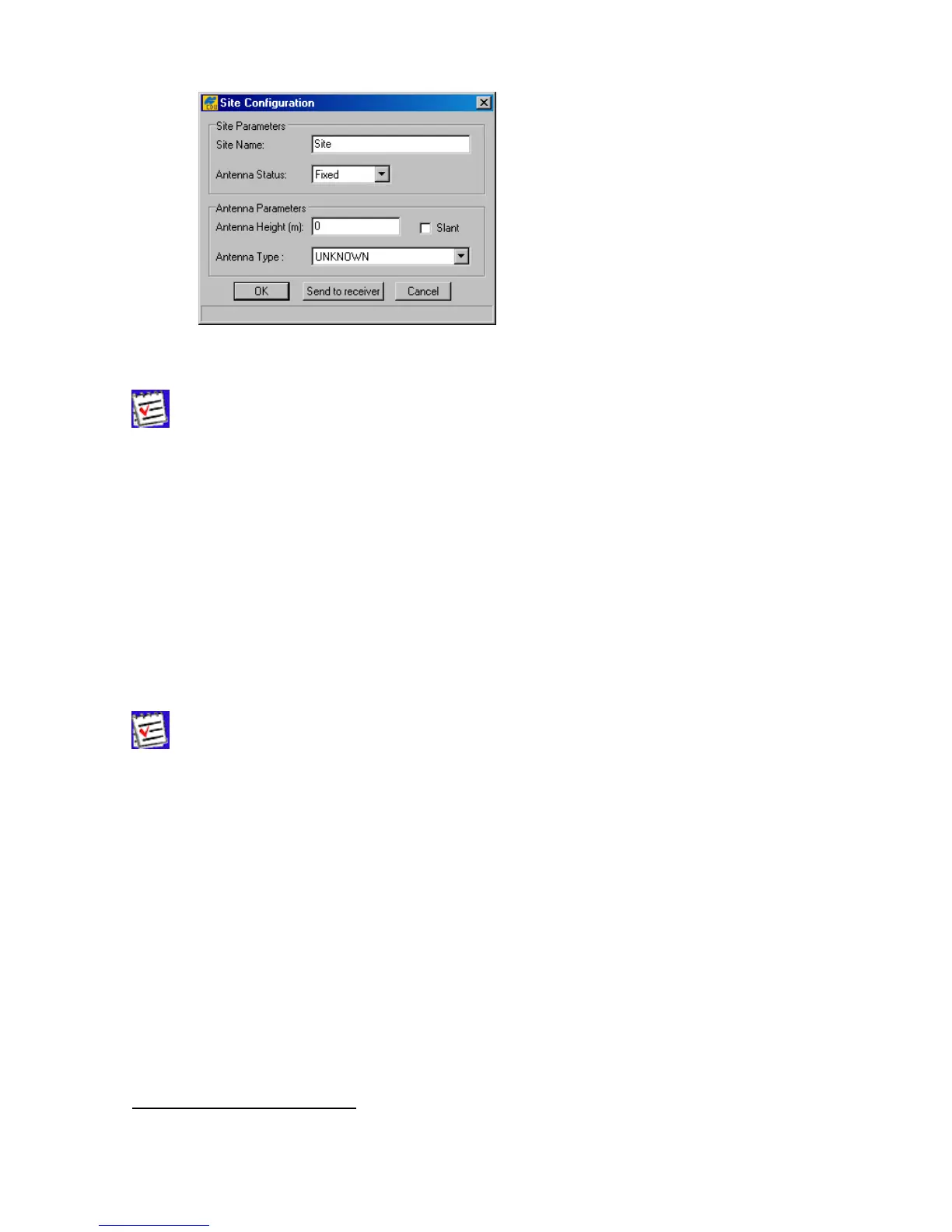
Figure 18. “Site Configuration” dialog box
After the OK button is pressed, the Site parameters dialog box will be
closed and the parameters that have been specified in the box will be copied to
PCCDU.ini. If one then presses the Start button in the File Manager dialog
window, these settings will be enabled and inserted into the newly created (cur-
rent) log file.
On the other hand, if one needs to update the site information for the current log
file, it will be sufficient to press the Send to receiver button to send the
new site settings (site name, antenna status, antenna height, etc.) directly to
both the receiver/log-file and PCCDU.ini.
5. Press Start. A new log file will be created
9
and the receiver will start recording data into the file.
If you set a recording interval that is not supported by the receiver, PC-CDU will
launch a utility called
Output Period Setup Wizard. For more information
on the Wizard, see Appendix B. Output Period Setup Wizard.
To stop data recording and close the file, press the Stop button.
To keep track of the data recording process, see how the log-file size varies in time.
The field Total memory shows the total amount of space in bytes (in the receiver) available for
data.
The field Free memory displays how much space in the receiver is free for storing data.
The buttons Delete, Refresh and Exit serve the same purposes as in the Download files
tab (see 4.2.1.1).
9
According to the GRIL terminology, this file is referred to as “current log-file”.



 To Next Page