30
If the option Ascending Count has been chosen, the parameter Start Count will be
enabled. In this edit box one can enter the
starting state
of the JPS file count, (i.e., the numeric
part of the name of the JPS file created first). This count will be incremented as new JPS files are
opened.
New file every is associated with a pair of components, an edit box and a drop-down list box.
Use the list box to select the desired time unit (day, hour or minute). Use the edit box to specify
the interval (in the selected time unit) in which the current JPS file will be closed and the next one
will be opened. Note that this interval must be an integer
10
. Also note that some of the multiple files
created may be shorter (in terms of their duration in time) than it is specified in the corresponding
edit box.
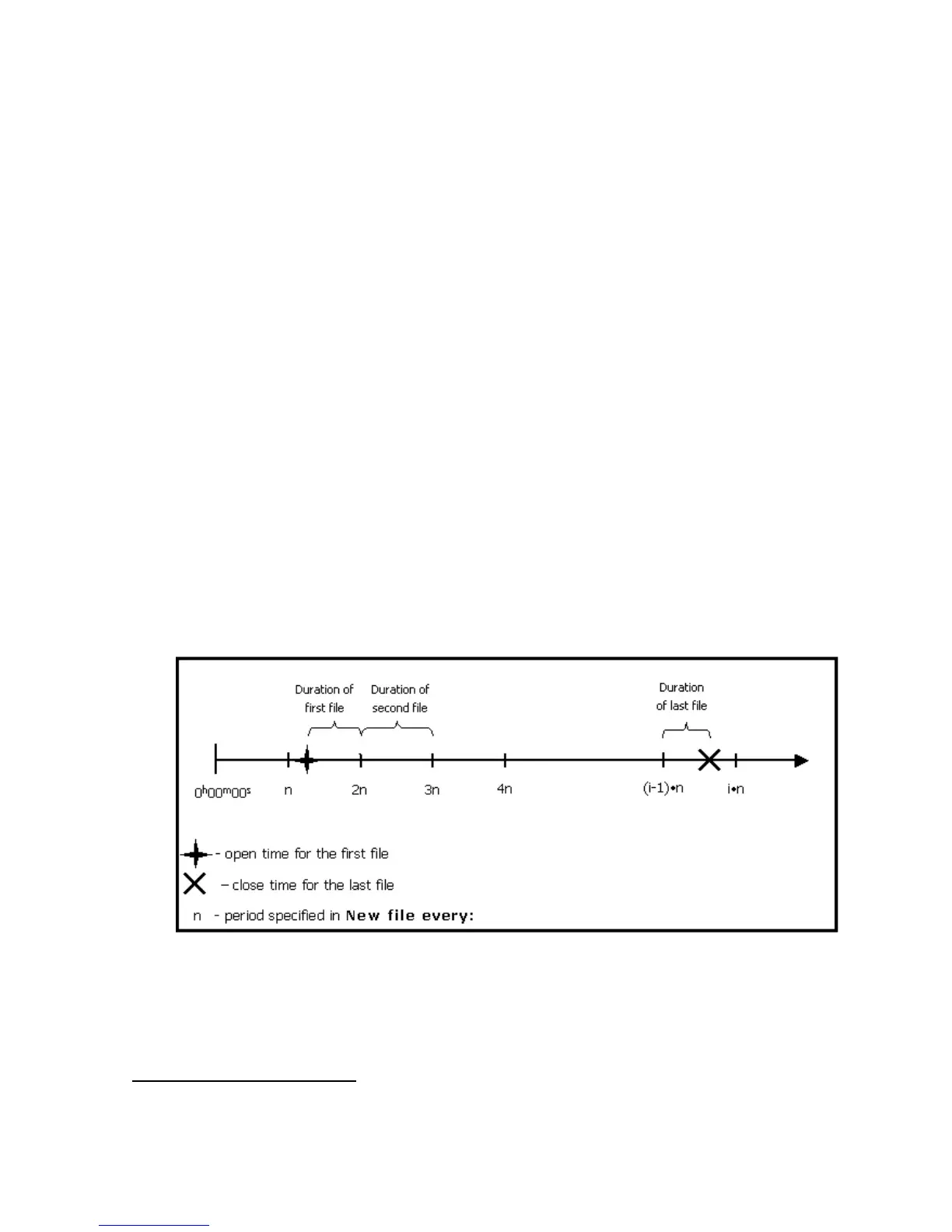
To understand better how multiple files are opened and closed in multiple file mode, let’s consider
the “artificial” time scale with the origin at 0
h
00
m
00
s
11
) as shown in the figure below. This time
scale is divided into intervals equal to the period as specified by New file every fields.
The first of the multiple JPS files will be opened immediately after the Start button
is pressed.
The first file will be closed and the second one opened as the 2
nd
interval starts, for
example, at
t=2n
(see the figure below), etc.
Time duration of the second and all the following multiple files (maybe except the
last one) will be exactly equal to the selected file period.
To stop the multiple file data logging, press the Stop button. Note that the last file,
too, can be shorter than is specified in New file every.
Figure 22. Generation of multiple files
If the user wants PC-CDU to overwrite the existing files whose names coincide with the names of
the newly created files, select the Overwrite existing files checkbox before starting real-
time logging.
10
Whatever time unit is selected.
11
That is, at the beginning of the day when multiple file logging is started by pressing the Start button.



 To Next Page