14
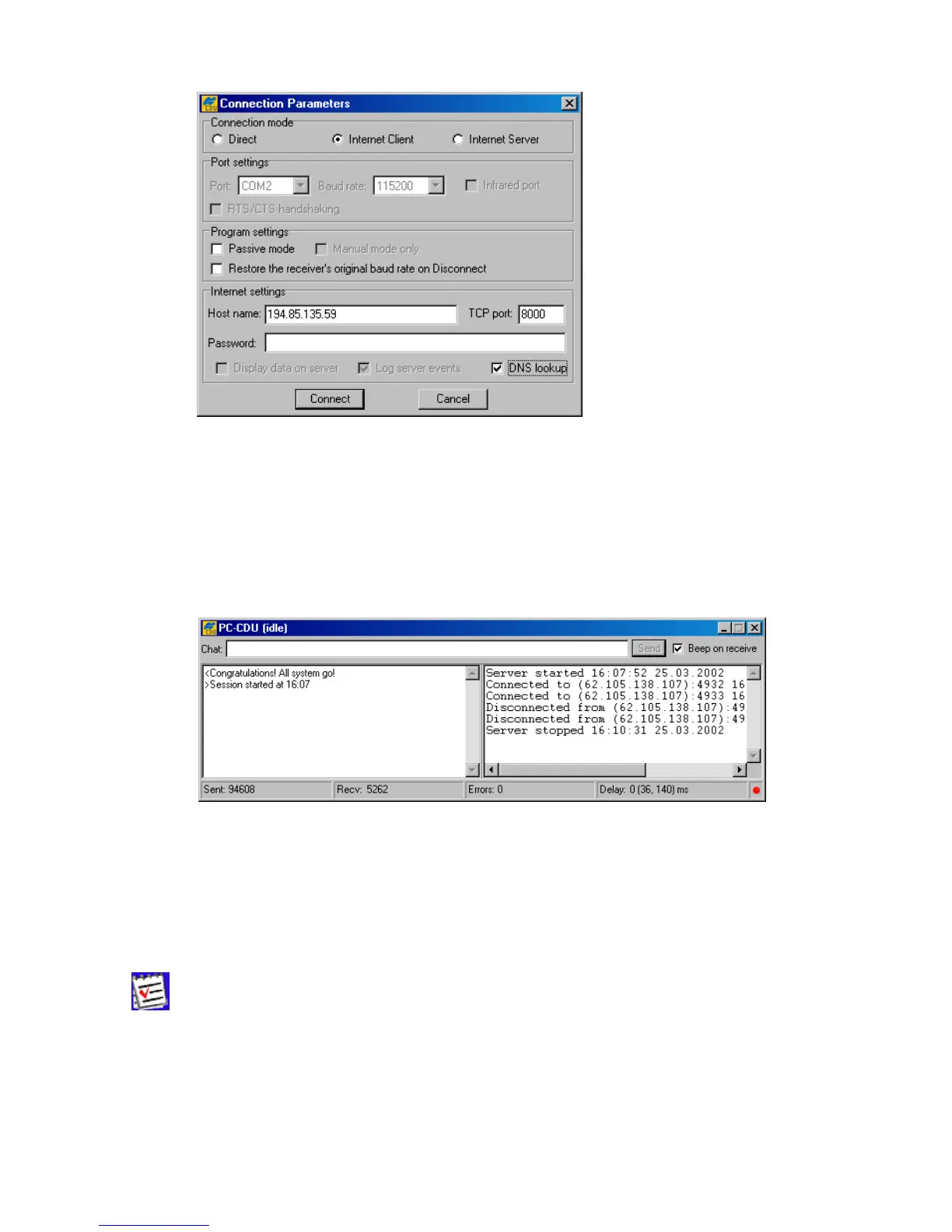
Figure 7. “Connection Parameters” window in Inter net C lient mode
After all necessary settings have been entered into this window, press Connect. You will see PC-
CDU open the main window and the Chat window.
The Chat window allows the operator running PC-CDU-Server on one end to exchange messages
with the operator running PC-CDU-Client on the other end (Figure 8). Messages sent from the client
to the server are preceded by the character “>”. Messages sent by the server to the client begin
with the character “<”. The last received message is topmost in the list.
Figure 8. “Chat” window
3.2. How to close PC-CDU
To disconnect from the receiver, select the Disconnect option from the File menu. Alterna-
tively, you can use the keys C
TRL+D to close the connection.
Pressing the Disconnect button will result in:
• Turning off RTS/CTS handshaking;
• Resetting the receiver parameter /par/out/elm/cur/term to its original value. Only if the
checkbox Passive mode has not been deselected;



 To Next Page