22
4.2.1.1. Download files
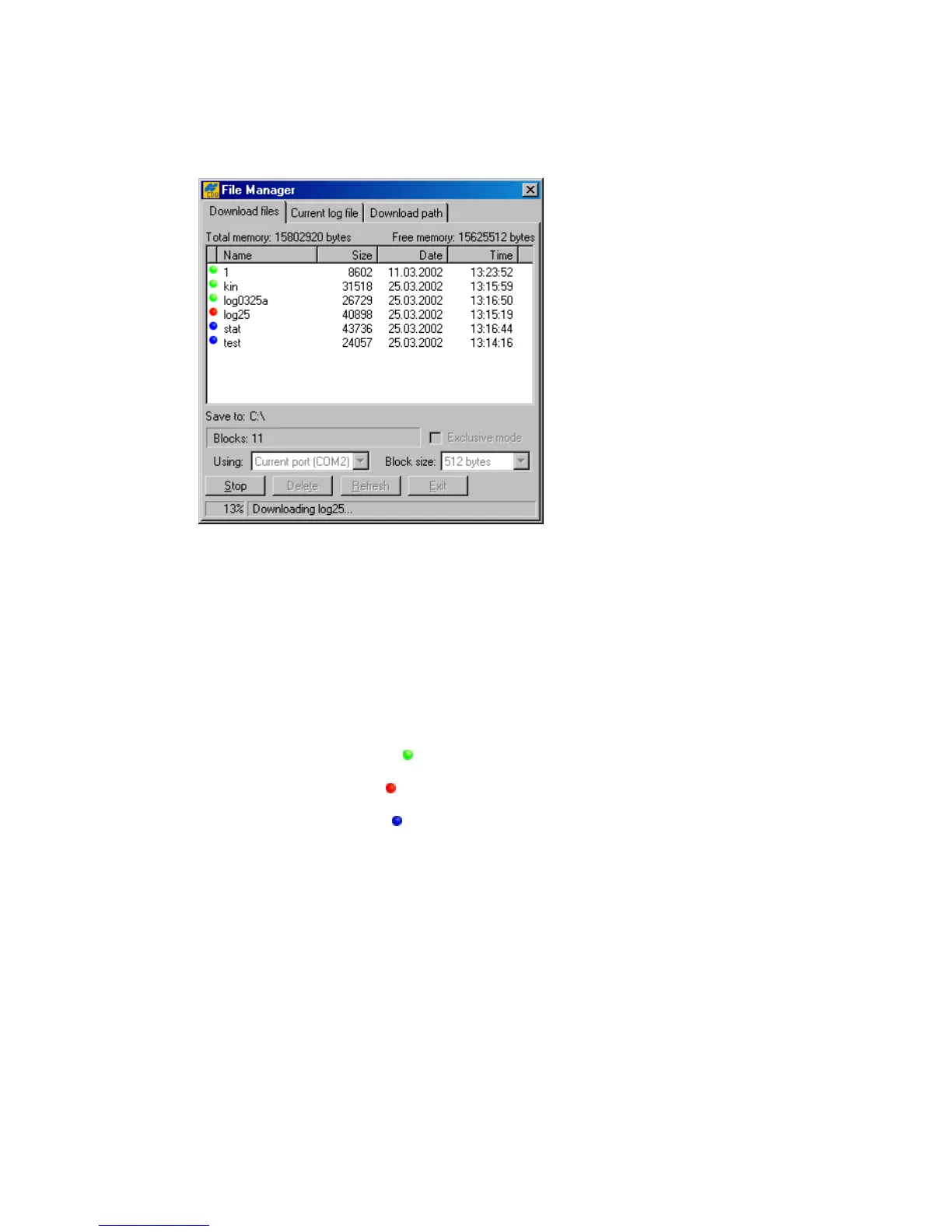
This dialog window (Figure 14) allows one to delete log files from the receiver memory, or down-
load them into a computer.
Figure 14. “Download files” tab
Before downloading the desired log file(s) onto your computer, select the folder on the PC where
you want the file(s) to be stored. To do this, use the Download path tab.
Once the destination has been specified, go to the Download files tab, highlight the file(s)
that you want to download onto the computer, and press Download.
You will see the following color
download status
indicators in the course of downloading the data
(see Figure 14):
• The green circle (
) indicates the file(s) that have been successfully downloaded.
• The red circle (
) marks the file that is being downloaded.
• The blue circle (
) indicates the file(s) in the queue for downloading.
The user can interrupt the download by pressing the Stop button.
Files in the destination folder will have the same names and extensions as the original receiver log
files. Before downloading the current log file in the destination folder, PC-CDU will check if there al-
ready exists a file with the same name in this folder. If such a file is found there, the user will be
prompted to select either Append or Overwrite. In the first case the log file downloaded will
be appended to the existing file. In the second case the existing file will be overwritten (Figure 15).



 To Next Page