31
Example
. Assume that the Ascending Count and Overwrite existing files options have
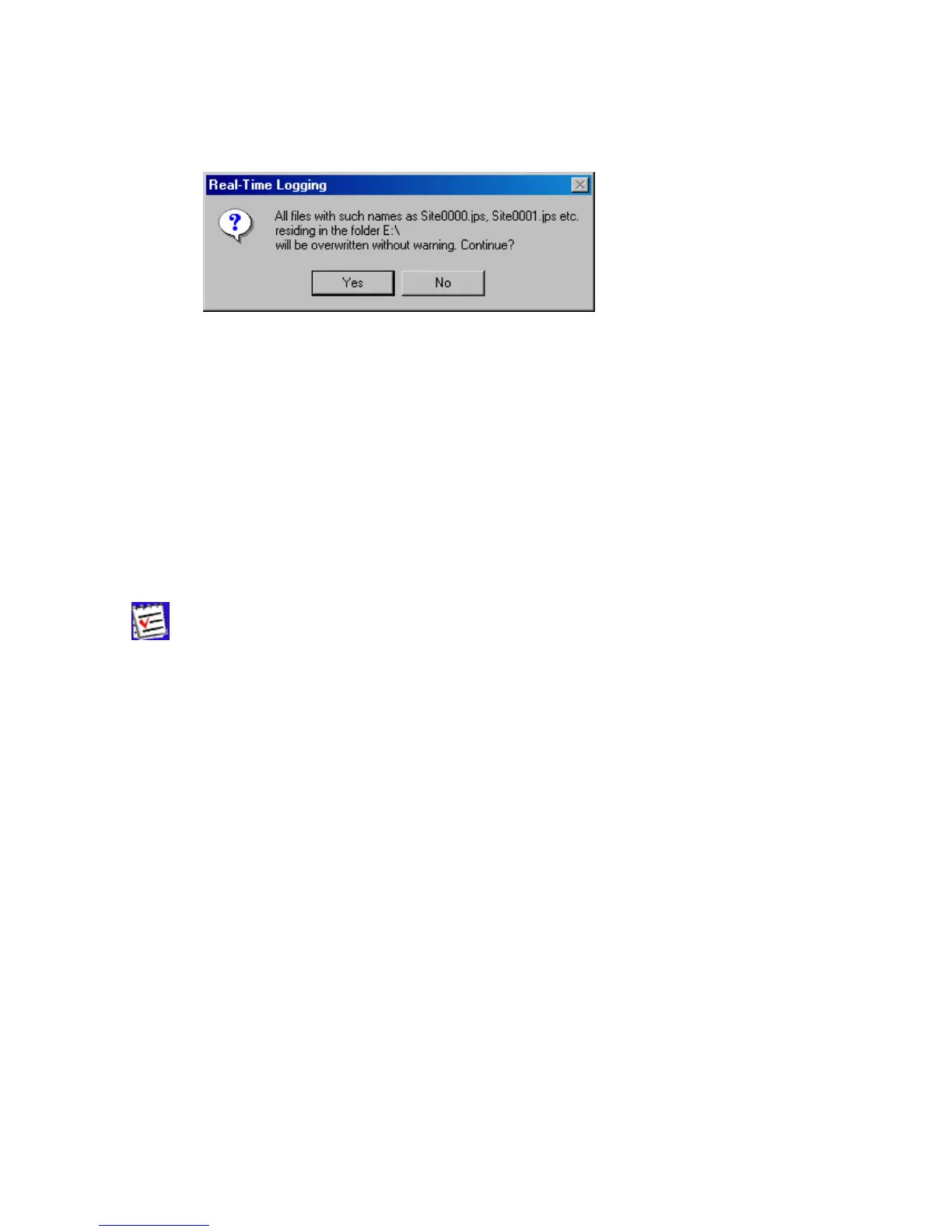
been selected. If one then presses the Start button, PC-CDU will display a prompt as shown be-
low.
Figure 23. “Overwrite existing files?” warning
In this example the destination folder is “E:\c-s-db\ses”, the filename prefix is “Site”.
Press Yes (Figure 23) to accept the prompt’s default answer.
If you press No, you will return to the real-time logging window. There you will need first to un-
check the Overwrite existing files checkbox and then press the Start button to start data log-
ging. In this case the
numeric parts
of the names of the JPS files recorded will be incremented
starting from the
first unused value
, not necessarily from 0000.
If the Autoconvert to RINEX checkbox is selected, PC-CDU will automatically convert all
newly created JPS files to RINEX. Note that this conversion is performed “on the move”.
If you want to use the Autoconvert to RINEX function, make sure that the executable file
jps2rin.exe is available on your computer.
The Setup converter button, which is located immediately below the Autoconvert to
RINEX checkbox, allows you to set up the jps2rin.exe converter. Pressing this button will open the
dialog window Converter to RINEX Setup (Figure 24).



 To Next Page