Bandwidth Control
Bandwidth Control
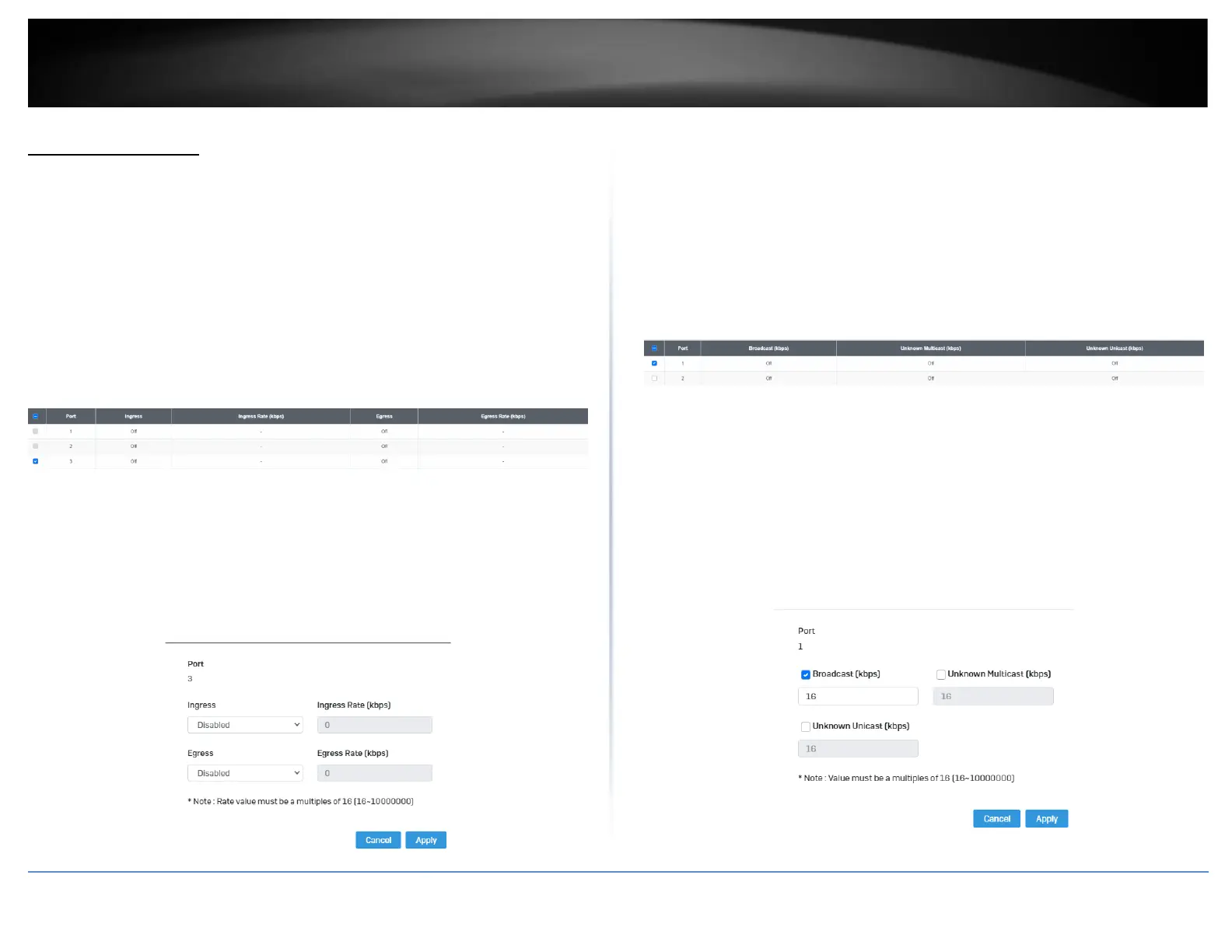
QoS > Bandwidth Control
This section allows you to configure the DLF (Destination Lookup Failure), broadcast,
and multicast storm settings for each switch port.
1. Log into your switch management page (see “Access your switch management page”
on page 5).
2. Click on QoS, click on Bandwidth Control
3. Select the port to modify and click the Edit button.
4. Review the settings below and click Apply to save your settings.
• Ingress – Select Enabled to enable Ingress Rate Limiting or Disabled to disable
this feature.
• Ingress Rate (kbps) - Enter the ingress rate limit value.
• Egress – Select Enabled to enable Egress Rate Limiting or Disabled to disable
this feature.
• Egress Rate (kbps) – Enter the egress rate limit value.
Storm Control
QoS > Storm Control
1. Log into your switch management page (see “Access your switch management page”
on page 5).
2. Click on QoS, click on Storm Control
3. Select the port to and click Edit to modify.
4. Review the settings for each port. Click Apply to save the settings.
• Broadcast – Click the empty box to enable Broadcast and enter the limit value
for broadcast in kbps.
• Unknown Multicast – Click the empty box to enable Multicast and enter the
limit value for broadcast in kbps.
• Unknown Unicast – Click the empty box to enable Unicast and enter the limit
value for broadcast in kbps.
Note: Modifying settings in the row marked All, will apply the settings to all
ports.








 To Next Page