1. Log into your switch management page (see “Access your switch management page”
on page 5).
2. Click on Tools, click on Firmware Upgrade.
3. Make sure your TFTP server is running and note the IP address of your server and
firmware file name. The TFTP server should be in the same IP subnet as the switch.
Note: It is recommended to that the firmware file (.hex) is placed in your TFTP server
root directory.
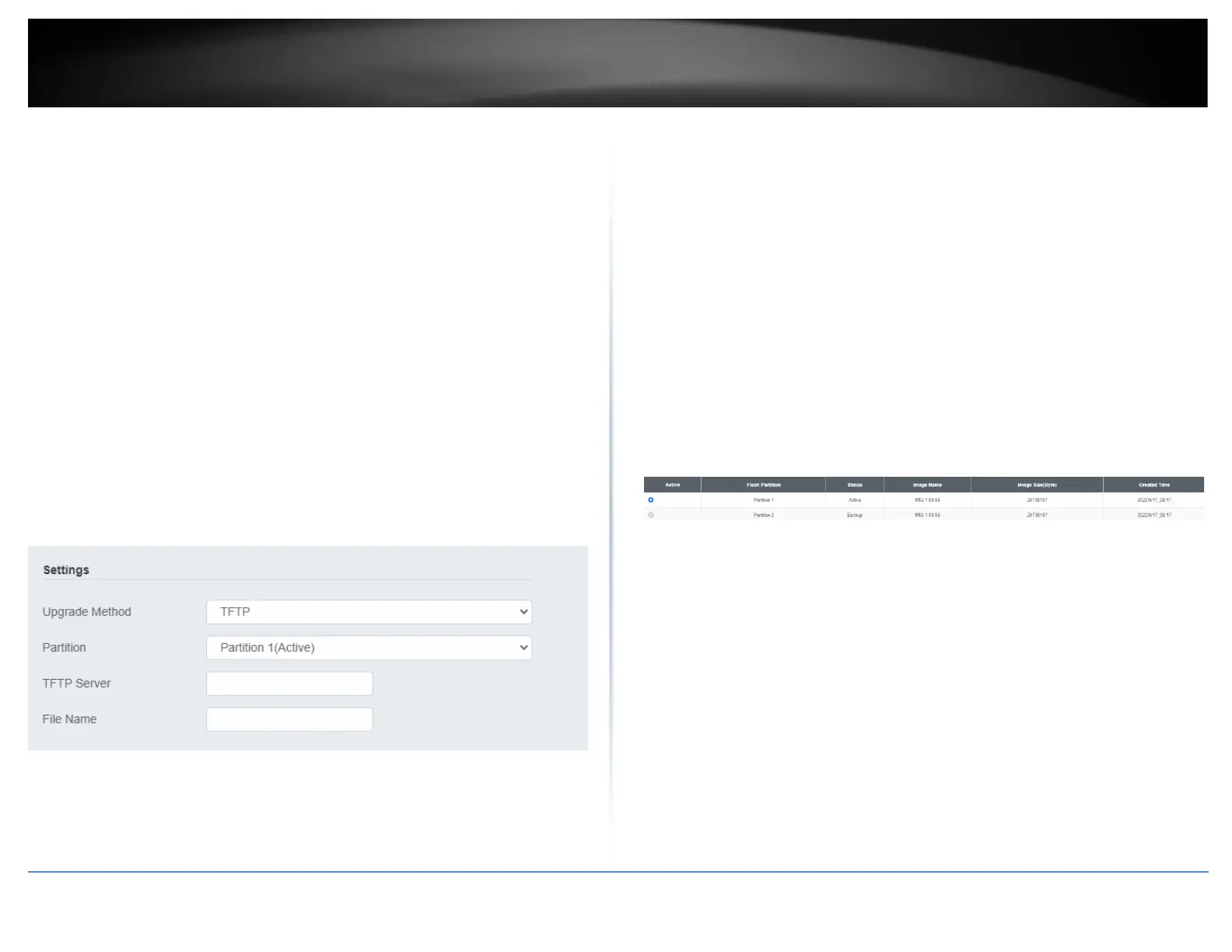
5. Review the settings. Click Apply to start the firmware upgrade.
• Upgrade Method: Select TFTP to update the firmware via TFTP
• Partition: Select which image to update the firmware
• TFTP Server: Enter the IP address of your TFTP server.
• File Name: Enter the firmware filename with extension. (.hex)
6. Click Apply to start the firmware upgrade.
Dual Image
Tools > Firmware > Dual Image
Select the image to bootup on your switch from the next power cycle.
1. Log into your switch management page (see “Access your switch management page”
on page 5).
2. Click on Tools, click on Firmware, and click on Dual Image.
3. Review the settings. Click Apply to apply the changes and Save to save the changes.
• Active: Displays the current Partition Image that is running on the switch. You
may select a different partition to boot up with here.
• Flash Partition: Name of partition
• Status: Displays the status of a partition. A partition that is currently running
will display Active, while one that is in standby will display Backup.
• Image Name: Firmware name of the partition
• Image Size: Size of the firmware that is loaded on each partition
• Created Time: When the firmware was loaded onto the partition








 To Next Page