Config Backup Restore
Config Backup/Restore
Tools > Firmware > Backup/Restore
You may have added many customized settings to your switch and in the case that you
need to reset your switch to default, all your customized settings would be lost and
would require you to manually reconfigure all of your switch settings instead of simply
restoring from a backed up switch configuration file. The configuration will be backed up
or restored only to the currently used image.
Backup/Restore via HTTP Settings
To backup your switch configuration:
1. Log into your switch management page (see “Access your switch management page”
on page 5).
2. Click on Tools, click on Firmware and click on Backup/Restore.
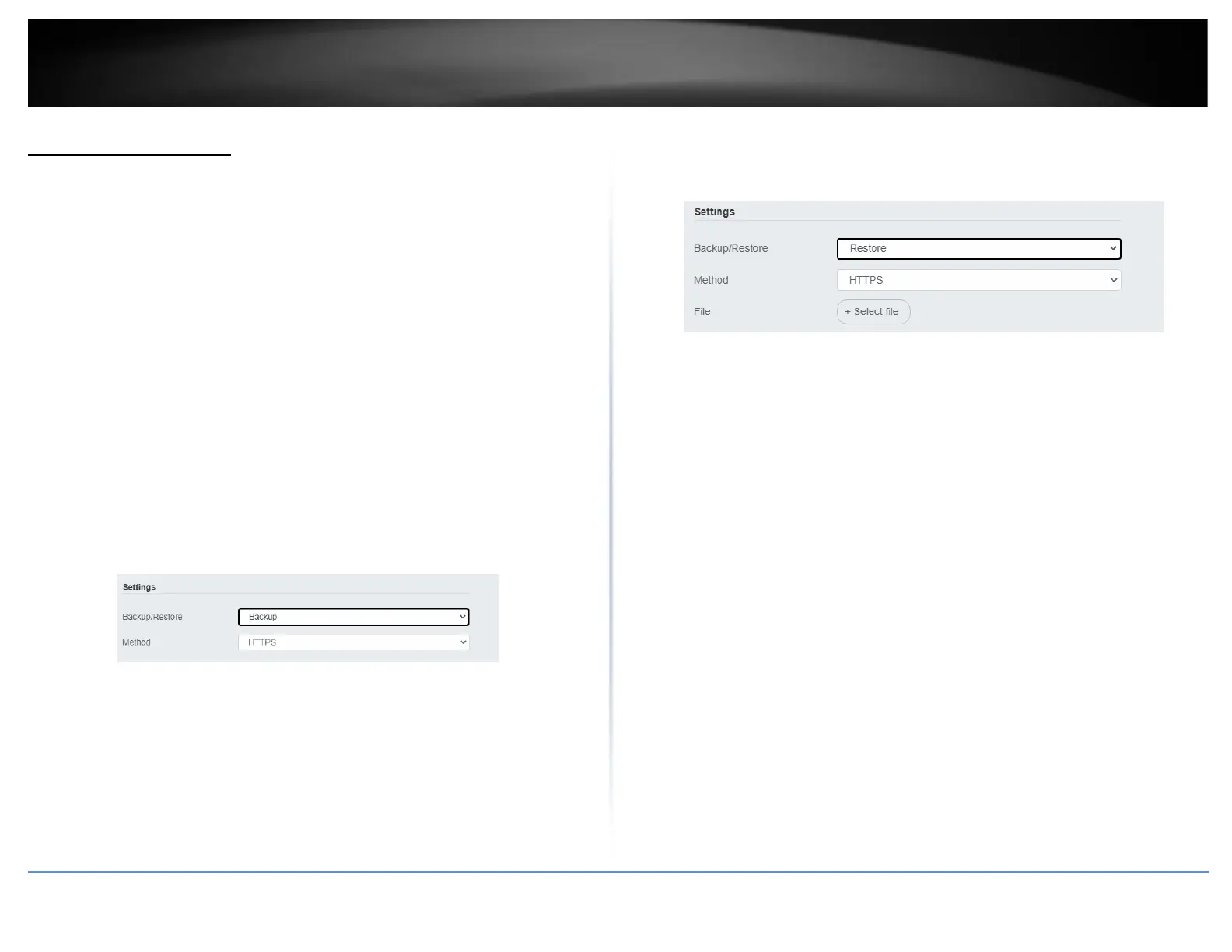
3. Click Backup to save the configuration file (.cfg) to your local hard drive. Startup-
config refers to the configuration that was used to startup this switch.
Note: If prompted, choose the location on your local hard drive. If you are not prompted,
the configuration file (.cfg) will be saved to your default downloads folder.
To restore your switch configuration:
1. Log into your switch management page (see “Access your switch management page”
on page 5).
2. Click on Tools, click on Firmware and click on Backup/Restore.
3. Select Restore under Backup/Restore
Next to Select File, depending on your web browser, click on Browse or Choose File.
4. A separate file navigation window should open.
5. Select the switch configuration file to restore and click Restore. (Default File
Extension: .cfg). Click Apply to restore the settings,
6. Wait for the switch to restore settings.
Backup/Restore via TFTP Settings
Note: Before using this method, you will require a TFTP server. There are third party
TFTP server applications available for this function. If you are not familiar with the TFTP
protocol, it is recommended to use the HTTP method.
To backup your switch configuration:
1. Log into your switch management page (see “Access your switch management page”
on page 5).
2. Click on Tools, click on Firmware and click on Backup/Restore.
3. Make sure your TFTP server is running and note the IP address of your server and
firmware file name. The TFTP server should be in the same IP subnet as the switch.








 To Next Page