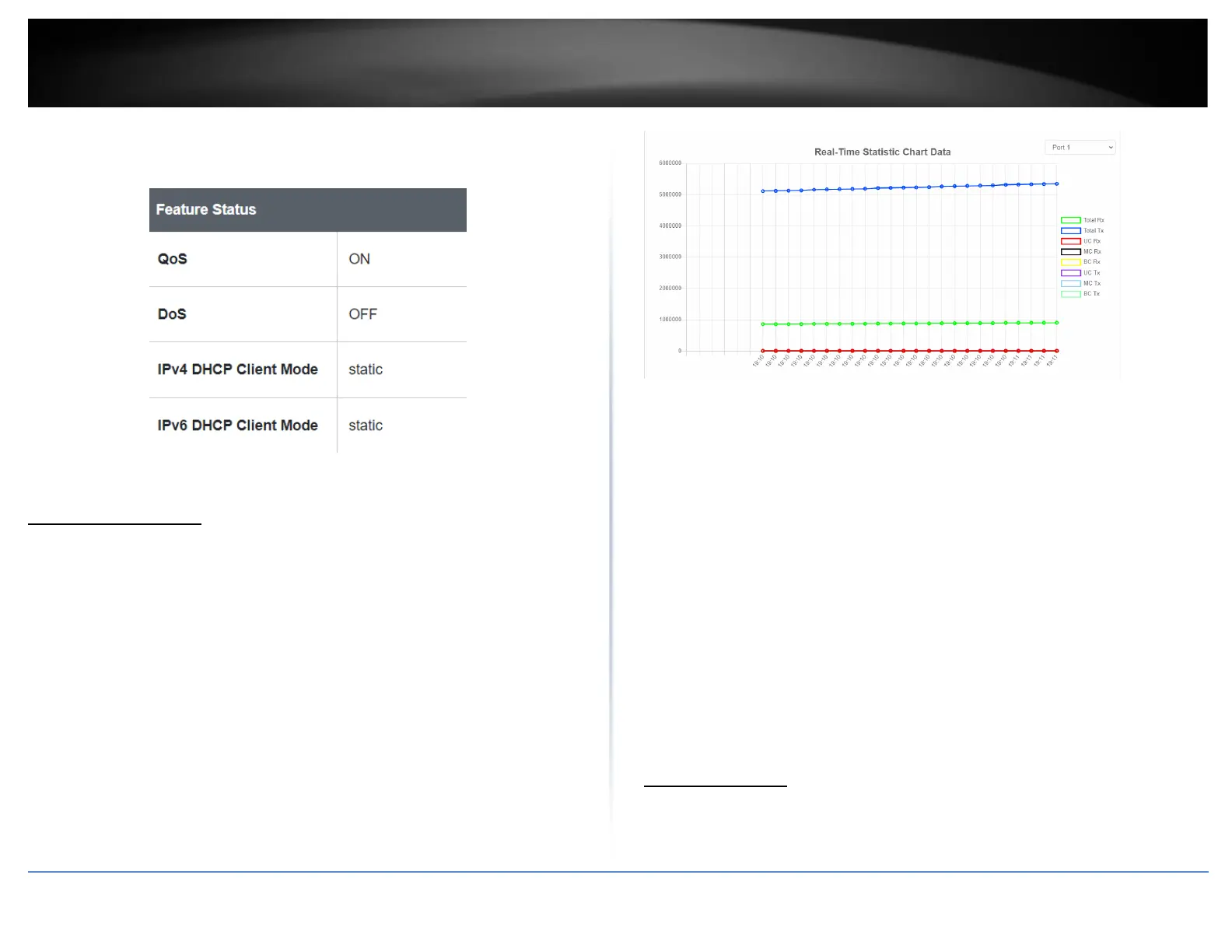
• IPv6 DHCP Client Mode: Displays if your switch IPv6 address setting is set to
DHCP client.
Real-time Statistics
View your switch status information
Dashboard > Real-time Statistics
1. Log into your switch management page (see “Access your switch management page”
on page 5).
2. Click on Dashboard, then click on Real-time Statistics. The switch view shows the
ports that are connected. Select Status, Duplex, Speed, or PoE to display which ports
are currently using the selected feature.
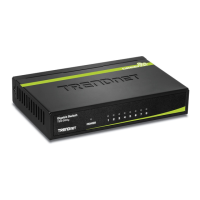
3. Select the port from the drop down menu to review the current settings.
• Total(Rx): The total number of packets received
• Total(TX): The total number of packets transmitted
• UC (Rx): The number of Unicast packets received
• MC(Rx): The number of Multicast packets received
• BC(Rx): The number of Broadcast packets received
• UC(Tx): The number of Unicast packets transmitted
• MC(Tx): The number of Multicast packets transmitted
• BC(Tx): The number of Broadcast packets transmitted
System
System Settings
Set your system information
System > System Settings








 To Next Page