PD Lifeguard
Configure PD Alive Check
PoE > PD Lifeguard > Global Settings
PD Lifeguard is used to check the connection between the switch and the device
connected to it. The switch sends a ping, and if the device does not respond, the switch
will try to revive the device by doing a power cycle of the connected device.
1. Log into your switch management page (see “Access your switch management page”
on page 5).
2. Click on PoE, click on PD Lifeguard, and click on Global Settings.
3. Select Enabled to enable PD Lifeguard and Disabled to disable this feature.
Advanced Configuration
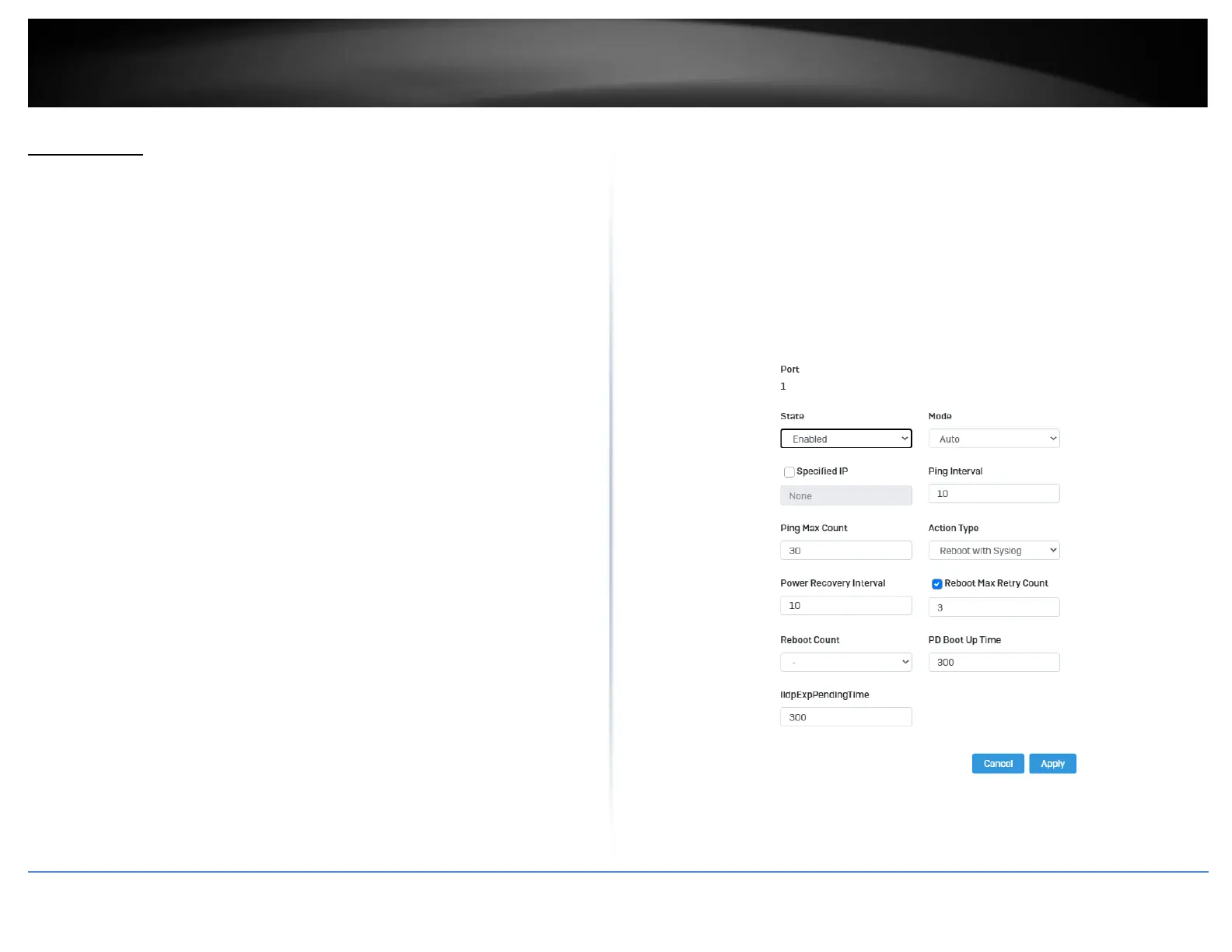
PoE > PD Lifeguard > Advanced Configuration
1. Log into your switch management page (see “Access your switch management page”
on page 5).
2. Click on PoE, click on PD Lifeguard, and click on Advanced Configuration.
3. Review the settings for each port. Next to each port entry, click Apply to save the
settings.
• State: Select Enabled to enable PD Alive check and Disabled to disable it
• Mode: Select Auto or Force Ping.
• Specified IP: Enter the IP address of the device that is connected to the port
• Ping Interval: Enter the desired time for how often the switch will send a ping
to the connected device
• Ping Max Count: Enter the max number of times the switch will ping the PD
device before the switch power cycles the PD device.
• Action Type: Select if the switch should Reboot the PD device or save it to the
syslog.
• Power Recovery Interval: Enter the time it takes for your PD device to boot up.
If the entered time is too short, the switch will keep powering on and off the
device.
• Reboot Max Retry Count: Max number of reboot retries before the switch
stops
4. At the bottom of the left hand panel, click Apply to save the settings to the flash. .








 To Next Page