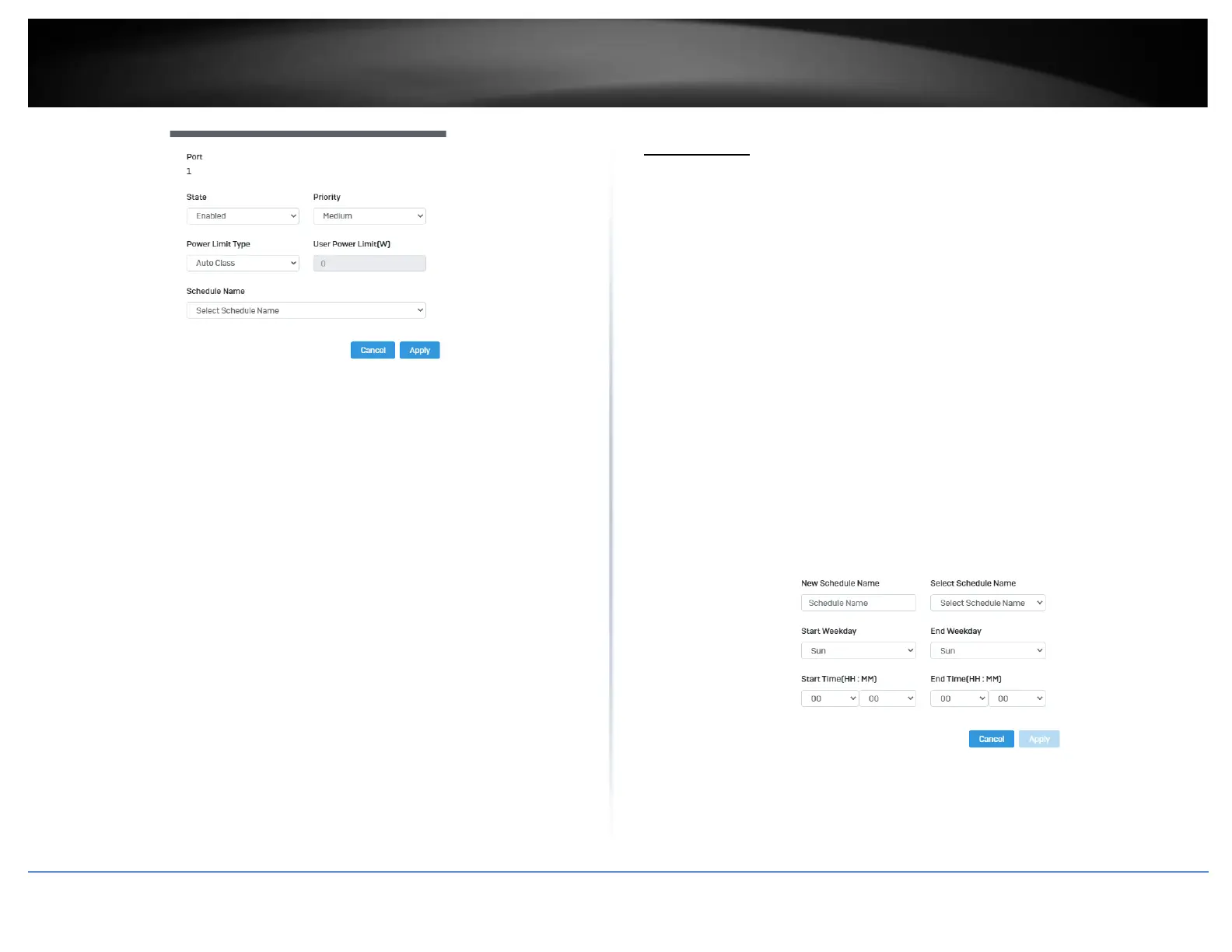
4. Click Apply to save your settings to the flash.
Note: This step saves all configuration changes to the NV-RAM to ensure that if the
switch is rebooted or power cycled, the configuration changes will still be applied.
Flick Reboot
PoE > Flick Reboot
Flick Reboot allows the switch to continuously send power to PoE devices connected on
the switch while the switch reboots. This prevents any PD device connected to the
switch reboot while the switch is rebooting itself.
1. Log into your switch management page (see “Access your switch management page”
on page 5).
2. Click on PoE and click on Flick Reboot.
3. Select Enabled to enable continuous PoE to your PD device while the switch reboots,
or select Disabled to disable this feature.
Note: By default, Flick Reboot is set to Disabled.
Time Range
Configure PoE Time Range
PoE > Time Range
1. Log into your switch management page (see “Access your switch management page”
on page 5).
2. Click on PoE and click on Time Range.
3. Click Add to create a new PoE schedule. Review the settings for each port. Next to
each port entry, click Apply to save the settings.
• New Schedule Name – Enter a description for the PoE schedule.
• Select Schedule Name – Select a previous created schedule to edit.
• Start Weekday - Set the start day of the PoE time range.
• End Weekday - Set the end day of the PoE time range.
• Start Time – Set the start time of the PoE time range.
• End Time - Set the end day of the PoE time range.
4. Click Apply to save the settings to the Flash.
Note: This step saves all configuration changes to the NV-RAM to ensure that if the
switch is rebooted or power cycled, the configuration changes will still be applied








 To Next Page