L3 Feature
IPv4 Interface
System > System Settings > IP Settings
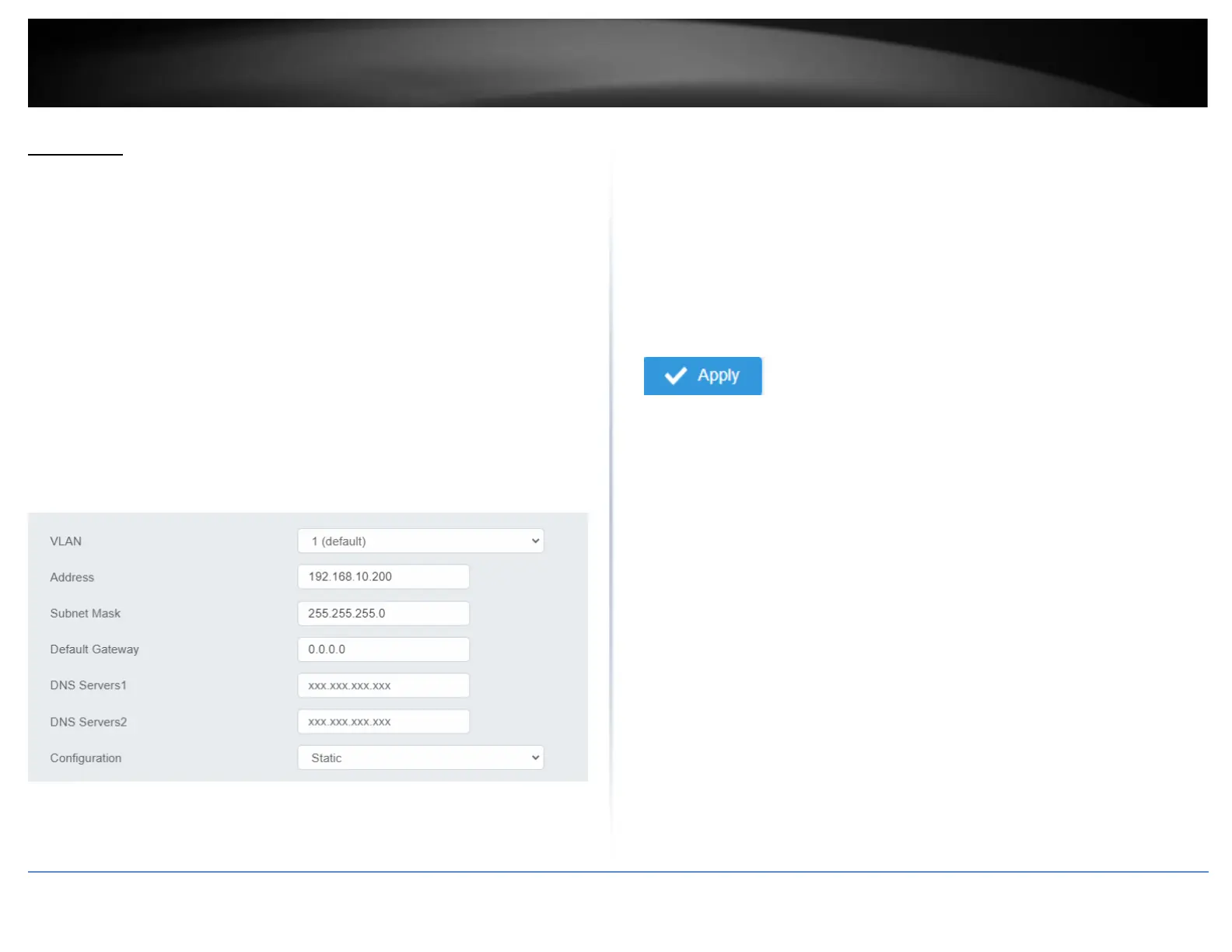
This section allows you to change your switch IPv4 address settings and additionally
create and assign the aforementioned address to VLANs. Typically, the IP address
settings should be changed to match your existing network subnet in order to access the
switch management page on your network.
Default Switch IPv4 Address: 192.168.10.200
Default Switch IPv4 Subnet Mask: 255.255.255.0
1. Log into your switch management page (see “Access your switch management page”
on page 5).
2. Click on System, System Settings, and then IP Settings.
4. To change the IPv4 IP address associated with a specific VLAN, select the VLAN ID
from the drop down menu under VLAN.
5. Review the settings. When you have completed making changes, click Apply to save
the settings.
• VLAN: Select the VLAN ID you wish to configure. .
• Address: Enter the new switch IP address you would like to statically assign.
(e.g. 192.168.200.200)
• Subnet Mask: Enter the new switch subnet mask. (e.g. 255.255.255.0)
• Default Gateway: Enter the IP address of your gateway device (ie: router)
• DNS Servers 1 / DNS Servers 2: Enter the IP address of a DNS server to use. (ie:
8.8.8.8.8 for Google’s DNS server)
• Configuration: Select Static to statically assign an IP address and subnet mask,
select DHCP to automatically request one from your networks DHCP server.
6. At the top right of the screen, click Apply.
Note: This step saves all configuration changes to the NV-RAM to ensure that if the
switch is rebooted or power cycled, the configuration changes will still be applied.








 To Next Page