5.2 Connecting the machine
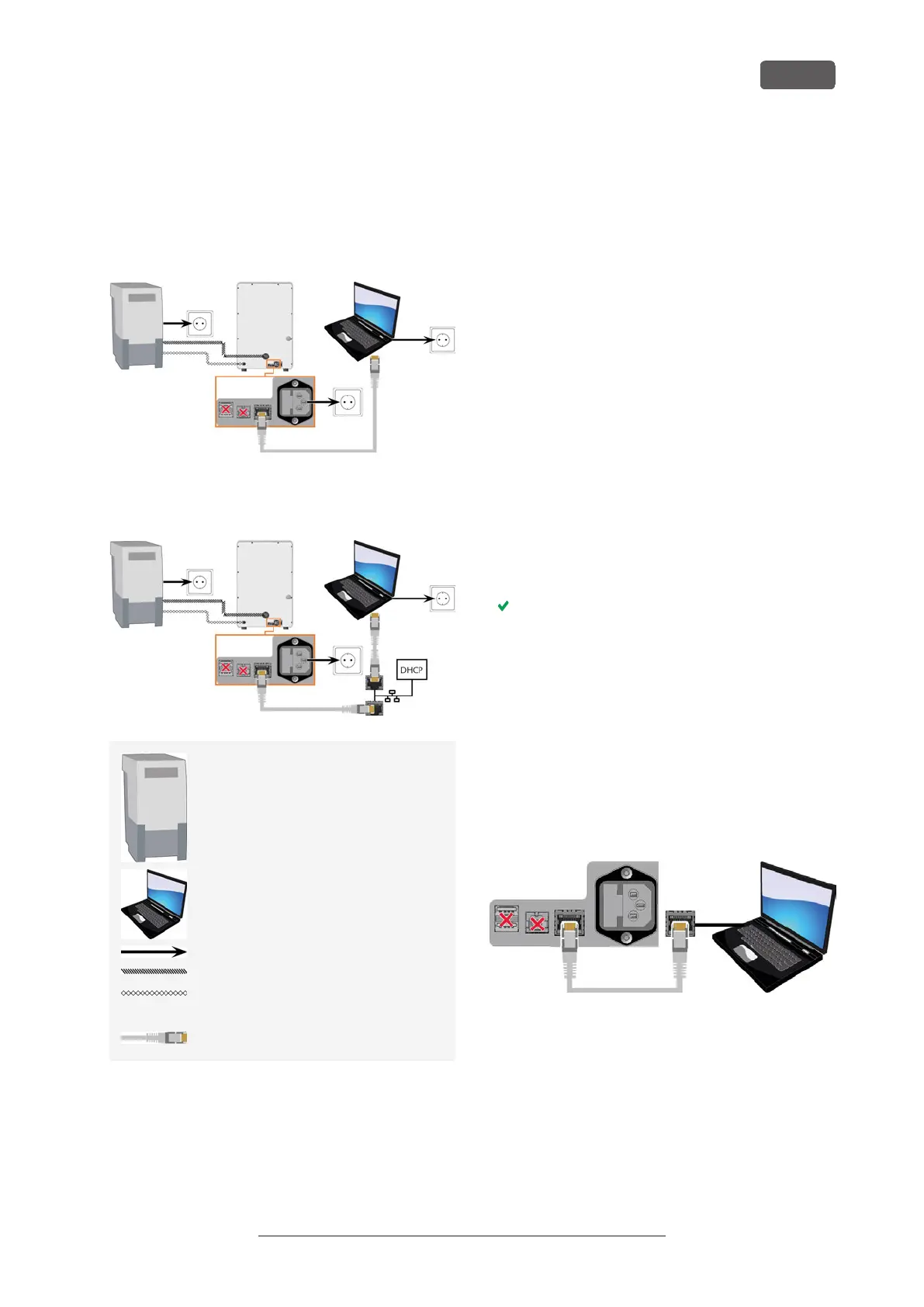
5.2.1 Machine installation scheme
Directly connecting the machine to the CAM
computer
Connecting the machine to the CAM computer
via a local network
Suction unit
CAM computer
Power connection
Suction hose
Data cable of supported
suction units (optional)
Ethernet network cable
5.2.2 Connecting the CAM computer
You connect the CAM computer via Ethernet network
cable.
To avoid connecting errors, we highly recommend
that you use the USB or Ethernet cable which was
provided with the device. Original spare parts are avail-
able from customer service.
Connecting Ethernet
You can connect the machine either directly to your
CAM computers or via the local network. For integ-
rating the machine into your network, you will require
the assistance of your IT specialist.
1. Plug the Ethernet cable into the network port at the
connection panel of the machine.
2. For a direct connection, plug the other end of the
Ethernet cable into the network port on the CAM
computer.
3. To connect through your network, plug the other
end of the Ethernet cable into a port on the local
network (for example, hub, switch, network jack).
n
The CAM computer must also be connected
to this network.
n
The IP assignment in the network be
performed by a DHCP server.
You set up the connection between the machine
and CAM computer using the software during the
initial start-up.
Commissioning – on page21
Minimum Ethernet cable requirements
n
Performance class: CAT-6
n
Screened/Foiled Twisted Pair (S/FTP)
n
Maximum length of 55m (approx. 180ft)
n
Premium quality
FIG. 9 DIRECT CONNECTION DIAGRAM
Installation
EN 17
Original Operating Instructions: E5
Version: 4/27/2023



 To Next Page