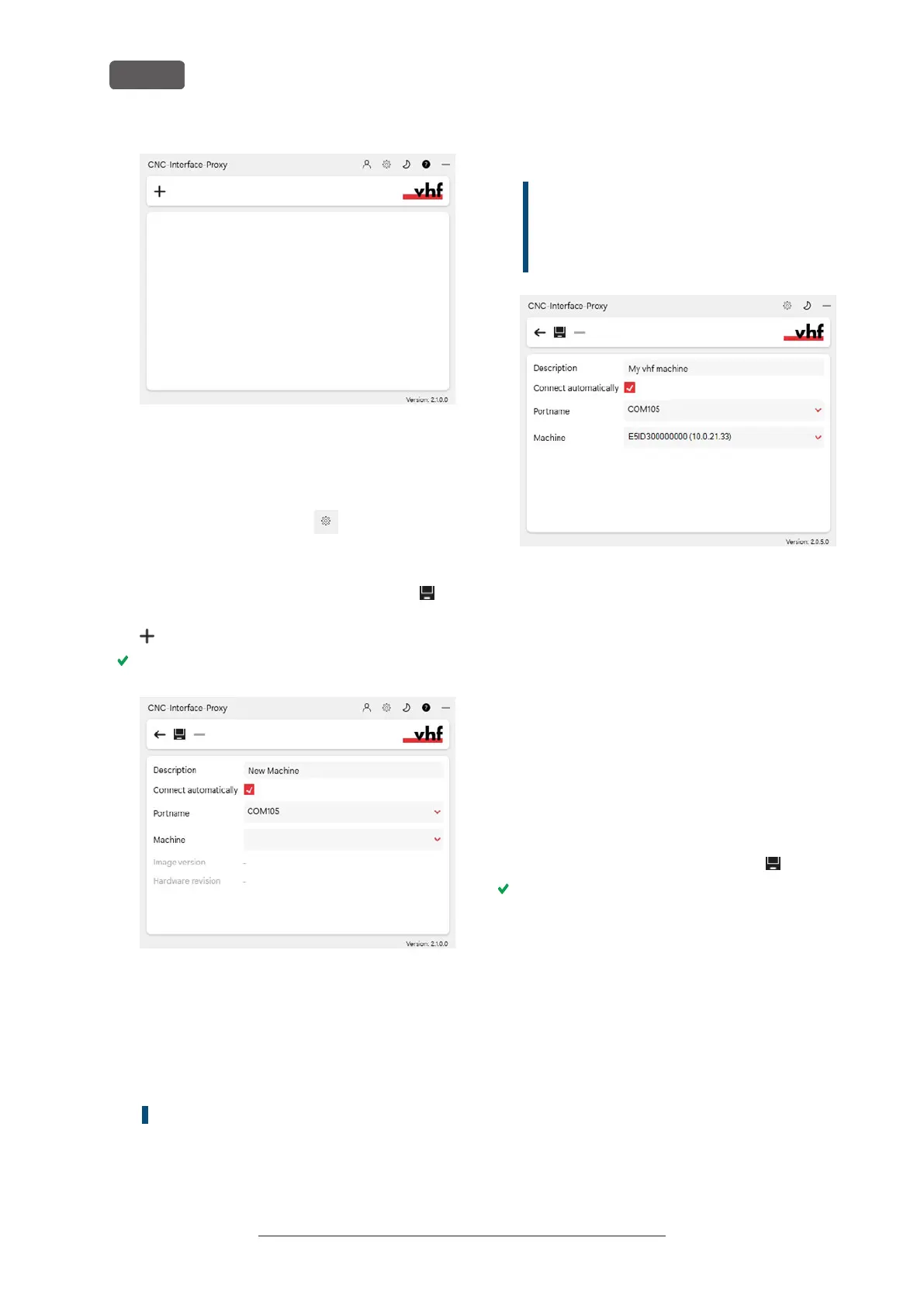
FIG. 23
7. If you want to change the language, do the
following:
a. Select the following icon on the right side of
the window’s title bar:
b. Select the desired entry from the topmost
drop-down list.
c. Save your entry with the following icon:
8. Create a new connection using the following icon:
The connection configuration view appears.
FIG. 24
9. In the Description input field, enter a description
that identifies the connection.
10. Check the Connect automatically option.
11. Select the stored COM port from the Port name
drop-down list.
Example: COM105
12. Select the machine to be connected from the
Machine drop-down list.
The entries are structured as follows:
<machine model>ID<serial number>(<IP address>)
Example:FOX-I E5ID300000000 (10.0.21.33)
n
E5 is the machine model
n
300000000 is the serial number
n
10.0.21.33 is the IP address
FIG. 25 A FULLY CONFIGURED CONNECTION WITH A UNIQUE
DESCRIPTION (SERIAL NUMBER BY WAY OF EXAMPLE)
13. If the machine is not displayed, check the
following:
n
Is the machine on?
n
If you are using a wired connection: Have
you connected all Ethernet cables to the
machine and the CAM computer?
n
If you are using a WiFi connection: Is the
signal sufficient? Recommendation: Try chan-
ging to a wired connection.
n
Is a firewall blocking the connection
between the machine and the CAM
computer?
14. Save your entry with the following icon:
The connection you have set up is shown in the
connection overview. The green dot indicates a
successful connection.
If the connection is lost, the display changes to
red. CNC-Interface-Proxy tries to reconnect regu-
larly.
Original Operating Instructions:E5
Version: 4/27/2023
Installation
EN 22



 To Next Page