6-10 Connecting the USB Database Rev AB
Videojet 8520 Operator Manual
Connecting the USB Database
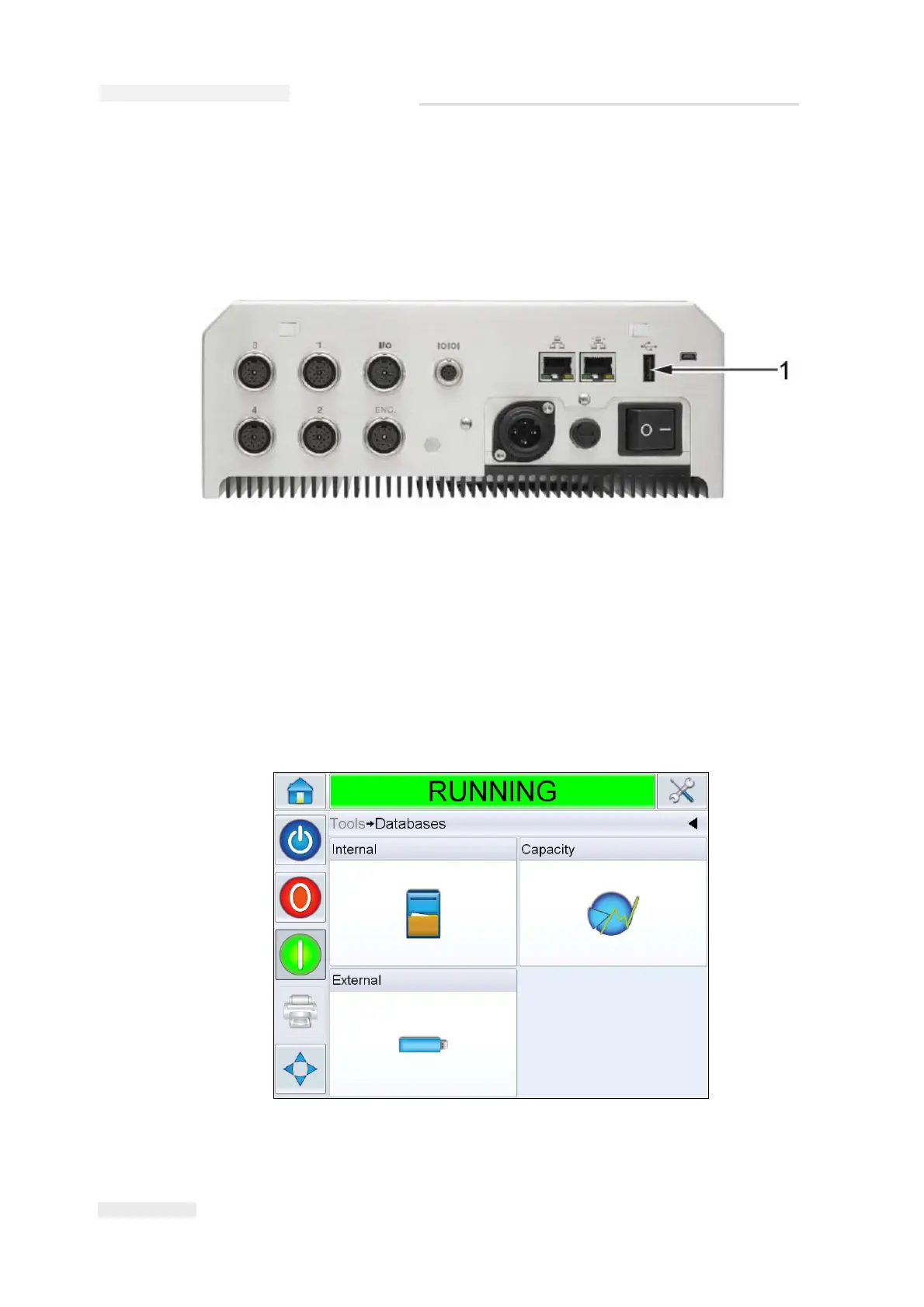
Instead of connecting a PC/laptop to the printer via a null modem cable in
order to download jobs, the USB device can be connected directly into the
USB port on the CLARiTY Operator Interface (Figure 6-12).
To download a job from the USB device, proceed as follows:
1 Use the Print to File option within CLARiSOFT to download the Image
CIFF file into a root directory called \jobs on the USB memory device.
2 Insert the USB memory device into the USB port (Figure 6-12).
3 Navigate to Tools > Databases. The database screen displays the
External Database (Figure 6-13).
Figure 6-12: USB Port
1. USB Port
Figure 6-13: External Database


 To Next Page