6-18 Quick Position Edit Rev AB
Videojet 8520 Operator Manual
6 If there is a second user field, repeat the steps 4 and 5.
7 Touch OK after editing all the required user fields. The job will be
updated in the printer and displayed in the ‘current job details bar’
following the next print.
Note: The changes made to the job using this feature are not saved.
Quick Position Edit
To reposition the individual fields in a printing job, the user can use the
‘Quick Position Edit’ feature.
Note: Quick Position Edit feature is turned off by default and needs to be
activated in Clarity Configuration Manager.
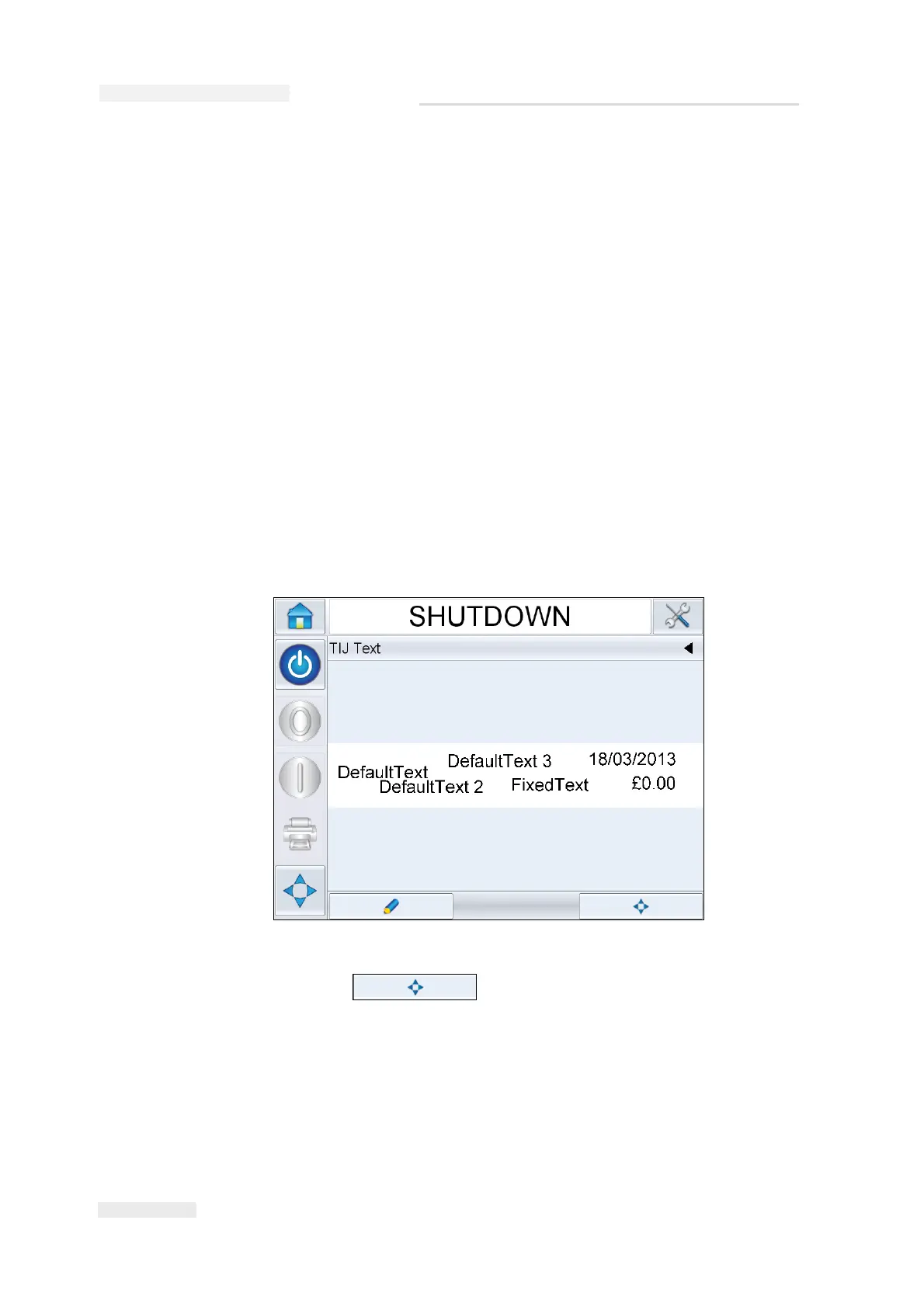
1 Select the ‘Current Job Details Bar’ to display the job preview (see
Figure 6-22).
2 Touch the button.
Figure 6-22: Message preview



 To Next Page